3.7 Pagination
3-55
3.7.3 Page Protect Mode
The Page Protect Menu does not normally appear, however, Page Protect will be
forcibly set to On if a print overrun error occurs due to insufficient printer memory. When
this has happened, be sure to reset Page Protect to Auto (default) in order to maintain
the optimum use of printer memory.
1
11
1
Press the MENU key.
2
22
2
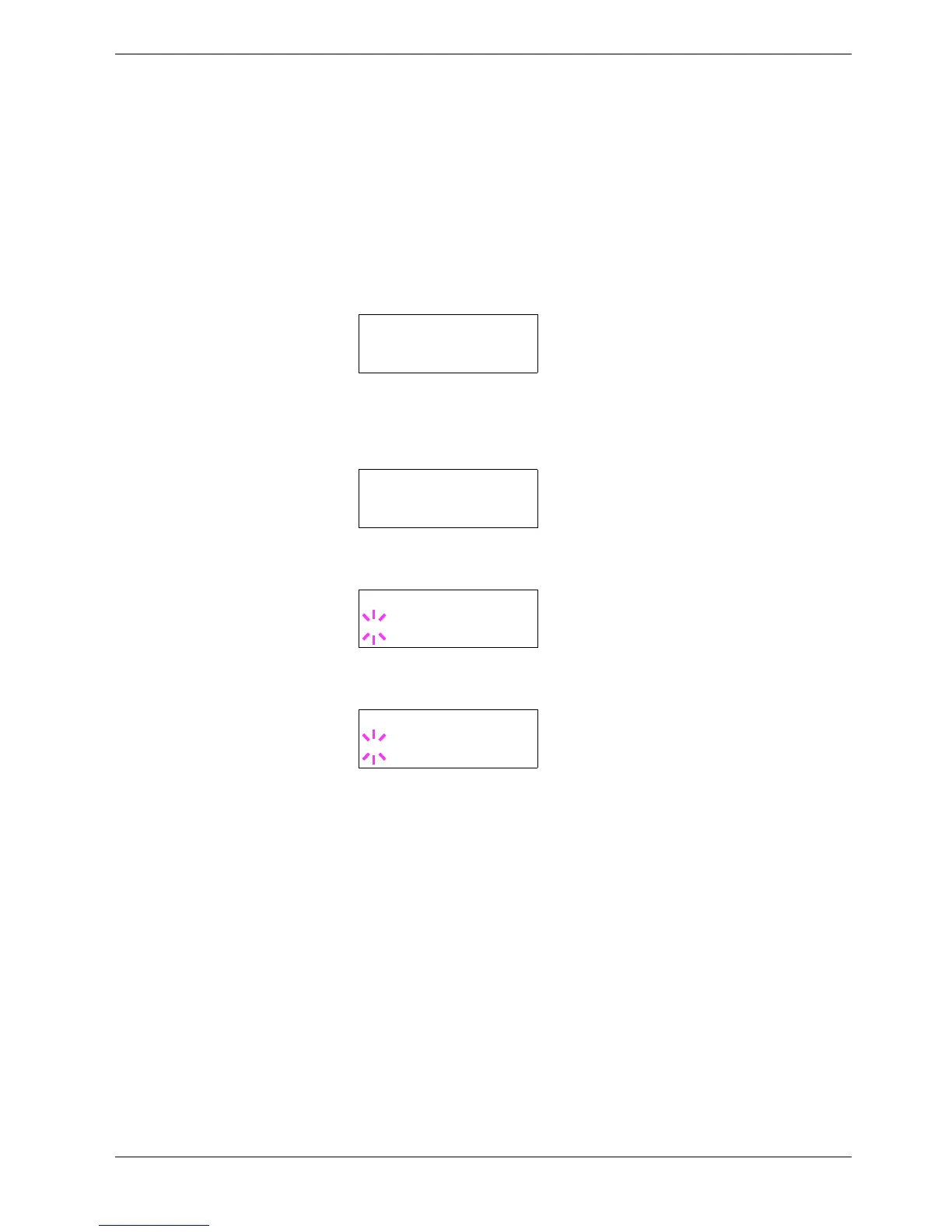
Press the U or V key repeatedly until Page set > appears.
3
33
3
Press the Z key.
4
44
4
Press the U or V key repeatedly until >Page Protect appears.
5
55
5
Press the ENTER key. A blinking question mark (?) appears.
6
66
6
Press the U or V key repeatedly until Auto appears.
7
77
7
Press the ENTER key.
8
88
8
Press the MENU key. The display returns to Ready.
Page set >
>Page Protect
On
>Page Protect
? On
>Page Protect
? Auto


 To Next Page