3.5 Changing the Interface Parameters
3-34
3.5 Changing the Interface Parameters
The printer is equipped with both a parallel and USB interfaces. Option serial interface
board kit and network interface card can also be installed. Various printing environment
parameters such as the default emulation can be changed independently on different
interfaces by using the printer’s menu selection system. Select the interface to apply the
changes in the procedure described below.
Note
This interface selection described below does not select which interface data will be
received from. The printer automatically selects an interface data to be received.
3.5.1 Changing Parallel Interface Mode
The parallel interface supports a bi-directional/high-speed mode according to IEEE
standards. Normally, this interface is used under the default setting Auto. For details, see
Appendix B Computer Interface. After setting the interface, be sure to reset the printer or
turn the power off at least once. The new setting will be enabled thereafter. You can select
from the following:
• Auto (default)
• Nibble/high speed
• High speed
•Normal
1
11
1
Press the MENU key.
2
22
2
Press the U or V key repeatedly until Interface > appears.
3
33
3
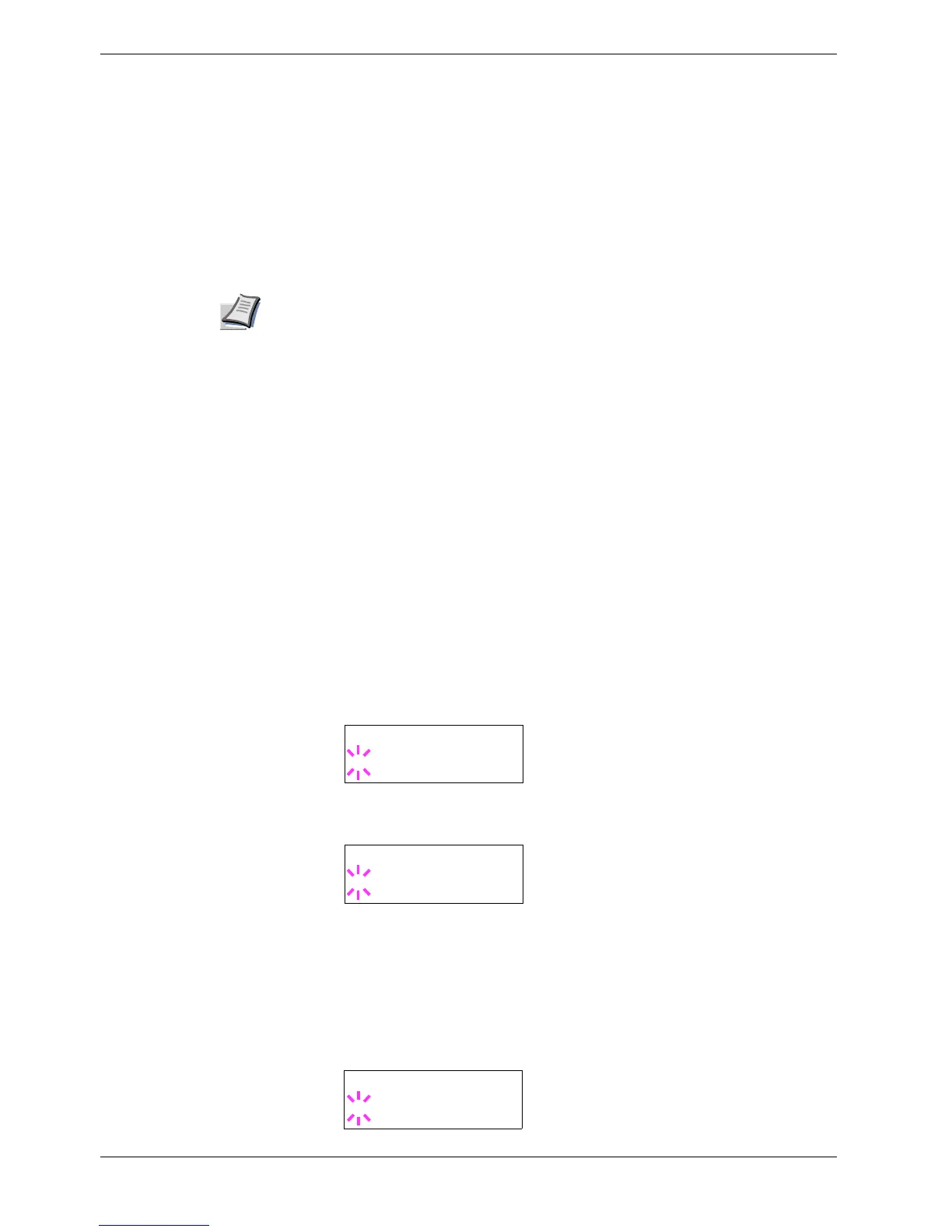
If the interface is other than parallel, press the ENTER key. A blinking question
mark (?) appears.
4
44
4
Press the U or V key repeatedly until Parallel appears.
5
55
5
Press the ENTER key again. The question mark disappears.
6
66
6
To change the parallel interface mode, press the Z key. The current communication
mode appears.
7
77
7
To change the communication mode, press the ENTER key. A blinking question
mark (?) appears.
Interface
? Serial
Interface
? Parallel
>Parallel I/F
? Nibble (high)


 To Next Page