3.13 Other Modes
3-98
3.13.10 Duplex Printing Error Detection Setting
If the error detection setting for duplex printing has been turned On, and you attempt to print
onto a paper size and paper type that cannot be used for duplex printing, the Duplex
disabled Press GO error message will be displayed and printing will stop. To print
onto one-side of the paper only when this message is displayed, press the GO key. The
default setting is Off.
1
11
1
Press the MENU key.
2
22
2
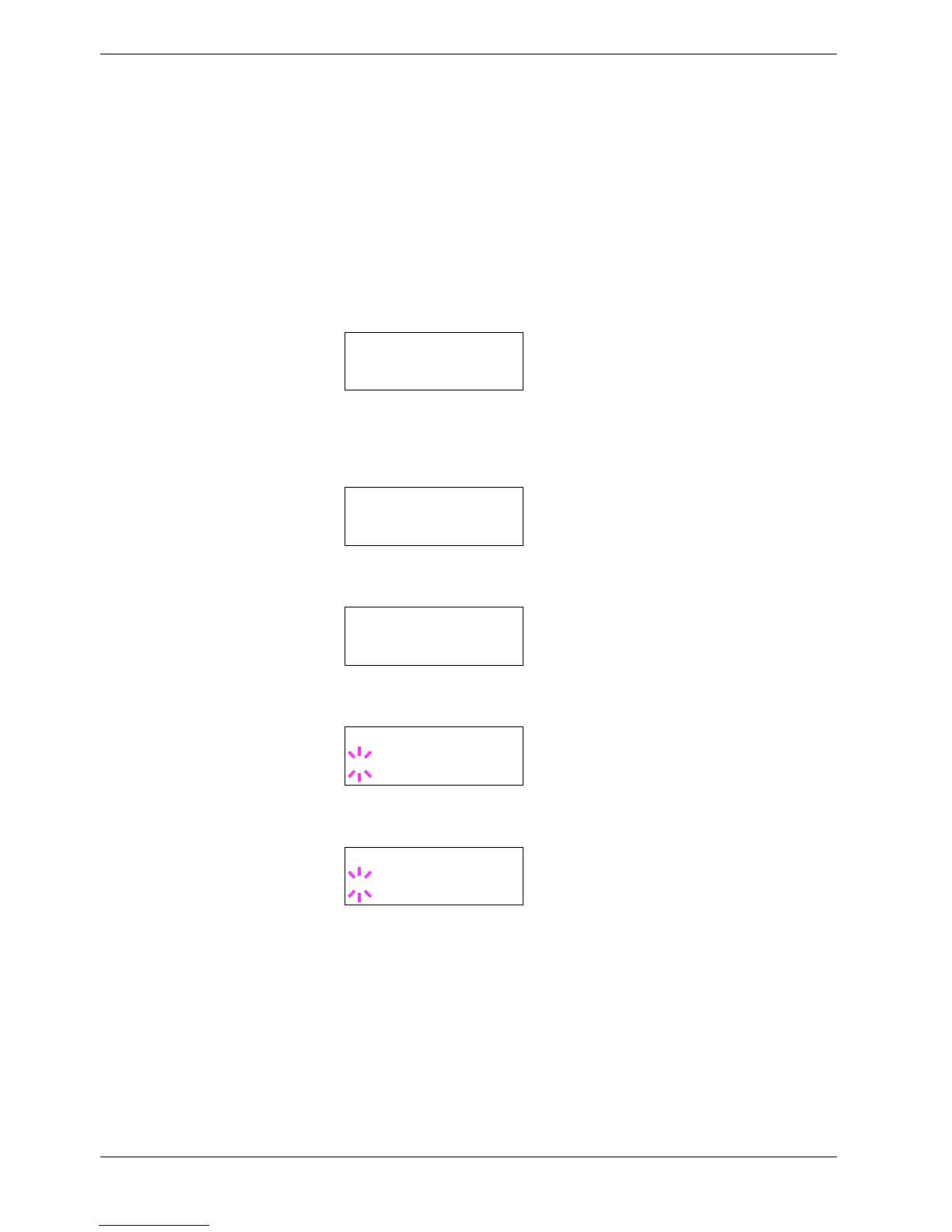
Press the U or V key repeatedly until Others > appears.
3
33
3
Press the Z key.
4
44
4
Press the U or V key repeatedly until >Finishing Error > appears.
5
55
5
Press the Z key and display >>Duplex.
6
66
6
Press the ENTER key. A blinking question mark (?) appears.
7
77
7
Press the U or V key to change Off to On.
8
88
8
Press the ENTER key.
9
99
9
To exit the menu selection, press the MENU key.
Others >
>Finishing >
Error
>>Duplex
Off
>>Duplex
? Off
>>Duplex
? On


 To Next Page