3.4 e-MPS
3-30
3.4.5 Changing e-MPS Configuration
You can change the following parameters for e-MPS operation:
• Maximum number of Quick Copy/Proof-and-Hold jobs
• Maximum space assigned to temporary code jobs
• Maximum space assigned to permanent code jobs
• Maximum space assigned to virtual mailboxes
Note
The total amount of storage areas specified must not exceed the total size of the hard
disk. Otherwise, you may only be able to accommodate print jobs of a smaller amount
of print jobs than specified.
Changing the Maximum Number of Quick Copy/Proof-and-Hold Jobs
This changes maximum number of Quick Copy/Proof-and-Hold jobs from 0 to 50. The
default is 32.
1
11
1
Press the MENU key.
2
22
2
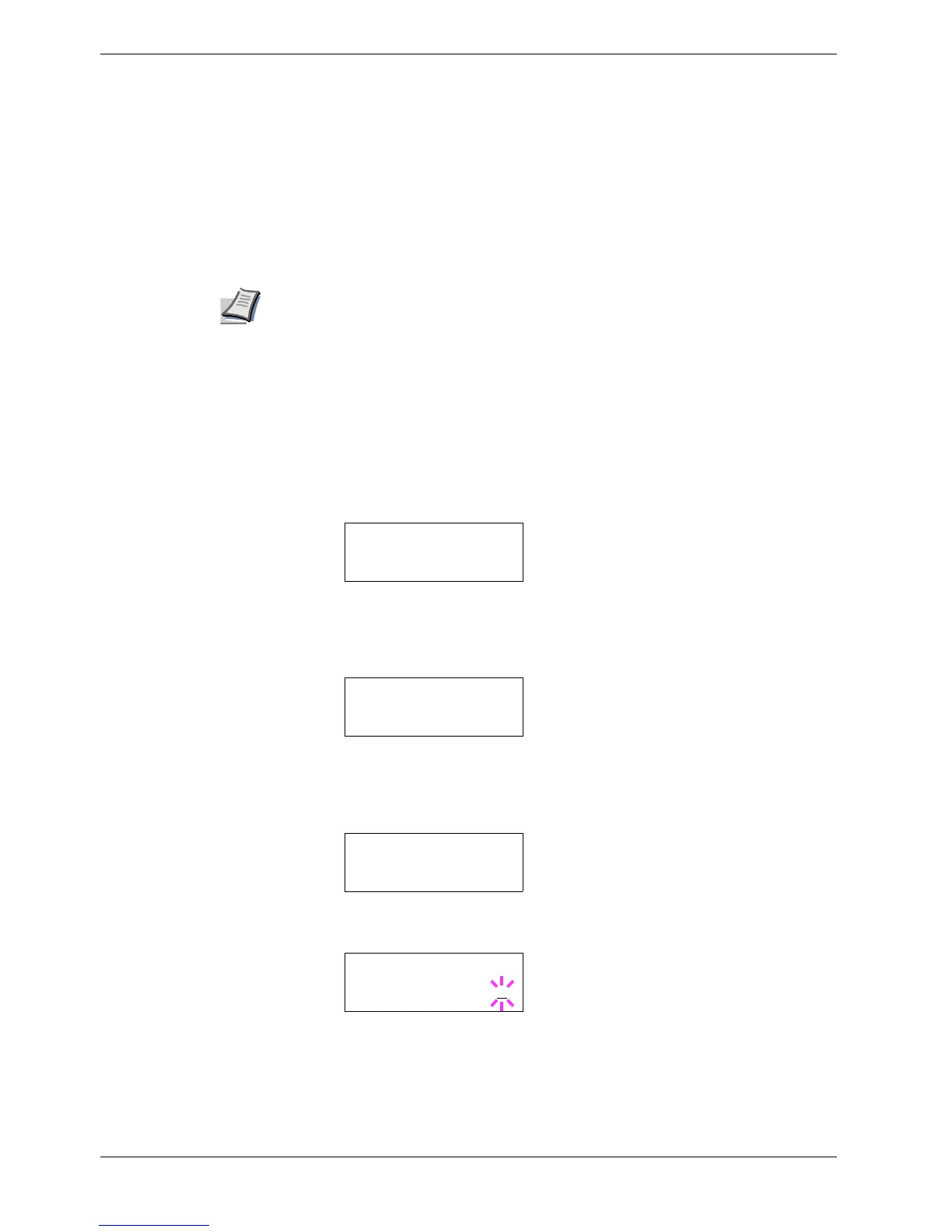
Press the U or V key repeatedly until e-MPS > appears.
3
33
3
Press the Z key.
4
44
4
Press the U or V key repeatedly until >e-MPS Configuration > appears.
5
55
5
Press the Z key.
6
66
6
Press the U or V key repeatedly until >>Quick Copy appears.
7
77
7
Press the ENTER key. A blinking cursor (_) appears.
8
88
8
Press the U or V key to increase or decrease the value at the blinking cursor. The
value can be set between 0 and 50. Use the Z and Y keys to move the cursor right
and left.
9
99
9
When the desired maximum number of jobs is set, press the ENTER key.
e-MPS >
>e-MPS >
Configuration
>>Quick Copy
32
>>Quick Copy
32


 To Next Page