3.5 Changing the Interface Parameters
3-39
3.5.4 Resolving IP Address
To connect the printer to the network using TCP/IP protocol, you must set the IP address on
the printer. The IP address must be unique to the printer and should be obtained from your
network administrator.
1
11
1
Activate TCP/IP protocol in the manner described above.
2
22
2
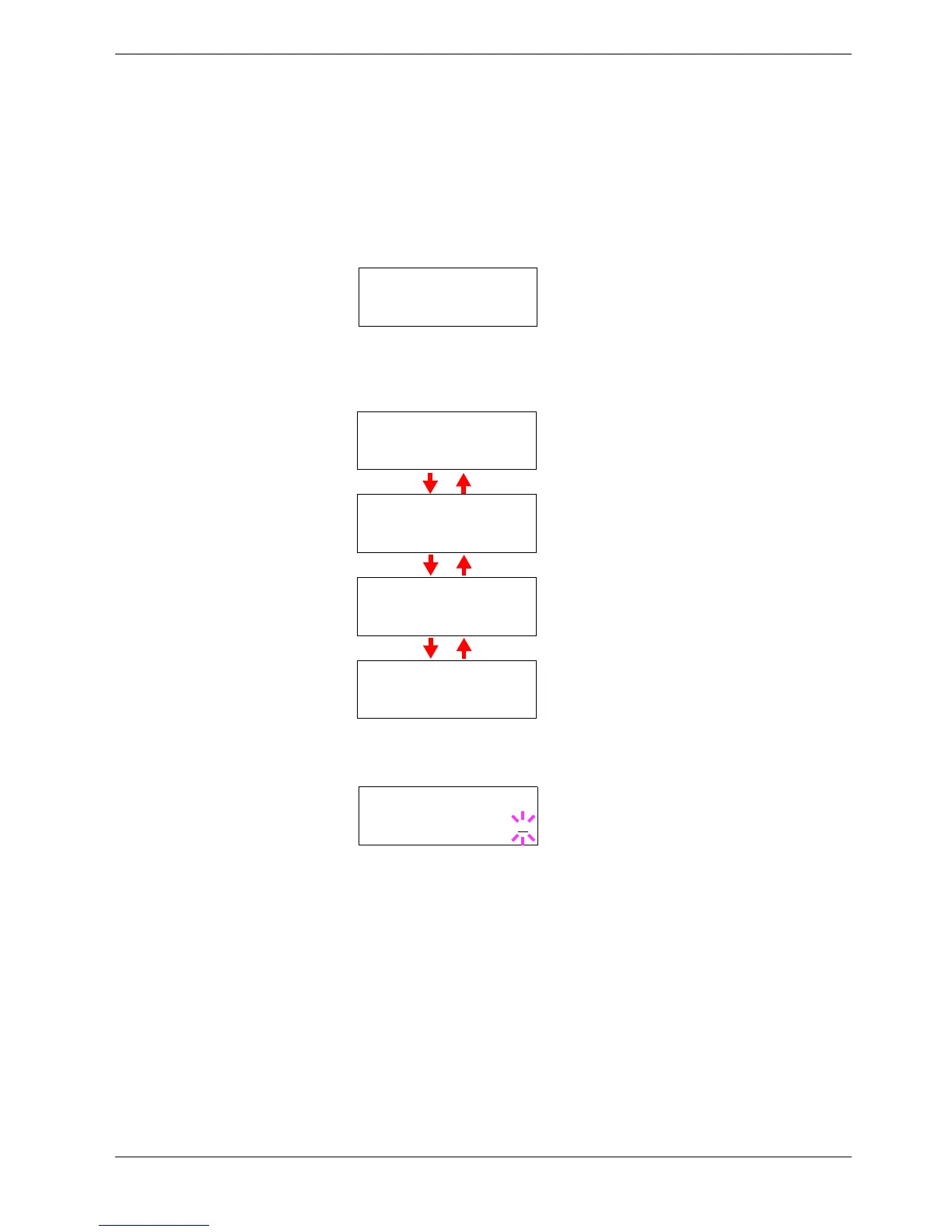
Enter the submenu by pressing the Z key. Each time you press the U or V key, the
selection changes as shown below.
3
33
3
When >>IP Address is displayed, press the ENTER key. A blinking cursor (_)
appears at the last digit.
4
44
4
Press the U or V key to increase or decrease, respectively, the value at the blinking
cursor. Use the Z and Y keys to move the cursor right and left.
5
55
5
When the IP address is entered, press the ENTER key.
6
66
6
Press the U or V key to move to Subnet Mask. Perform the same procedure to
complete entering the subnet mask address.
7
77
7
Then, press the U or V key to move to Gateway. Perform the same procedure to
complete entering the subnet mask address.
8
88
8
Press the MENU key. The display returns to Ready. You can print a network status
page to confirm that the IP address, subnet mask address, and the gateway address
have been properly set. To print a network status page, see Printing a Network
Interface Status Page which follows.
>TCP/IP >
On
>>DHCP
Off
>>IP Address
000.000.000.000
>>Subnet Mask
000.000.000.000
>>Gateway
000.000.000.000
>>IP Address
000.000.000.000


 To Next Page