3.5 Changing the Interface Parameters
3-38
6
66
6
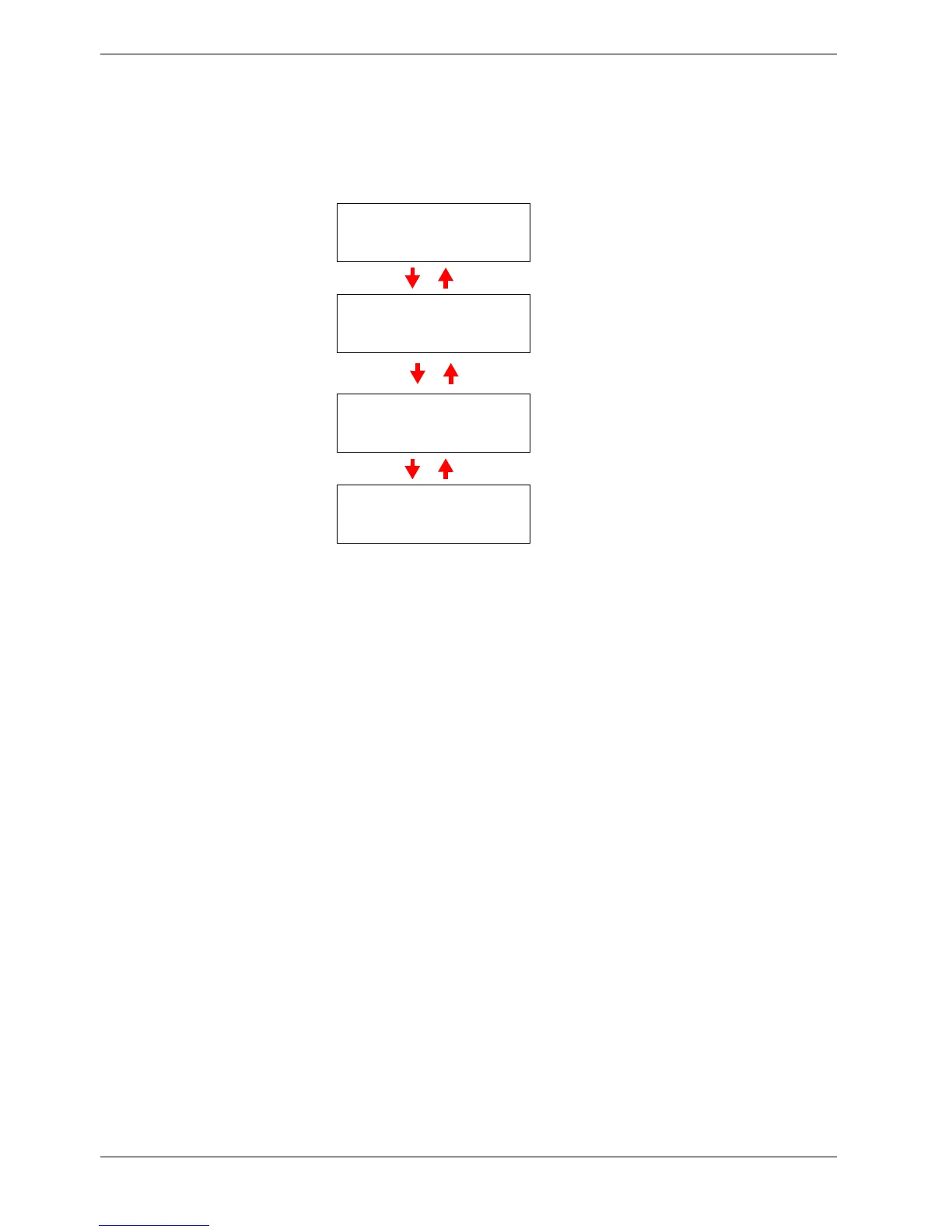
Press the Z key. One of the following menus is indicated. To change settings for the
item, press the ENTER key. Use the U or V key to change the value or selection.
7
77
7
Activate the appropriate protocol that is required to connect the printer to the
network. To activate a protocol, let the protocol displayed, press the ENTER key,
press the U or V key to change from Off to On, and press the ENTER key.
8
88
8
Press the MENU key. The display returns to Ready. You can print a network status
page to confirm that the IP address, subnet mask address, and the gateway address
have been properly set. To print a network status page, see
Printing a Network
Interface Status Page on page 3-40 which follows.
Range
>NetWare >
On
Set this item to
On
when you connect to a network
using NetWare. In submenu (>), frame mode can be
selected from Auto, 802.3, Ethernet II,
802.2, and 802.3SNAP.
>TCP/IP >
On
Set this item to On when you connect to a network
using TCP/IP. Submenu (>) has items including
DHCP, IP address, subnet mask address, and gate-
way address. To resolve IP address for the network
card, see 3.5.4 Resolving IP Address below.
>EtherTalk
Off
EtherTalk must be activated (On) for networking
with Macintosh computers.
>Network Status
Page Off
When the item is set to On, the printer prints out a net-
work status page when it prints the printer status. See
Printing a Network Interface Status Page on page
3-40.


 To Next Page