3.8 Setting Print Quality
3-59
3.8.2 Gloss Mode
The gloss mode, when set to High, increases the effect of glossiness in printing by reducing
the printing speed by half. The gloss mode is not available when Transparency is
selected as the paper type setting.
Note
Depending on the paper used, printing in gloss mode may cause wrinkle in paper. To
reduce wrinkle, try using thicker paper.
The default gloss mode is Low. To confirm or change the gloss mode, proceed as follows:
1
11
1
Press the MENU key.
2
22
2
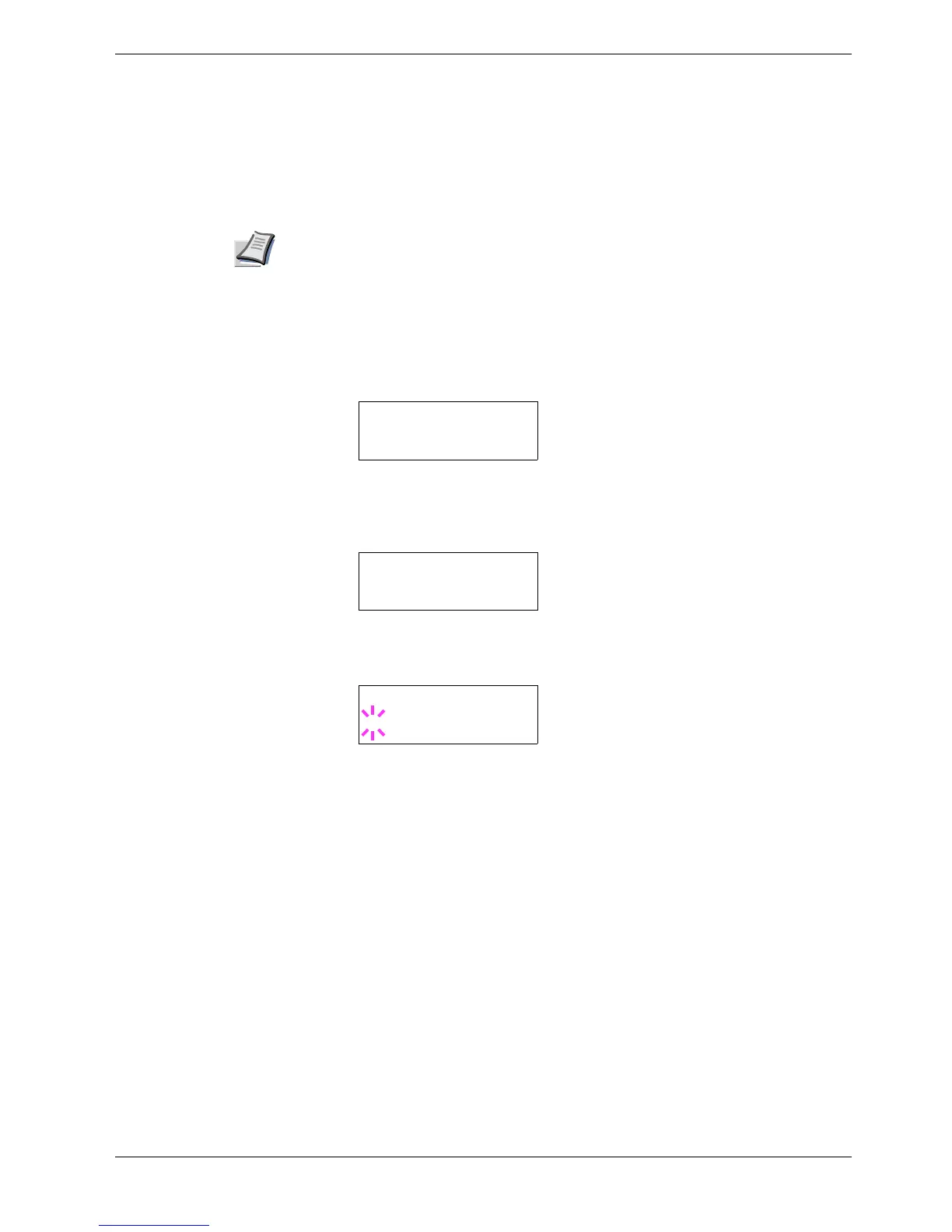
Press the U or V key repeatedly until Print Quality > appears.
3
33
3
Press the Z key.
4
44
4
Press the U or V key repeatedly until >Gloss Mode appears.
5
55
5
To change the gloss mode, press the ENTER key. A blinking question mark (?)
appears.
6
66
6
Press the U or V key to change from Low to High.
7
77
7
Press the ENTER key to finalize the selection.
8
88
8
Press the MENU key. The display returns to Ready.
Print Quality >
>Gloss Mode
Low
>Gloss Mode
? Low


 To Next Page