5.1 Toner Container Replacement
5-4
5.1.3 Replacing the Toner Container
This section explains how to replace the toner containers.
Note
• During toner container replacement, temporarily put storage media and
computer supplies (such as floppy disks) away from around the toner
container. This is to avoid damaging media by the magnetism of toner.
• You do not have to turn printer power off before starting the replacement.
Any data that may be under printing process in the printer will be deleted
if you turn printer power off.
To replace the toner container, first make sure of the color of the toner container requiring
replacement. In this example, it is assumed that you are replacing the black toner container.
1
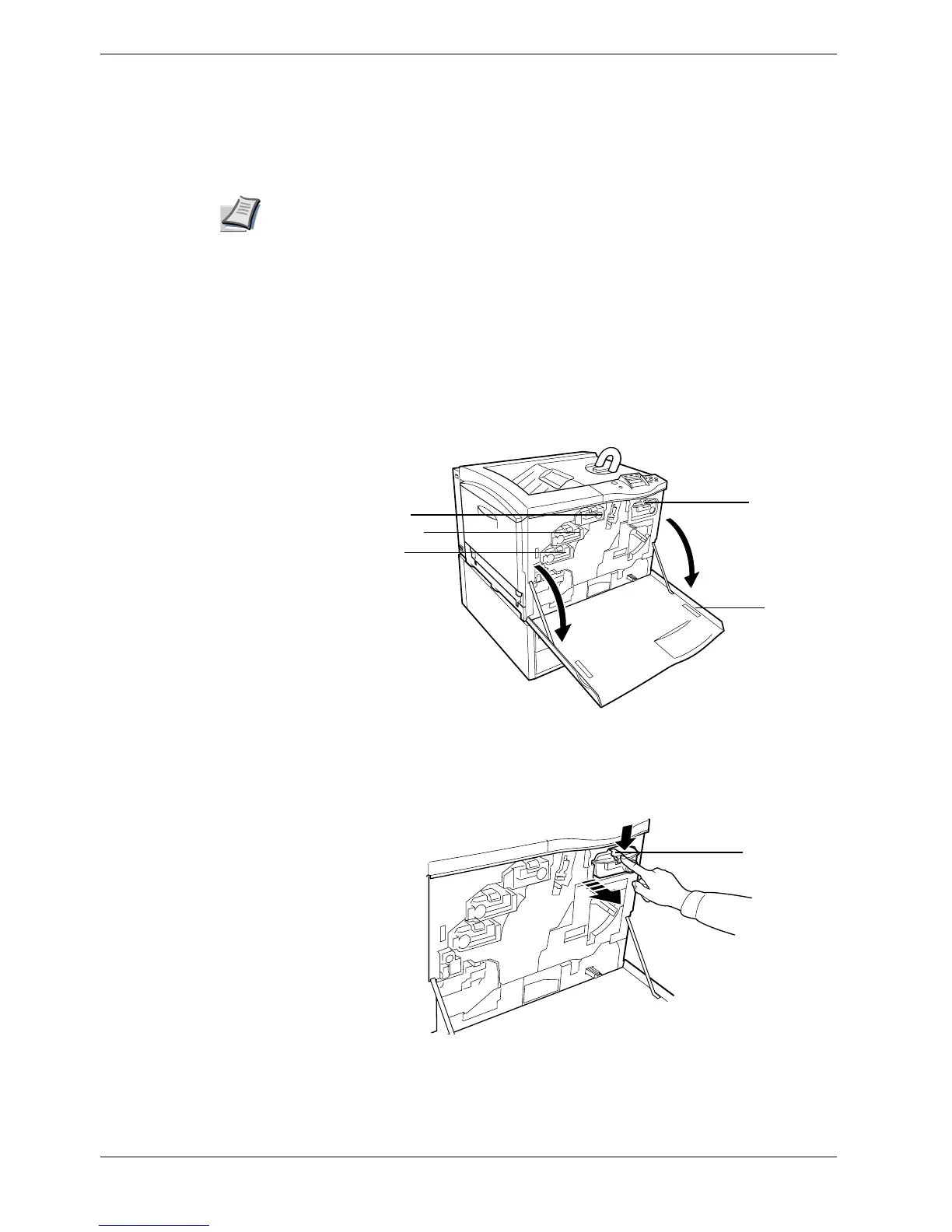
Open the front cover.
Figure 5-1
2
While lowering the lever (blue-colored) at the end of the toner container to unlock
the container, pull the black toner container out.
Figure 5-2
Front Cover
Black (K)
Magenta (M)
Cyan (C)
Yellow (Y)
Lever


 To Next Page