3.11 Selecting Monochrome or Color Printing
3-85
3.11 Selecting Monochrome or Color Printing
You can use the Color Mode menu on the operator panel to select the Monochrome or Color
printing mode. By default, the printer is set to print in color mode. To change it to
monochrome mode, proceed as follows:
1
11
1
Press the MENU key.
2
22
2
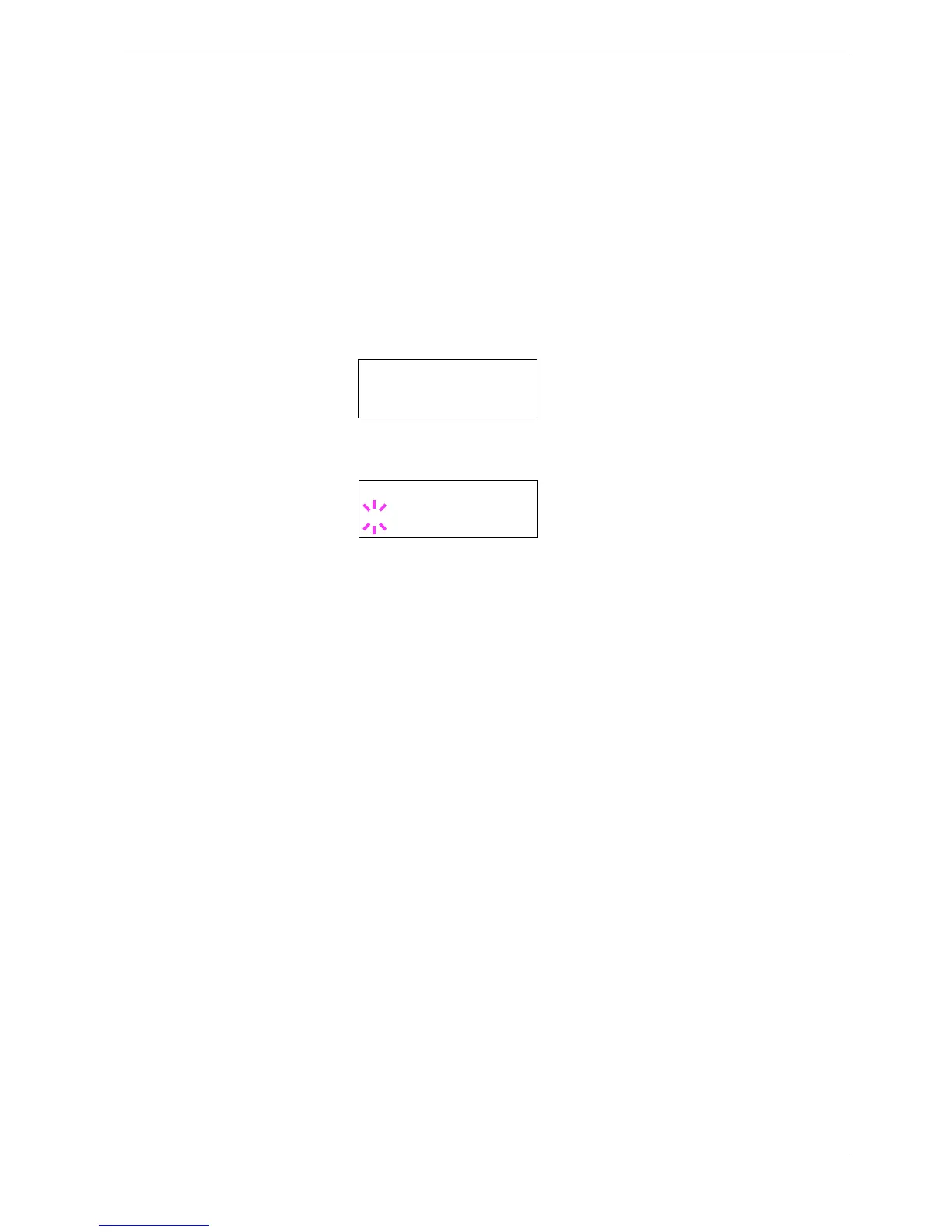
Press the U or V key repeatedly until Color Mode appears.
3
33
3
To change color mode, press the ENTER key. A blinking question mark (?) appears.
4
44
4
Press the U or V key to change color mode — Color or Monochrome.
5
55
5
When the desired color mode is displayed, press the ENTER key. Color mode is
changed.
6
66
6
To exit the menu selection, press the MENU key.
Color Mode
Color
Color Mode
? Color


 To Next Page