3.10 Paper Handling
3-81
4
44
4
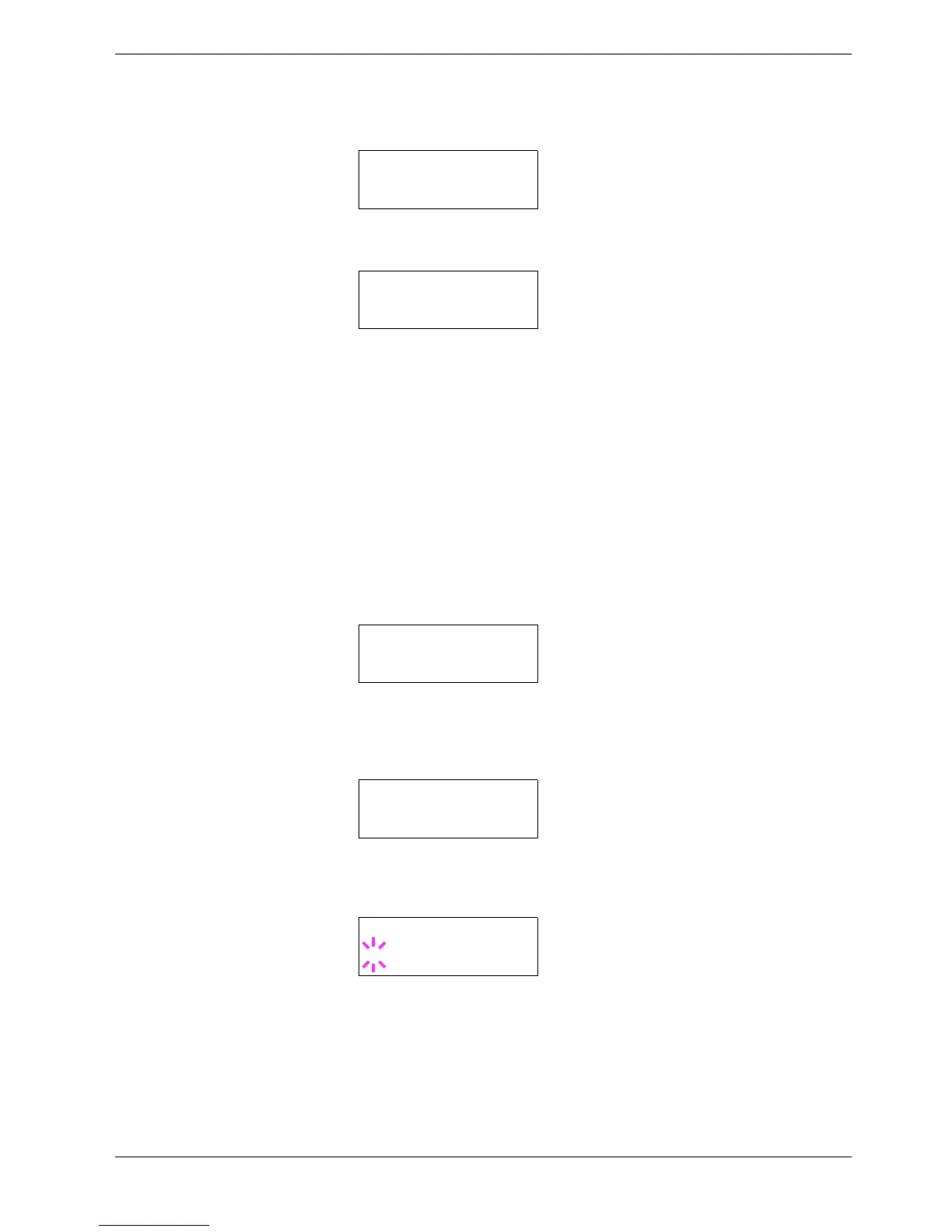
Press the U or V key repeatedly until >Reset Type Adjust appears.
5
55
5
To reset all custom paper types, press the ENTER key. A question mark (?) appears.
6
66
6
Press the ENTER key. All customized paper types, including weight and duplex
printing capability, will be reset to the default. The display returns to Ready.
3.10.10 Selecting the Output Stack
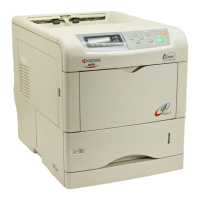
The Stack Select menu on the operator panel allows you to select either the face-down tray
or the face-up tray for the output stack. If an optional output device such as the sorter,
document finisher, or bulk stacker, is installed, it can also be selected as an output stack.
1
11
1
Press the MENU key.
2
22
2
Press the U or V key repeatedly until Paper Handling > appears.
3
33
3
Press the Z key.
4
44
4
Press the U or V key repeatedly until >Stack Select appears.
5
55
5
To change the output stack, press the ENTER key. A blinking question mark (?)
appears.
6
66
6
Press the U or V key to toggle through the following output stacks:
Face-down tray
Face-up tray
>Reset Type
Adjust
>Reset Type
Adjust ?
Paper Handling >
>Stack Select
Face-down tray
>Stack Select
? Face-down tray


 To Next Page