LACO ORIGINAL OPERATING INSTRUCTIONS TITANTEST™
27
© 2018 LACO TECHNOLOGIES, INC. - [TitanTest itna01en1-07 BA.fm] - 1807
6.2.6 Setup window display
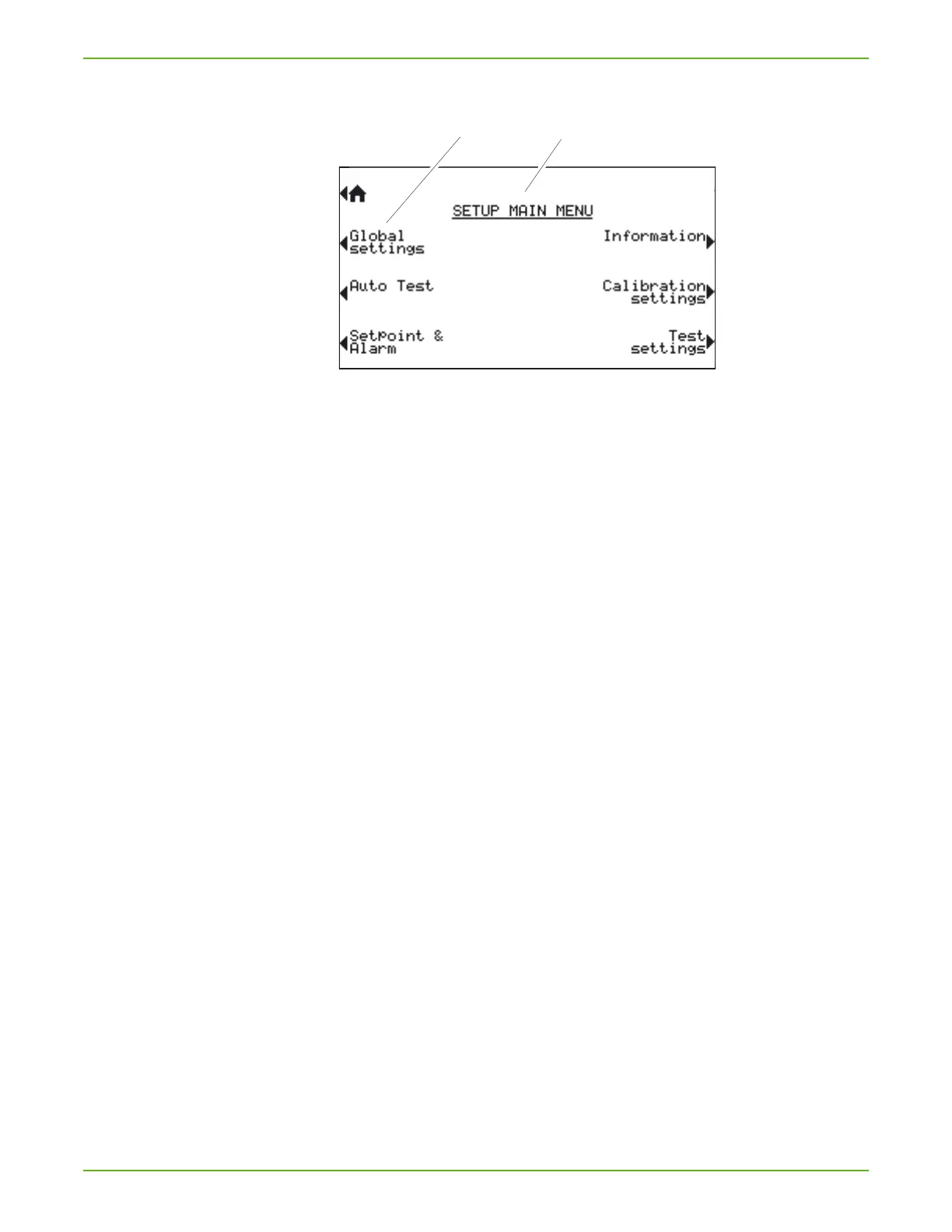
Fig. 10: Structure of the configuration menu
a Menu name
b Window name
Menu name a
Depending on the window, different functions are offered next to the
buttons at the left and right edges.
You can select the menus respectively the functions by pressing the adja-
cent button.
You can switch between the windows, select settings areas or change set-
tings when selected.
For more information on the meaning of the buttons, see see Chapter 6.2.3:
"Recurring function symbols", page 24.
Window name
b
The window name is in upper-case letters and underlined in the top center
of the display. If there is a menu previous to the window currently displayed,
its name is listed here as a button function.
Working in the windows
You can switch between the windows using the buttons on the left and
right side of the display.
If a value is selected in the windows for editing values, you can change the
selected editing position if necessary using the button on the left side.
Should there be multiple values in the line, press the button on the left
side again.
You can change selected values at the editing position using the "+" or
"-" buttons. If you press and hold the "+" or "-" buttons, the values will
change continuously in ascending or descending order.
Save the changed values to make them effective. To do this, press the but-
ton next to "Save".
Changed values that are not saved will not be effective.
Press [Return] to go back to the last menu.
Press [Home] to jump to the "Standby" window.


 To Next Page