40
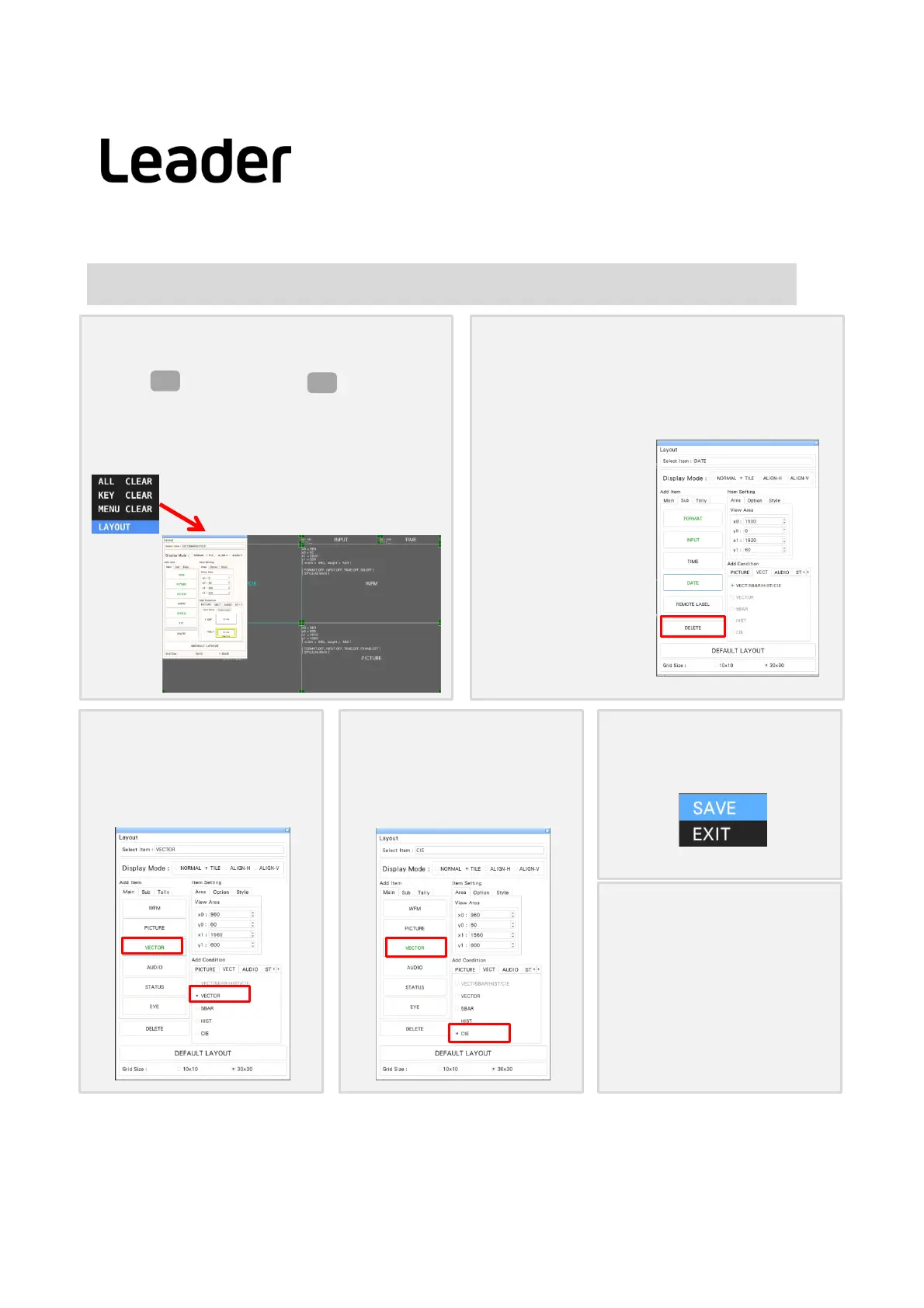
Changelayout(process) -example1- (LV5300/5350/7300‐SER26,‐SER22)
① Showthelayoutscreen
a. Press > ChooseUSER1 (LAYOUTSELECT)
(TherearesixmultidisplaysfromUSER1~USER6)
B.Rightclickonthemeasurementscreentodisplay
thewindow,selectLAYOUTanddisplaythelayout
screen.
MULTI
F・1
② Deleteallitems
a.ClicktheDELETEitematthebottomleftofthe
screen.Theitemdisplayedwilldisappeareachtime
youclickit.Clickafewtimestodeletealldisplayed
items.
③ AddVECT
a.AddCondition > VECTtab > chooseVECT
b. AddItem > Maintab> clickVECT item
c.MoveVECTitemtopicture >changesize
④ AddCIEchart
a.AddCondition > VECT tab> chooseCIE
b. AddItem > Main tab > clickVECTitem
c.MoveCIEitemtopicture> changesize
⑤ Finish
a. Right‐clickonthelayoutscreen
> SAVE
ChooseLAYOUT
PS: ColorTrianglesetting
a.PressVECT
b.Press「F1」VECTINTEN/CONFIG
c. "F1"VECTORDISPLAYtoCIEDIAGTRAMto
setup
d. Press「F7」upmenu,thenpress「F2」CIE
DIAGTRAMSCALE
e. 「F2」TRIANGLE1・「F3」TRIANGLE2 to
OFF/ON
LV5300/LV5350/LV7300QuickManual


 To Next Page