84
RC300RC300hNavi(EE)
3-2. Destination search
buttons are displayed.
POIs can be searched using web
search.
• For detailed setting about online search:
P.226
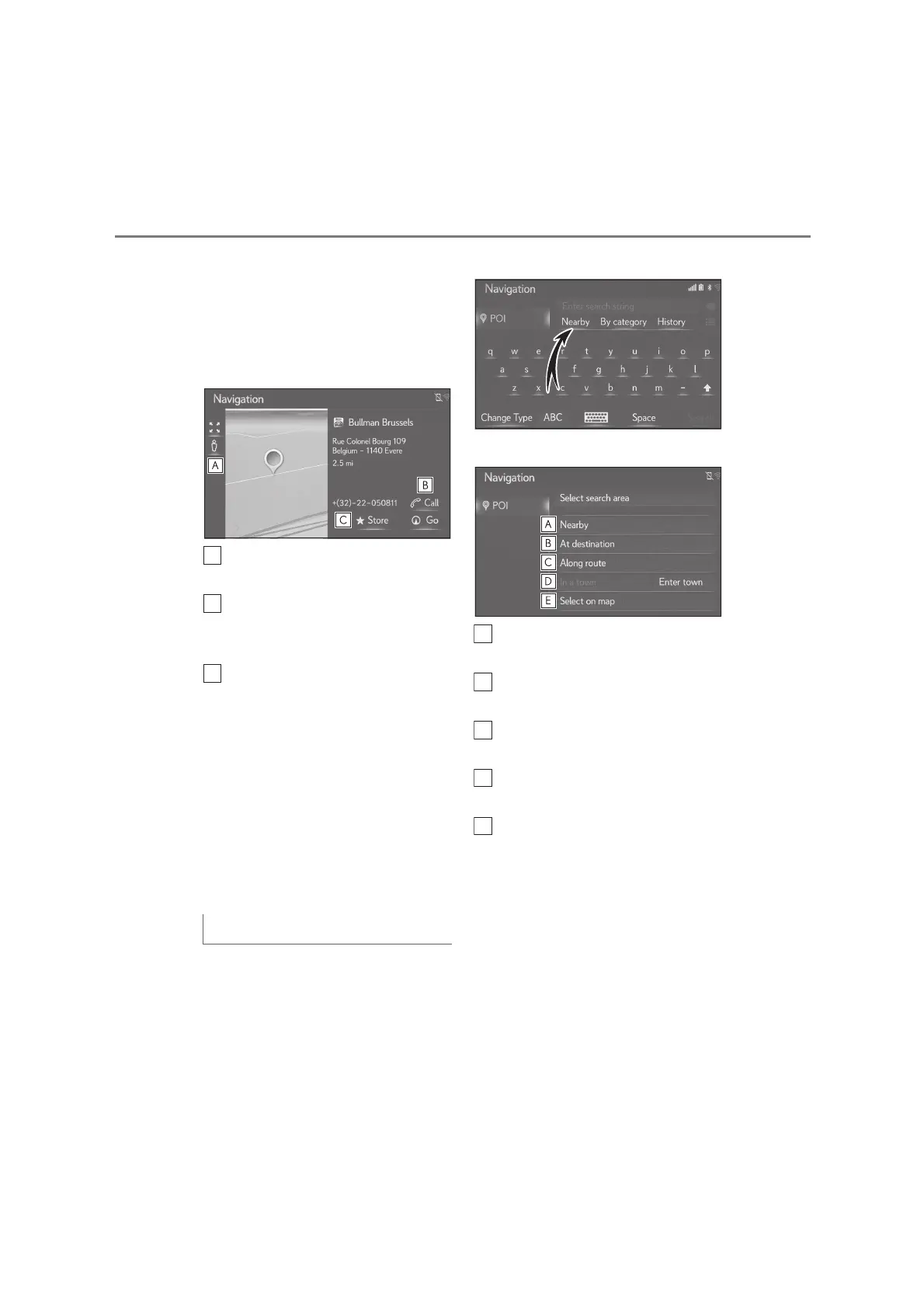
6 Select “Go”.
Select to display the Street View.
(P.222)
Select to call the phone number.
• If no Bluetooth
®
phone is available, this
button is greyed out.
Select to register the entry in the
favourites list. (P.99)
• If a destination has already been set,
“Replace”, “Add” and “Cancel” will be
displayed.
“Replace”: Select to delete the existing
destination(s) and set a new one.
“Add”: Select to add a destination to the
current route.
“Cancel”: Select to return to the current
destination.
1 Select “Nearby”, “At destination”,
“Along route”, “In a town” or “Select
on map” on the POI screen.
The text on this button is always
showing the current search criteria.
2 Select the desired search method.
Select to set the search around the
current position.
Select to set the search around the
destination.
Select to set the search around the
current route.
Select to set the search around the
desired town.
Select to set the point from the
map.
3 If map screen is available, select the
desired point on the map.
4 Enter the POI name and select
“Search” or the list button.
5 Check that the search results are
displayed. Select the desired POI.
6 Select “Go”.
Setting the search area





 To Next Page