4D-Nucleofector
®
Manual
|
15
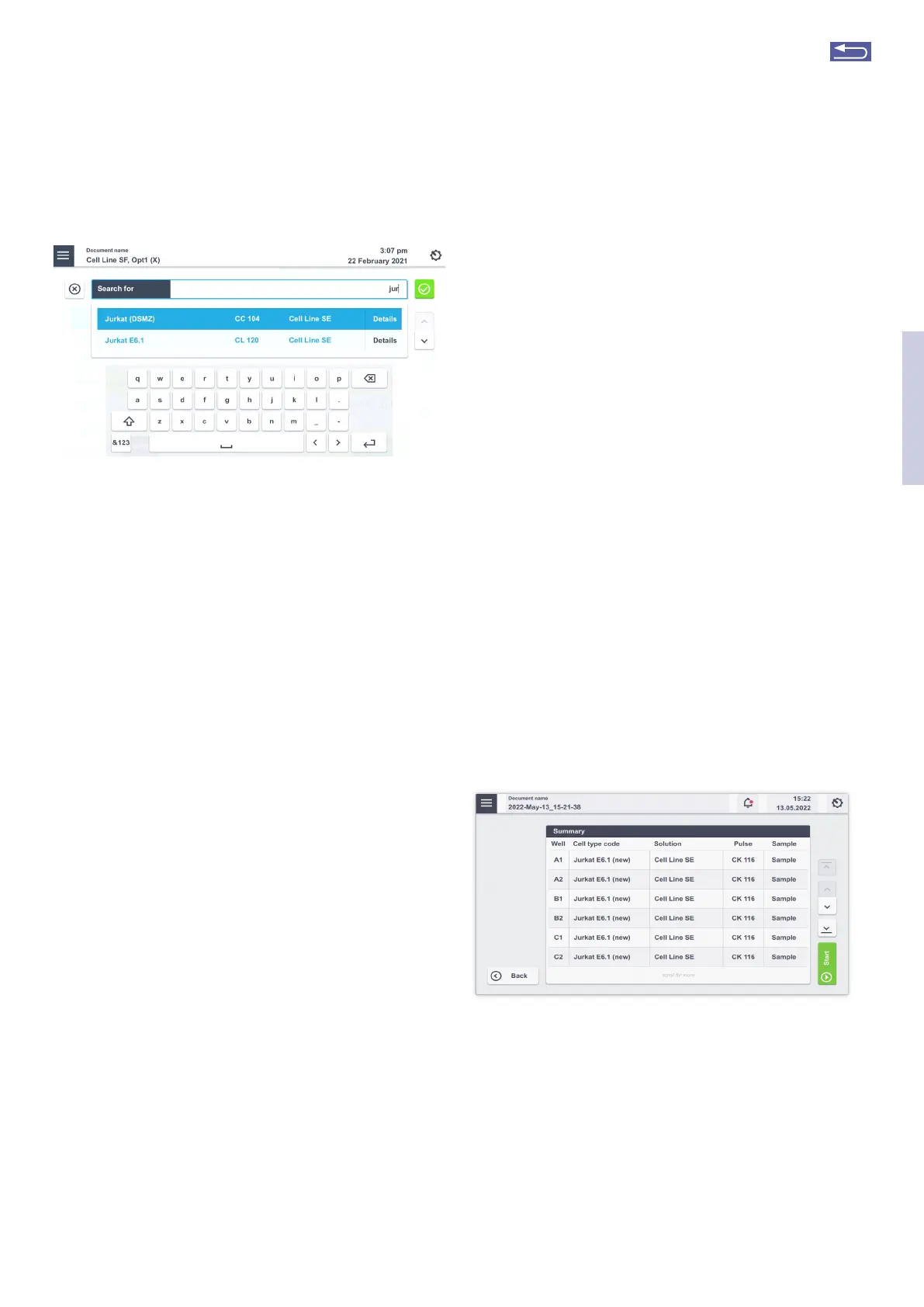
Figure 2.15: (A) Experiment setup screen for 16-well strip in a
4D-Nucleofector
®
X Unit, Tapping on “Cell type code” will open a
searchable screen for picking predefined Cell type codes. (B) Scroll the
screen, or use the arrows to navigate. (C) Use the search field and stat
typing if you know the name of the Cell type code.
Depending on the vessel type you selected, a screen with
either “Setup X Unit cuvette” or “Setup X Unit 16-well strip”
(Figure 2.15, A) will appear.
1. Select well(s) to define Nucleofection
®
Conditions.
By tapping on a well position one sample/well is selected
marked by a blue circle around the well position. Multiple
samples/wells can be selected by dragging across the
wells.
Tapping on additional wells will add more wells to the pre-
selected wells.
Remove a well from your selection by tapping on the
selected well again. Dragging across all selected wells will
deselect them. Dragging across selected and deselected
wells again will toggle your selection. Alternatively, use
“Deselect” to remove all selections.
2. Choose your sample type
Choose “Sample” for substrate-containing samples that
will be pulsed
Select “No DNA” for samples that do not contain any
substrate (pulse control)
Select “No Prog” for samples with substrate not being
subjected to an electrical pulse (no-pulse control)
3. Enter Cell type code (optional)
Press the field “Cell type code” to choose predefined
Nucleofection
®
Conditions from a Cell type list (Figure
2.15, B). A list with all available Cell type codes (defined by
Lonza or custom) will appear. Select the code that shall
be used by scrolling through the menu or stat typing in
the search field (Figure 2.15, C).
C
To confirm your selection press “Apply”. If you pick a
preset Cell type code the next two steps do not apply.
NOTE: Instead of defining solution and Pulse code via the
Cell type code, both parameters can also be specified
independently of each other, e.g. if no predefined Cell type
code is available. For adding new Cell type codes, please
refer to chapter 2.13.2.3.
4. Enter Pulse code
Modify the pulse code if necessary by pressing the
pulse code field. A keyboard will appear, enabling you to
change settings. Press the “Apply” field to confirm the
selection. To confirm your choice, click “Apply”.
5. The Solution code can be modified by selecting the
“Solution” field and clicking on the desired solution. Then
press “Apply” to confirm the selection
6. Optional: At this stage, you can save your defined experi-
ment or only the pulse-solution code combination (as a
custom Cell type code) by pressing the “Save” button.
Select whether the Cell type code or the experiment
shall be saved. A keyboard will appear, allowing you to
define a name (max. length: 26 characters) for either the
Cell type code or the experiment.
Confirm and save the experiment parameters by press-
ing “Next” (saves the experiment and opens the drawer)
or “Save” (saves the experiment for later use).
Figure 2.16: Summary screen after experiment definition.
A summary of the defined settings will be displayed (Figure
2.16). Before loading samples and pressing “Stat” (see chap-
ter 2.9.3), please double-check for accuracy.
2
Return to TOC


 To Next Page