4D-Nucleofector
®
Manual
|
35
2.14.3 Viewing and printing result files
To gener ate a printable result repot with the PC Editor the
following steps are required:
a) Expot from 4D-Nucleofector
®
System
• Plug in a USB stick
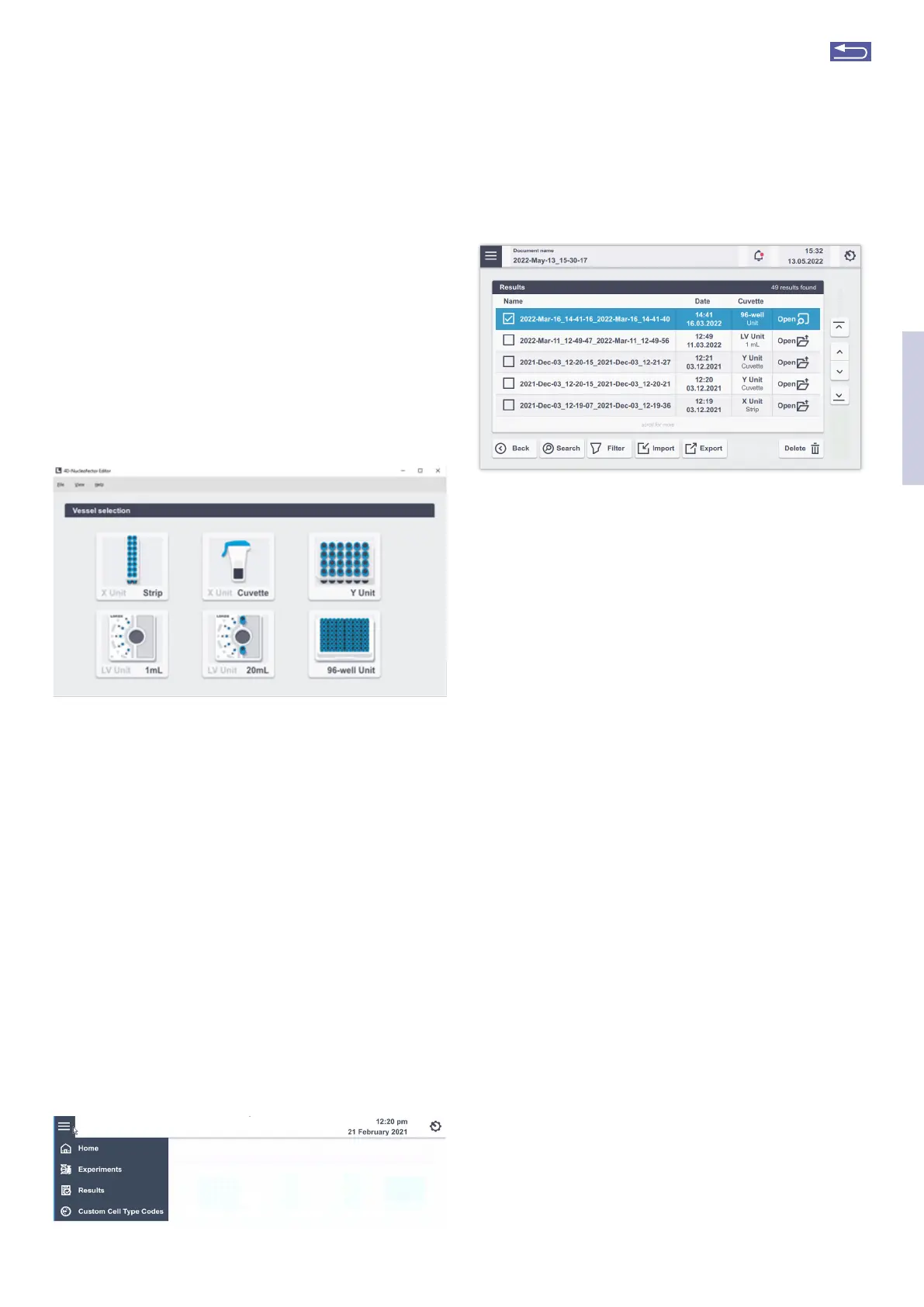
• Open the left menu and select “Results”
• Select the result to be printed (Figure 2.50) and press
“Expot”
• Navigate to the desired folder on the USB stick and press
“Expot”
b) Impot into PC Editor
• Stat the 4D-Nucleofector
®
PC Editor
• The “Home” screen will appear
• Open the left menu and select “Results”
• Select “Impot” and navigate to the directory where the
desired result file has been stored
• Select the desired result and press “Open”.
• The result file is now copied to the PC editor
• Select “View” to view the result “Print” to print the result
or “Load” to load another expoted result file from the
USB stick
Figure 2.48: Graphical user interface of the 4D-Nucleofector
®
PC Editor
2.14.2 Transfer of experiments from the PC Editor
• Plug USB drive into a USB pot of your PC.
• Load/Open your newly defined experiment.
• Select “Save” and “Expot experiment” and confirm by
clicking on the green checkmark.
• Select the desired storage location on the USB drive
and wait until the “Expot finished successfully” message
appears.
• Unplug the USB drive from your PC and turn on the 4D-
Nucleofector
®
System.
• Plug the USB stick with the new experiment into one of
the USB pots at the front of the Core Unit.
• Go to “Experiments” via the accordion menu (Figure
2.50) and select and impot the required experiment. A
message “Impot completed successfully” will appear to
verify that your new experiment is now saved onto the
4D-Nucleofector
®
System.
A
B
Figure 2.50: (A) To impot experiments go to “Experiments” and (B) select
“Impot” to transfer pre-defined experiments to the
4D-Nucleofector
®
System.
• Inset the 4D-Nucleofector
®
User information USB stick
into the USB pot of your PC
• Copy all files from the 4D-Nucleofector
®
PC Editor soft-
ware folder to your hard disk – preferably into a folder
called “4D-Nucleofector
®
PC Editor”
• Open the folder, search the file called “4D-Nucleofector
®
“Editor” and double click on it to stat the software.
• A window will appear displaying the graphical user inter-
face of the 4D-Nucleofector
®
PC Editor. The functional-
ity of the PC Editor matches with the operation of the
4D-Nucleofector
®
Software.
• Use the PC Editor to set up and save your experiments
or view and print your result files.
2
Return to TOC


 To Next Page