34 | 4D-Nucleofector
®
Manual
• Follow the instructions on the screen to update the firm-
ware. The Update will be loaded and the Nucleofector
®
Core Unit needs to be restated. Each functional unit has
to be updated individually. (see chapter 2.13.5)
NOTE: More comprehensive firmware updates may not
be possible via USB upload and require the return of the
system to Lonza.
2.13.5 Software update of functional units
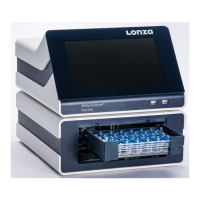
Click on the “Gear menu” and select “Version” to update the
software of a functional unit (Figure 2.42).
Select the magnifying glass icon (Figure 2.49) and press “In-
stall” for the selected software version. Please note that the
screen turns black during the upgrade and that it can take
up to 30 s until the home screen is available again.
NOTE: If newer and older units are combined, the system’s
firmware and the software of the functional units may differ.
To make sure if an upgrade is advised, please reach out to
Scientific Suppot.
Figure 2.49: “Version” shows software version status and serial number of
all units.
2.14 4D-Nucleofector
®
PC Editor Software
The PC Editor is a PC-compatible version of the
4D-Nucleofector
®
User interface. It can be used to define
experiments on the PC and then transfer them to the
4D-Nucleofector
®
System via USB stick or view and print re-
sult files expoted from the 4D-Nucleofector
®
System. This
chapter describes the installation of the 4D-Nucleofector
®
PC Editor as well as the transfer of experiment files from
your PC to the 4D-Nucleofector
®
System and upload of
result files expoted from the 4D-Nucleofector
®
System.
2.14.1 Installation of the PC Editor
It is not required to run an installation routine to install the
4D-Nucleofector
®
PC Editor on your PC. Just follow the
steps below to copy the software onto your hard disk drive:
2.13.3 Lonza programs
The Lonza programs list, comprising all available “Solutions”,
“Pulse codes” and “Cell type code” lists can be exchanged
independently from a firmware update (see chapter 2.13.4).
For uploading a new “Lonza programs list” follow instruc-
tions below:
• Inset a USB stick comprising the file you want to upload
(*.pd) at the front or the rear of the Nucleofector
®
Device.
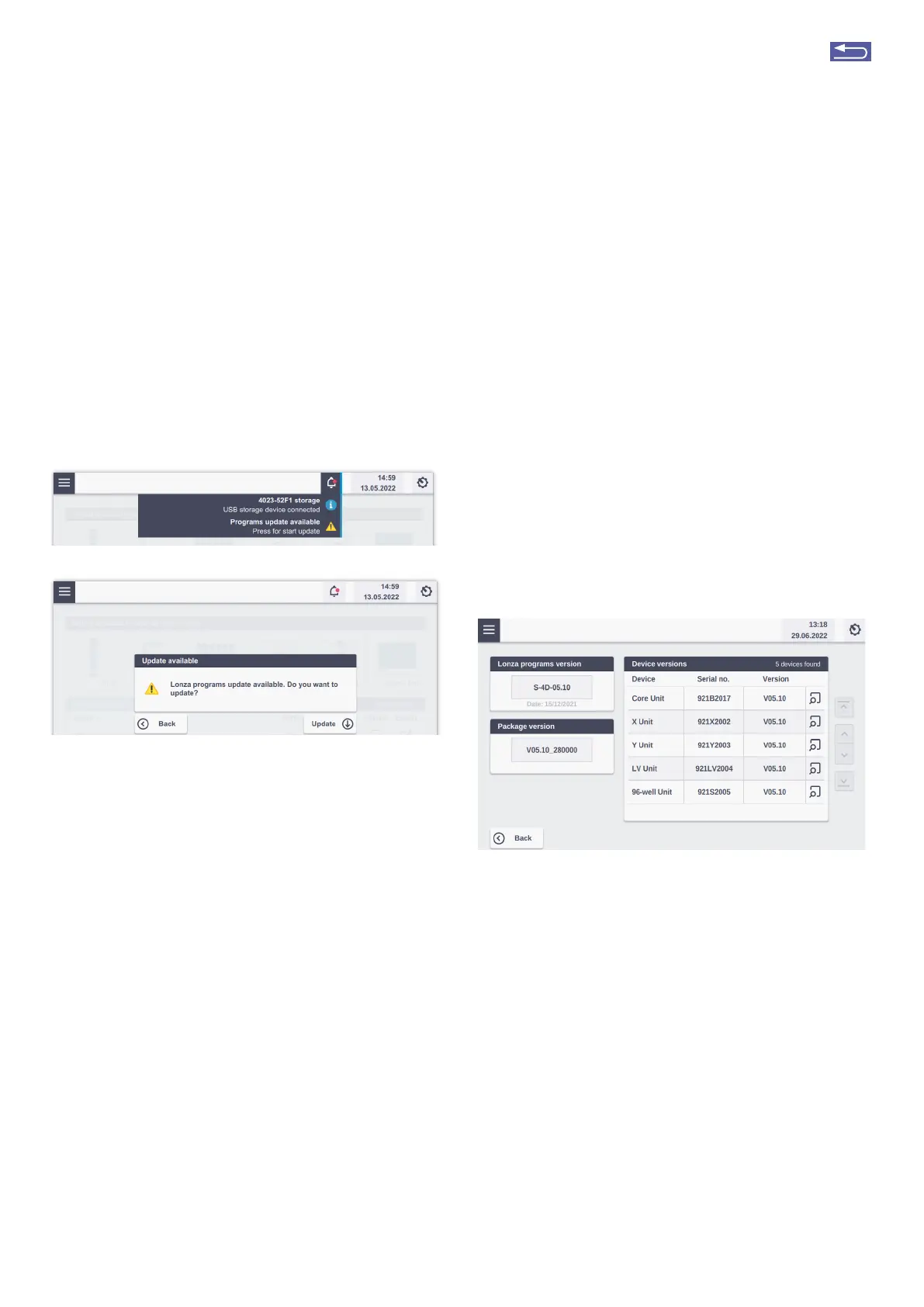
• The bell symbol at the top of the screen shows a notifi-
cation (red dot; Figure 2.47A). Tapping on the bell icon
shows futher information.
Figure 2.47: (A) Message upon insetion of USB stick with respective Lonza
program file. (B) message after tapping on the program update button.
• Choose “Program updates available” by tapping in the
field.
• Tap on “Update”
• The new Lonza program files will be updated and the
Nucleofector
®
Core Unit will shut down. Please restat the
system after the update.
2.13.4 Firmware update
Due to technical improvements of the operation software,
the 4D-Nucleofector
®
System may require an update of its
firmware. To update the firmware proceed as follows:
• Stat the 4D-Nucleofector
®
System.
• The home screen will appear.
• Plug in the USB stick containing the new firmware (as pro-
vided by Lonza). The software update will only be recog-
nized if the 4D-Nucleofector
®
System is switched on.
• The bell symbol at the top of the screen shows a notifi-
cation (red dot). Tapping on the bell icon shows futher
information. (Figure 2.48). Please note that the red dot
only indicates that a USB stick with a software version is
connected to the device. The red dot does not disappear
after an update has been performed.
A
B
Return to TOC


 To Next Page