24 | 4D-Nucleofector
®
Manual
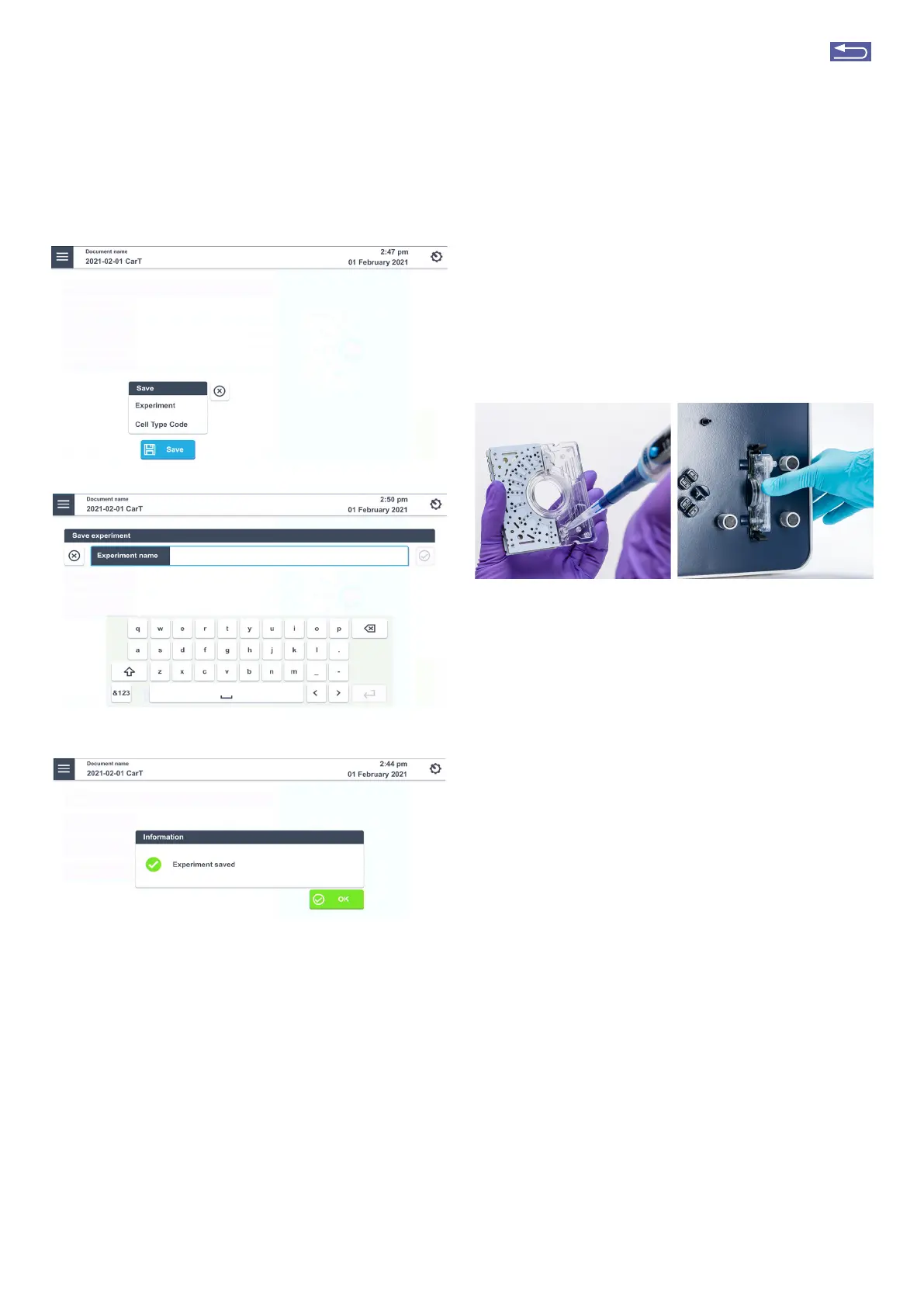
Figure 2.34: Saving an experiment. (A) after tapping the “Save” icon in the
setup screen. Choose between Cell type code or Experiment. (B) Type in the
name for Either Experiment or Cell type code. (C) Click “OK” to proceed.
5. Confirm and save the experiment parameters by
pressing “OK” or “SAVE”.
6. Press “OK” to continue (Figure 2.34, C)
7. A summary of the defined settings will be displayed.
Before loading samples and pressing “Stat” (see
chapter 2.12.13), please double-check for accuracy.
A
B
C
2.12.1.2 Loading Samples
1. Fill the 1 mL Nucleocuvette
®
Catridge with 1 mL
sample. For filling hold catridge in a slight angle as
shown in (figure 2.35 A). The sterile filter on the rear
side should be at the top, the injection pot should
be at the bottom (upon pipetting catridge will be
filled from bottom to top). Inset the pipette tip ap-
proximately in a 90° angle.
Figure 2.35: A volume of 1 mL is required to completely fill the cuvette. Us-
ing a higher or lower volume may lead to errors.
2. Inset the filled catridge into the slot until it snaps
in (Figure 2.35, B). Make sure that upper and lower
snap mechanism audibly engages to allow for proper
contacting.
2.12.1.3 Running the experiment
1. When the catridge is inseted, press “Stat” to initi-
ate the Nucleofection
®
Process.
2. The progress of the experiment is indicated by a
progress bar (Figure 2.32, B).
3. When the experiment is complete, a result file sum-
marizing the Nucleofection
®
Process will be displayed
(Figure 2.36).
4. The result file will be saved automatically by the
system (either as Result + Date + Time or in case you
saved the experiment under an individual name as
“Experiment name + Date + Time) and can be reo-
pened as described in chapter 2.13.2.2.
5. The overall result is indicated by a color code:
a. Green cross for “OK” (Figure 2.36, A)
b. Yellow cross in case of few errors (Figure 2.36, B)
c. Red dash in case of multiple errors (not shown).
B
A
Return to TOC


 To Next Page