Rev #37
Version 8.0
April 2021
Page 35 of 121
5.4 Thermal Assistant Mode
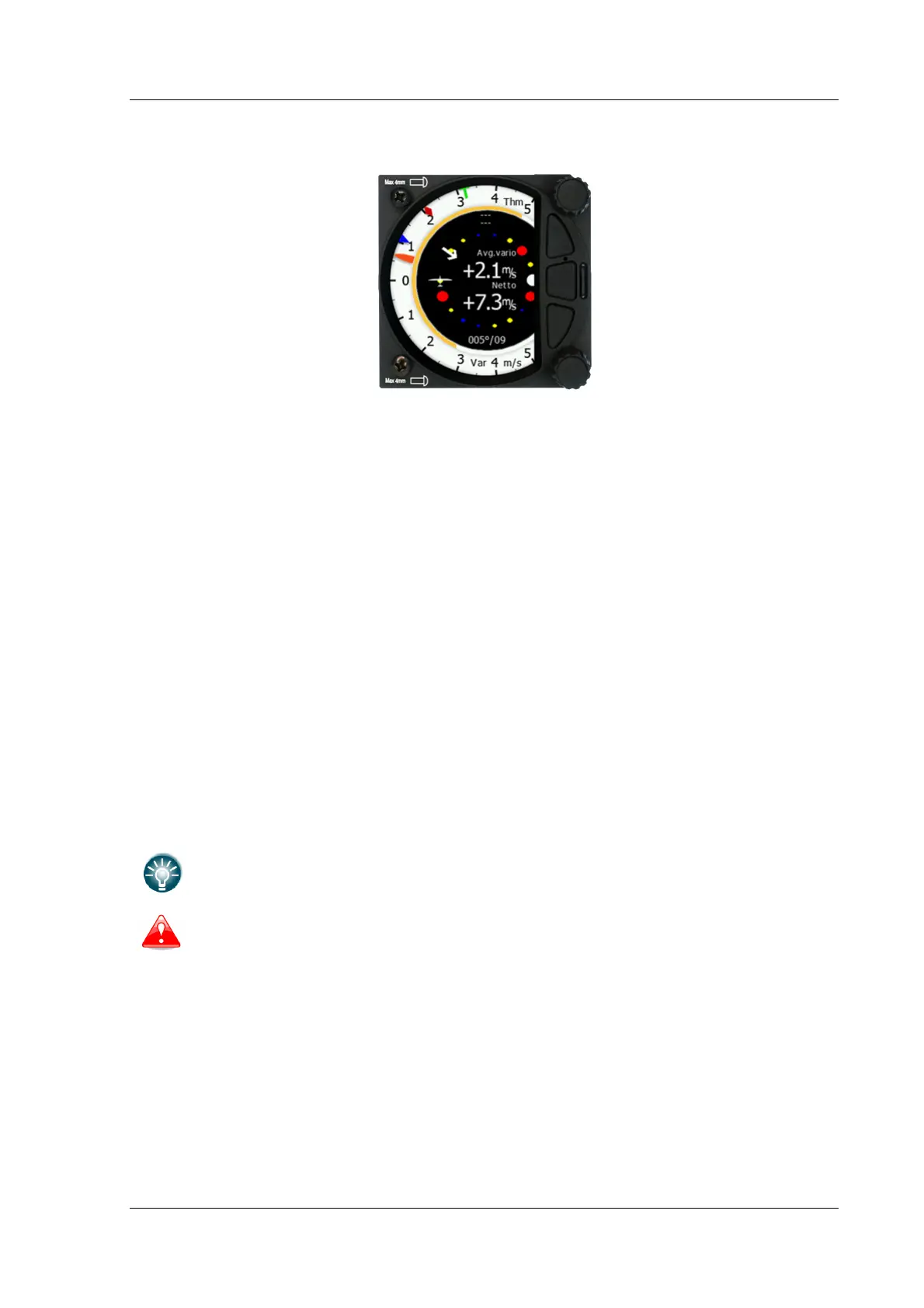
The Thermal Assistant mode displays a graphical representation of your location within the
thermal. If you are thermaling to the left, there will be an aircraft symbol on the right of the
ring of bubbles and the bubbles will appear to rotate clockwise (towards the symbol of the
glider). If you are in a right-hand thermal there will be an aircraft symbol on the left and the
ring of bubbles will appear to rotate anticlockwise (towards the symbol of the glider). Large
red bubbles indicate the strongest lift within the thermal and small blue dots indicate the
weakest lift or sink within the thermal. Yellow bubbles indicate lift equal to your MacCready
setting, average thermal or average climb rate depending on your preferred setting (refer to
Chapter 5.7.8.6.1). The point of strongest lift is indicated by a white large bubble.
You can use the thermal assistant to visually determine which part of the thermal has the
strongest lift and adjust your turn accordingly to manoeuvre the glider in the direction of the
strongest lift and away from the weakest lift or sink.
The thermaling assistant can be set to automatically change to the Thermal assistant mode
or it can be manually selected. See Chapter 5.7.8.6.2 for settings.
The two navboxes within the Thermal Assistant Mode can be configured using the quick
access menu. If HAWK option is activated, the HAWK parameters can be used for these two
navboxes as well.
This page can be configured via: Setup->graphics->modes->thermal mode.
Looking into thermal assistant might be life-threatening for you and other pilots in
the thermal.
5.4.1 Quick Access Menu
A short press of the (lower) rotary button activates the Quick Access menu.


 To Next Page