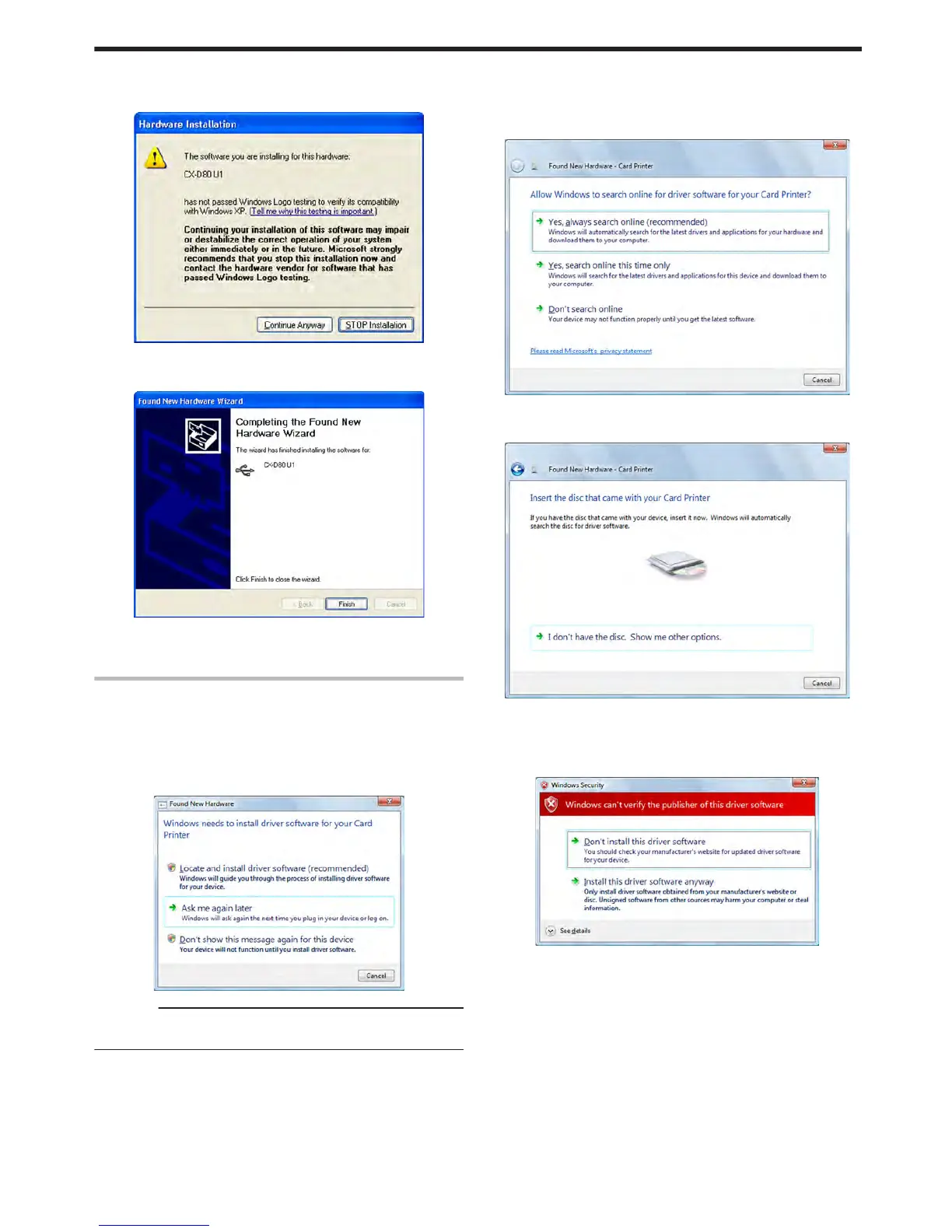
5
Select [Install the software automatically (Recommended)], and click
[Next]
v
A [Hardware Installation] screen appears.
.
6
Click [Continue Anyway]
v
A “Completing the Found New Hardware Wizard” screen appears.
.
7
Click [Finish]
v
Installation of the USB driver is complete.
Windows Vista
1
Start up Windows
2
Connect the computer and printer using the USB cable, and turn on
the power of the printer
v
The printer is automatically detected by the computer.
v
A [Found New Hardware] screen appears.
.
Cautions:
v
Connection is improper if this screen does not appear. Make sure
that the connection is properly established.
3
Click [Locate and install driver software (Recommended)]
v
A [User Account Control] screen appears.
4
Click [Continue]
v
A [Found New Hardware] screen appears.
.
5
Click [Don’t search online]
v
A screen appears, prompting you to insert the disc.
.
6
Set the supplied CD-ROM into the computer
v
The “SETUP.exe” automatic execution program in the CD-ROM is
not used. Exit this program.
v
A [Windows Security] screen appears.
.
Setup
77



 To Next Page