Catch Sensors | V1 | Sensor Configuration
Sensor Configuration
Read this section to learn how to configure catch sensor parameters.
Note: This guide refers to the following versions of Mosa: 01.01.01, 01.02.00. If you
use another version, the visual interface and options may vary slightly.
Installing Mosa
If Mosa is not already installed on your computer, you need to install it to configure the
sensor.
Procedure
1.
Go to the DealerWeb page: https://dealerweb.marport.fr/Default.aspx.
2.
Select Sensors> Tools.
The list of available Mosa software versions is displayed. The list begins with the
latest versions.
3.
Click Download next to the version you want.
The file is downloaded in your Downloads folder.
4.
Click the downloaded zip.
5.
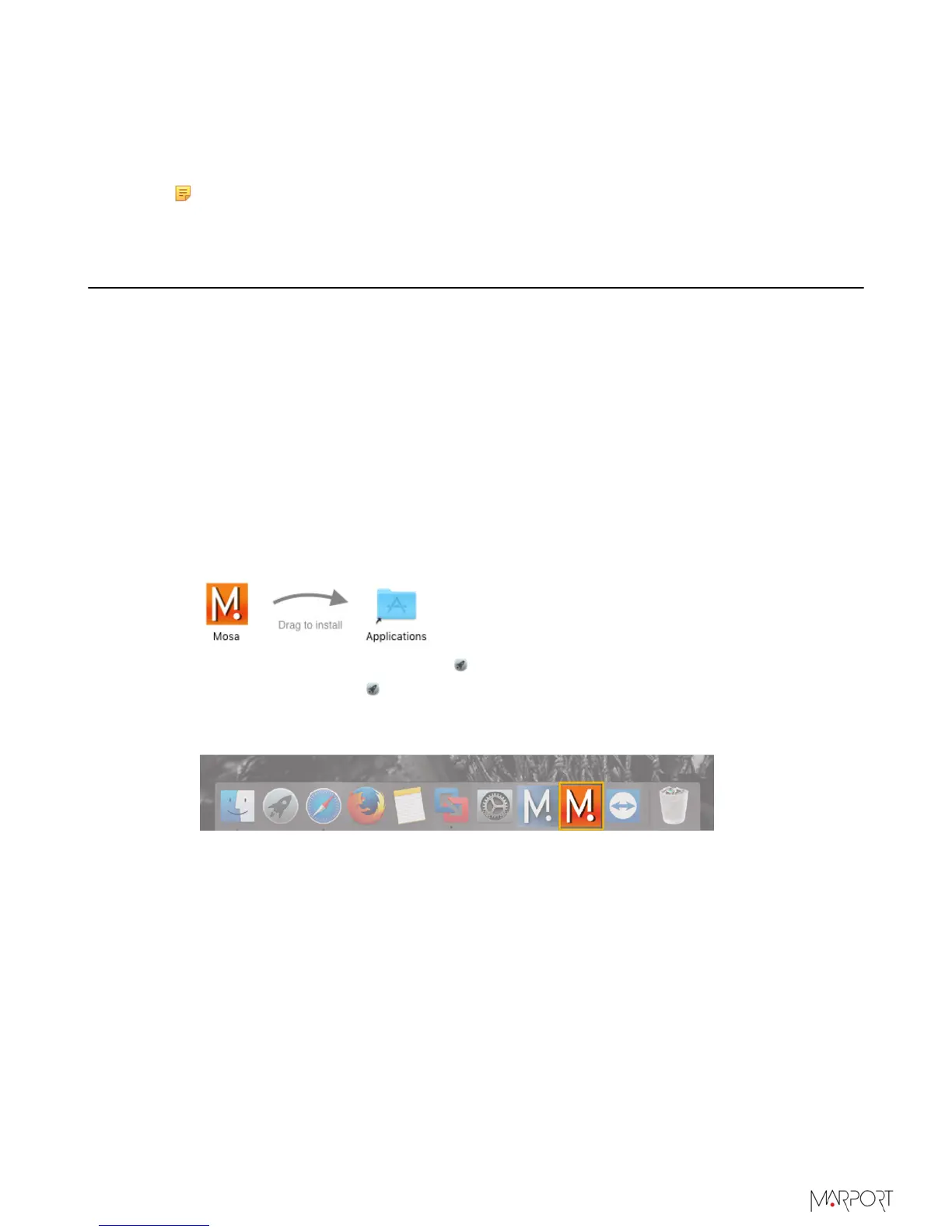
From the installation window that appears, drag the Mosa icon to the Applications
icon.
Mosa is added to the Launchpad .
6.
From the Launchpad , click and drag Mosa icon to the Dock at the bottom of the
screen.
To open Mosa, click its icon on the Dock.
7.
If you have an error message when trying to open Mosa, change the Security &
Privacy settings:
a)
From the upper left corner of the screen, click Apple menu> System Preferences>
Security & Privacy .
b)
From the lower left corner of the Security & Privacy dialog box, click the lock icon
and enter the password, if applicable.
c)
At Allow apps downloaded from, select Anywhere, then close the dialog box.
d)
If you are under macOS Sierra, Anywhere option may not be displayed by default.
To display Anywhere:
• Click the magnifying glass from the top right corner of your screen and type
Terminal.
| 20


 To Next Page