72 Matrox Extio 3 Series – User Guide
2
Click
Yes
. The
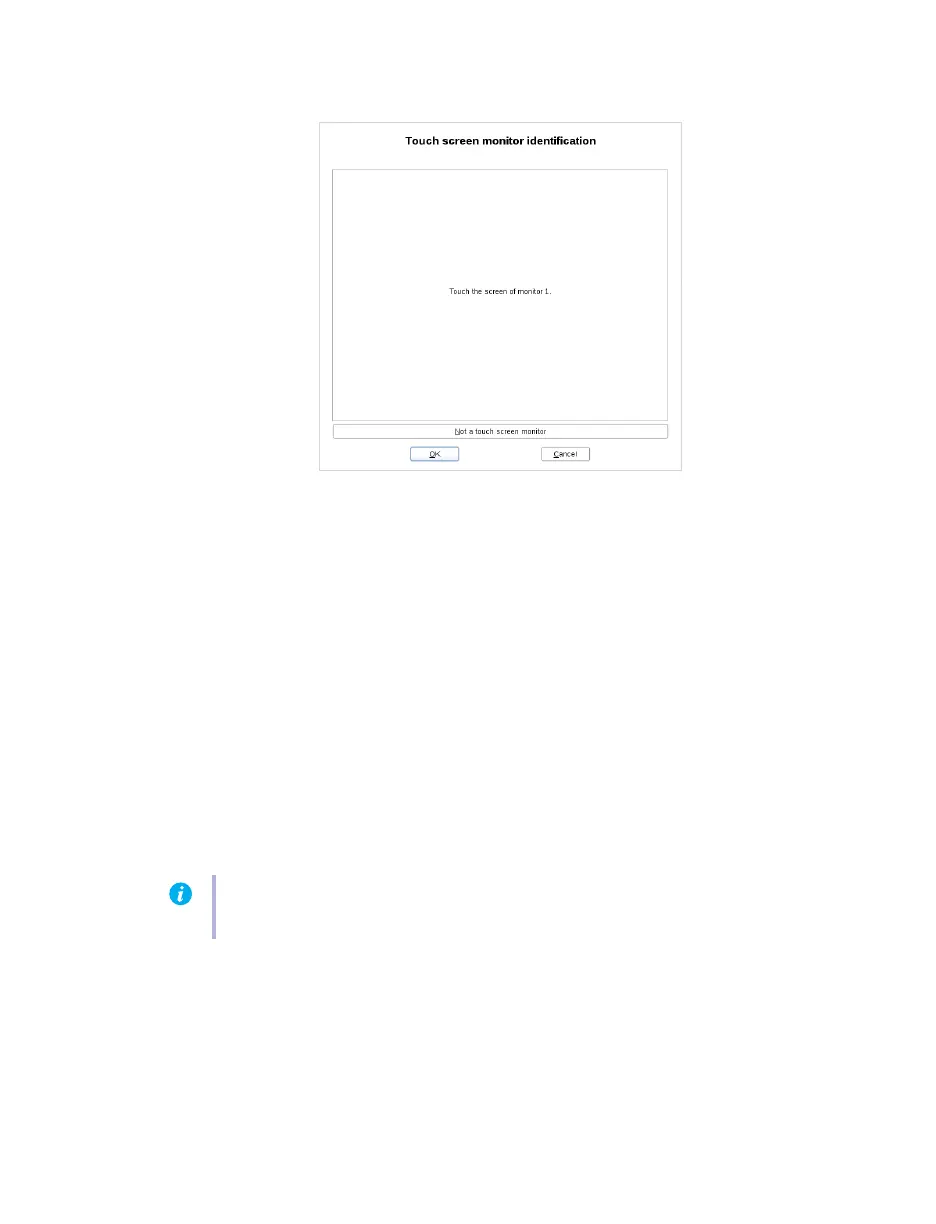
Touch screen monitor identification
screen on the OSD appears on all the
monitors.
3
On the touch screen of the monitor (
x
) identified on the top-left corner of the screen, tap
the designated area in the middle of the OSD where
Touch the screen of monitor x
appears.
Note
: The firmware detects your touch on the screen and links the
corresponding digitizer USB device and its port number to the current monitor being
calibrated.
4
Repeat step 3 for all the touch-screen monitors.
5
For a monitor without touch screen, click the
Not a touch screen monitor
button at the
bottom of the screen to skip. Repeat for each non touch-screen monitor that is detected.
6
When you’re done, click
OK
. The touch-screen monitors are now matched with their
corresponding digitizer USB devices.
If the digitizer USB device doesn’t have a serial number, the digitizer matching information is lost
when the digitizer USB device is changed to a different USB port. In this case, you have to do the
matching procedure again.
Note:
The matching procedure can also be done at any time by using the
Touch screen
monitor identification
button in the
Monitors
section under
Receiver
tab
Settings
.



 To Next Page