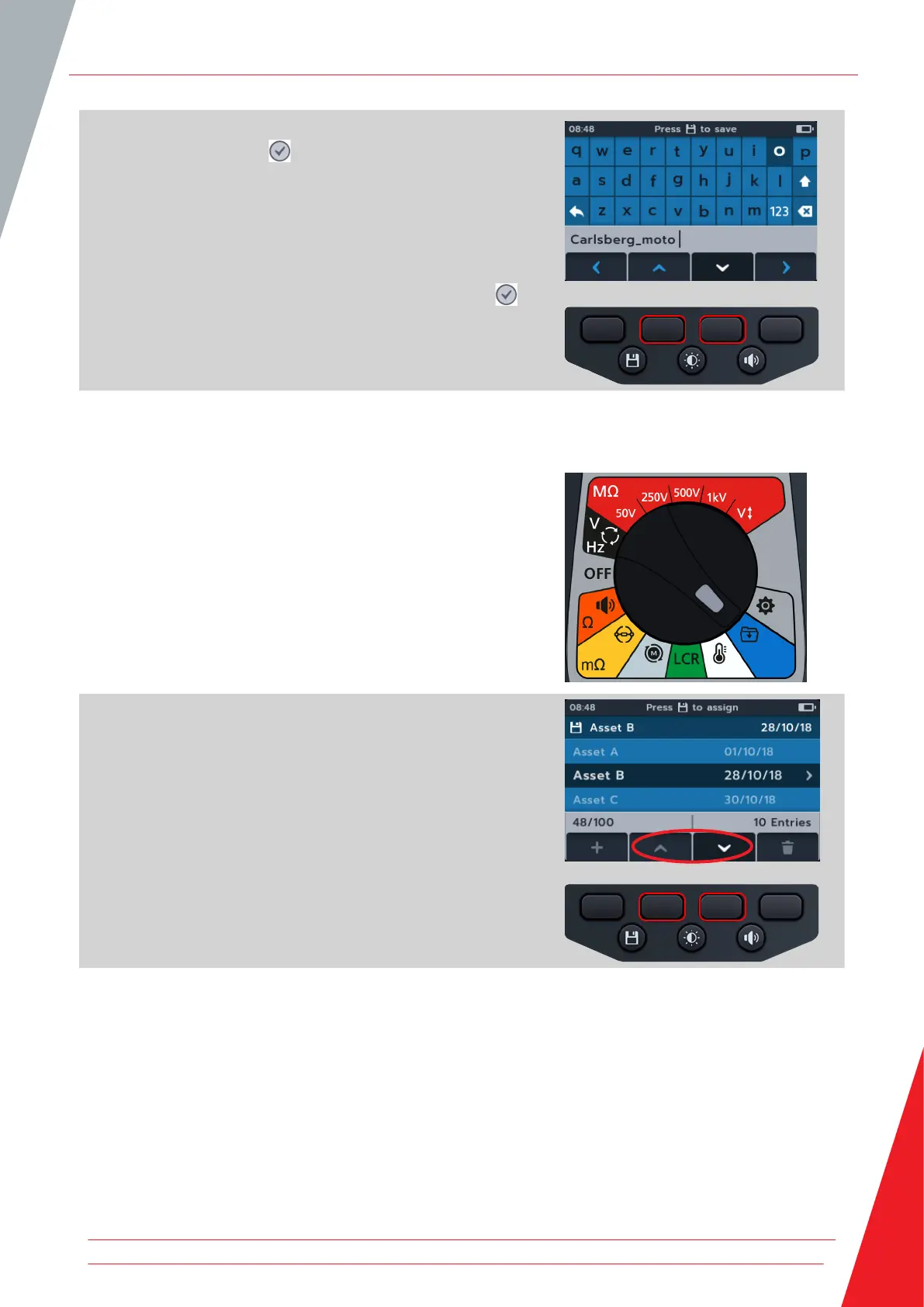
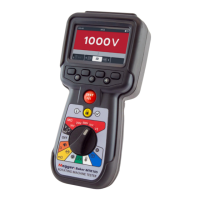
4. Press soft keys 1, 2, 3 and 4 to navigate the keyboard
5. Press the tick button ( ) to type the selected character into
the title space in secondary field.
Upper case can be selected via the shift key.
Select the 123 key for numbers and other symbols.
6. Press the save button to create the asset.
or
To cancel the entry select key and press the tick button ( ).
11.2 Using an existing asset ID
1. Turn rotary switch to select the data management position.
The primary field shows list of assets stored on the MTR.
The secondary field shows the amount of entries, the total
storage available are shown in the left hand field and the
number of entries under the selected asset are shown in the
right hand field.
2. Press soft keys 2 and 3 to scroll up and down through the
asset list
Data management
www.megger.com 59


 To Next Page