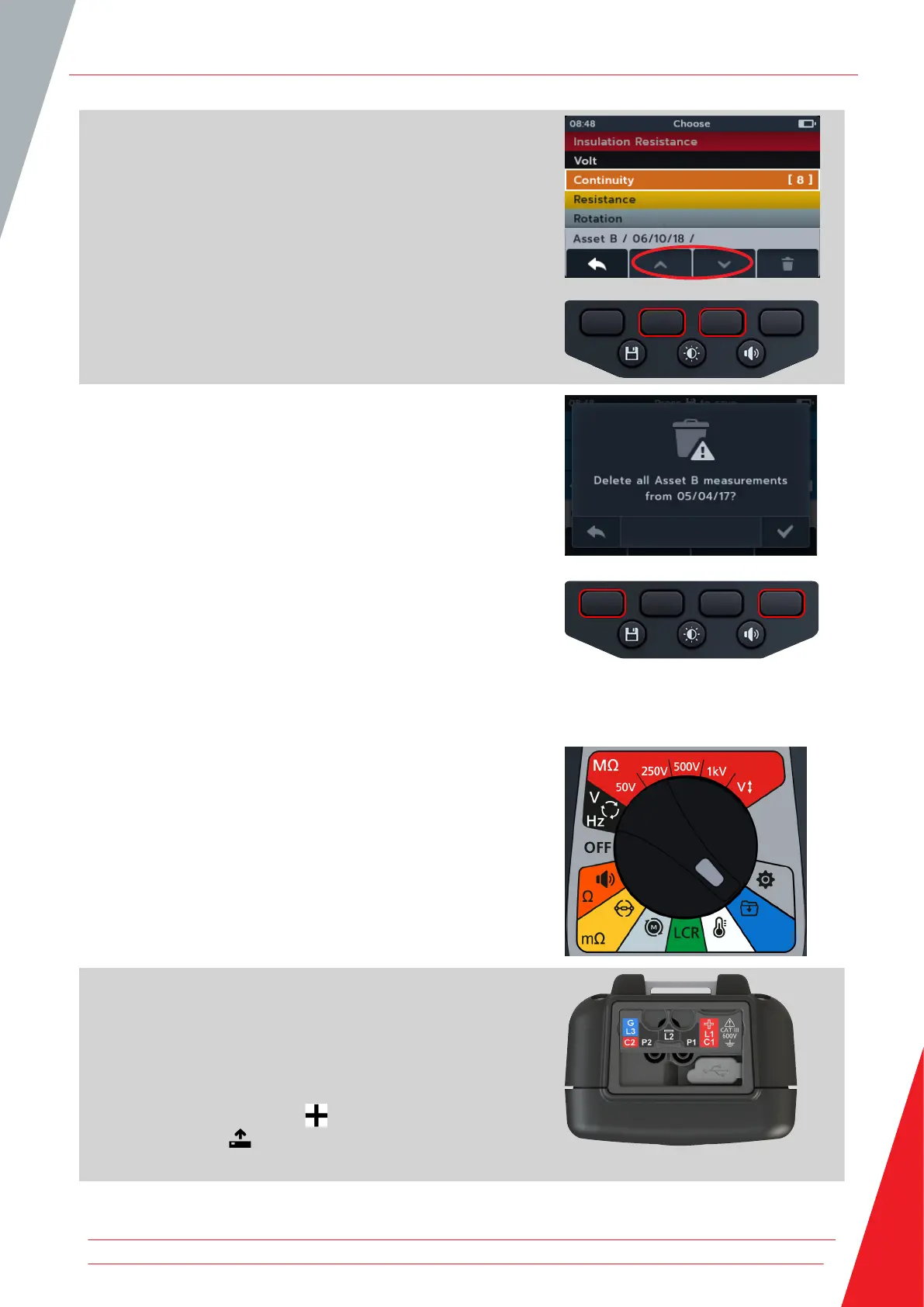
8. Press soft keys 2 and 3 to scroll up and down through the
list.
9. Press soft key 4 to delete the entry.
10. Press soft key 4 to confirm
or
Soft key 1 to cancel.
11.6 Exporting entries to USB
1. Turn rotary switch to select the data management position.
The primary field shows list of assets stored on the MTR.
The secondary field shows the amount of entries and the total
storage available are shown in the left hand field and the
number of entries under the selected asset are shown in the
right hand field.
2. Connect a USB Memory stick to the MTR.
A USB type A socket is provided on the top of the MTR105 for
transferring test results. The position is clearly marked with a USB
symbol, the slider must be in the backward position.
NOTE: When a USB memory stick is inserted, the icon for soft
key 1 will change from a plus ( ) to the
download symbol ( ).
Data management
www.megger.com 65


 To Next Page