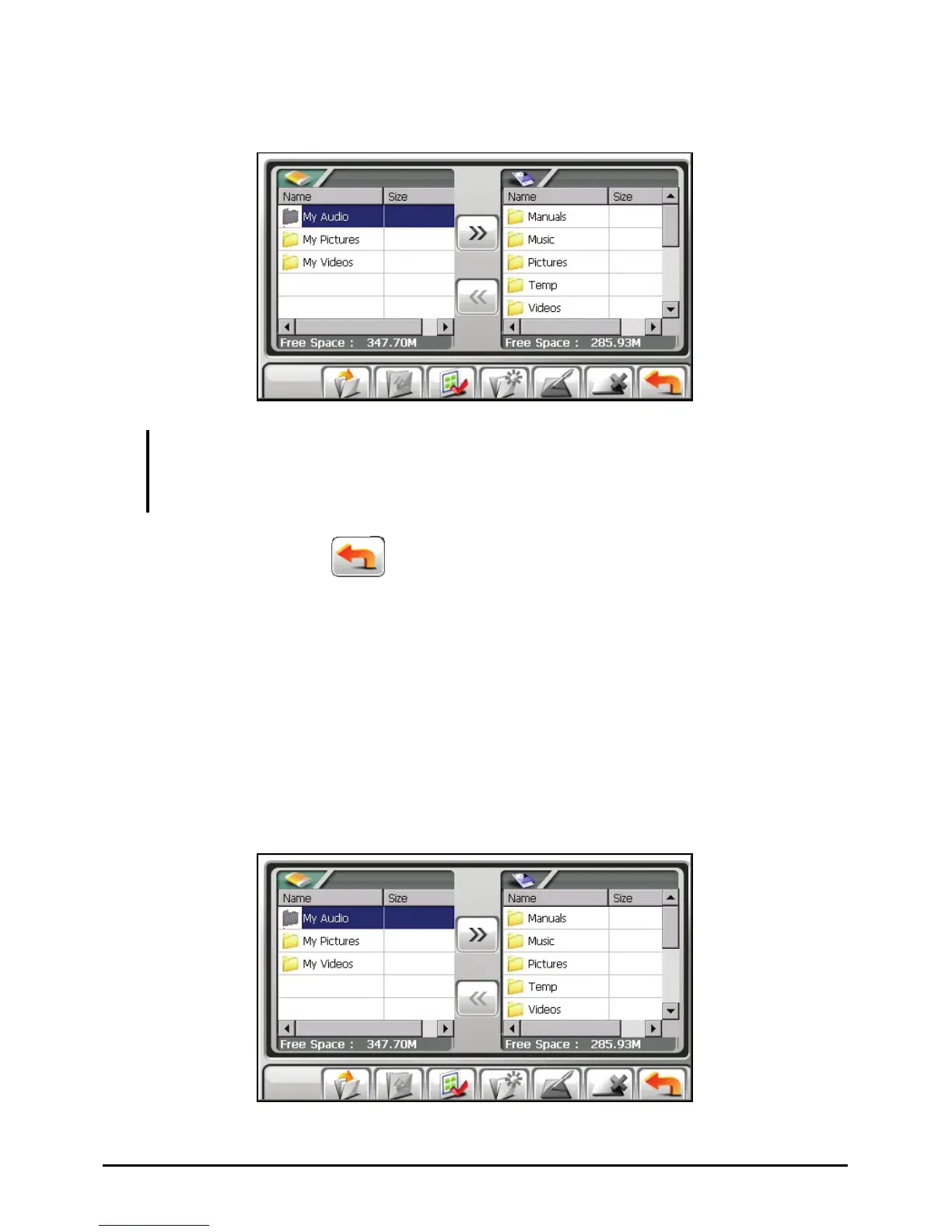
The File Manager screen shows specific folders of your device in the left column
and the folder(s)/file(s) of the storage card, if inserted, in the right column.
NOTE: The left column shows only “specific” folders in the My Flash Disk of your device.
“Specific” folders refer to pre-defined data folders for multimedia programs (such as My
Audio folder for the Audio program). Other folders are not accessible within the File Manager
program.
To exit the program, tap .
8.2 Transferring Files
From the Storage Card to Your Device
1. Insert the storage card.
2. Tap
Tools on the Home screen and then tap File Manager to start the program.
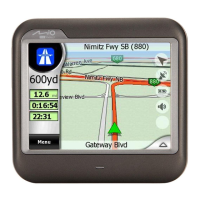
By default, the first folder of your device’s My Flash Disk is highlighted.
66


 To Next Page