293
Select the folder in which subsequent images will be stored.
❚❚ Select Folder by Number
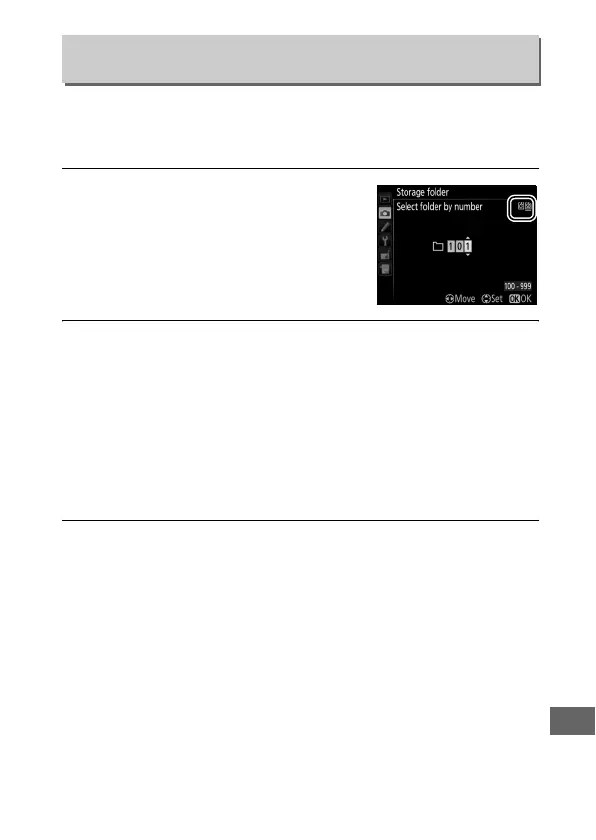
1 Choose Select folder by number.
Highlight Select folder by number
and press 2.
The dialog shown at
right will be displayed, with the
current primary slot (0 86)
underlined.
2 Choose a folder number.
Press 4 or 2 to highlight a digit, press 1 or 3 to change.
If a
folder with the selected number already exists, a W, X, or Y
icon will be displayed to the left of the folder number:
• W : Folder is empty.
• X : Folder is partially full.
• Y : Folder contains 999 pictures or a picture numbered
9999.
No further pictures can be stored in this folder.
3 Save changes and exit.
Press J to complete the operation and return to the shooting
menu (to exit without changing the storage folder, press the
G button).
If a folder with the specified number does not
already exist, a new folder will be created on the card in the
primary slot.
Subsequent photographs will be stored in the
selected folder unless it is already full.
Storage Folder
G button ➜ C shooting menu


 To Next Page