368
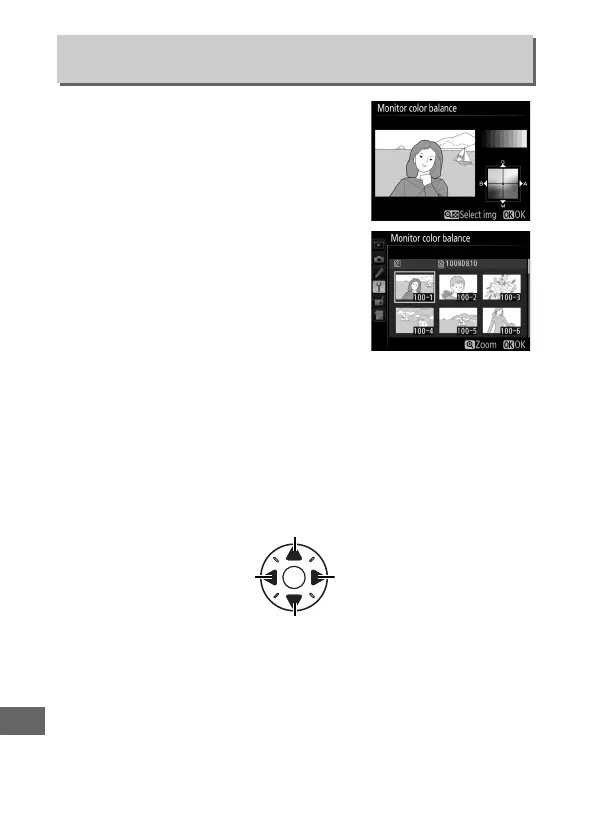
Use the multi selector as shown below
to adjust monitor color balance with
reference to a sample image.
The
sample image is the last photograph
taken or, in playback mode, the last
photograph displayed; to choose a
different image, press the W button
and select an image from a thumbnail
list (to view the highlighted image full
frame, press and hold X; to view images
in other locations, press W and select
the desired card and folder as described
on page 237).
If the memory card
contains no photographs, an empty frame with a gray border
will be displayed in place of the sample image.
Press J to exit
when adjustments are complete.
Monitor color balance applies
only to menus, playback, and the view through the lens
displayed during live view photography and movie live view;
pictures taken with the camera are not affected.
Monitor Color Balance
G button ➜ B setup menu
Increase amount of green
Increase amount of blue Increase amount of amber
Increase amount of magenta


 To Next Page