53
9) To use a host name, enter the host name (if any) assigned by your
network administrator in the Host Name field.
10)In the Gateway field, enter the address of the router (if any) that
connects your subnet to the rest of the network.
11)Enter the domain name in the Domain field and enter the IP
address of the domain name server(s) that will be used to resolve
the host name in the Domain Name Servers field. If there is more
than one domain name server, enter only one address per line in
the field.
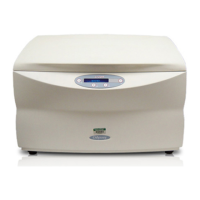
12)Click the Configure button to send the changes to the Odyssey
®
Imager and then close your Internet browser software.
13)Close the internet browser.
Updating the Scanner Settings
14)Start the Odyssey
®
Application software and click OK to use the
default Application settings.
15)Choose Settings > Scanners.
16)In the scanner list, select the Odyssey Imager whose address you
changed. Note the scanner name and click Delete.
17)Click Auto Discover. The automatic discovery software will find
the Odyssey
®
Imager and add it to the scanner list as long as the
instrument is on the same network as the computer. If the scanner
is not found, it can be added to the scanner list by clicking Add,
naming the scanner, and entering its IP address.
18)Click OK to close the Scanner List window.


 To Next Page