112
Setting up a network
Section 6-2
2. In the File - Open window browse to the sub-directory containing the GSD
file, select the (one or more) GSD file(s) and press the Open button in the
window. The GSD file(s) will be copied to a sub-directory of the CX-Profi-
bus directory.
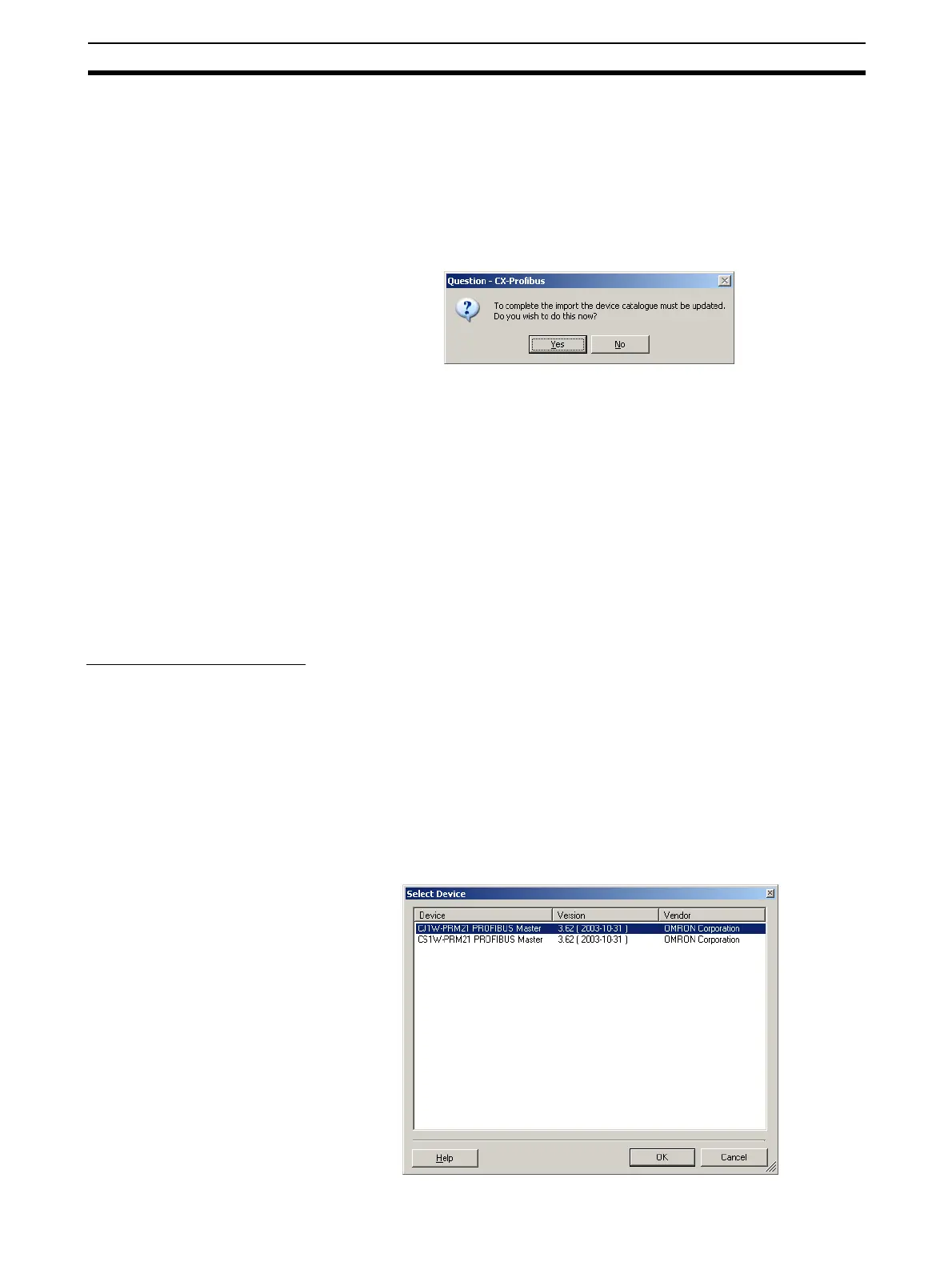
3. After completing the copy, a window will be displayed, asking the user per-
mission for an update of the Device Catalogue (see figure below). If more
GSD files need to be installed, select the No button and continue with in-
stallation of GSD file. Otherwise, select the Yes button.
Note Updating the Device catalogue may take several minutes, depending on the
number of installed GSD files.
6-2-1 Adding Devices to the Network
If the Device Catalogue is up to date, it can be used to setup the network. Set-
ting up a network in CX-Profibus starts with adding single device DTMs to the
Network View window. First the Master DTM must be added to the main
branch of the project Network. To do so, one of three procedures as outlined
must be used to add DTM.
Using the Context Menu
1,2,3...
1. Select the top of the network to which the DTM must be added, i.e. select
MyProject in the Network View.
2. Right click the mouse and a context menu will be displayed.
3. From the menu select Add Device.
4. A simplified Device Catalogue is displayed. The list only contains the de-
vices which can be inserted at the selected network location (see figure
below, only Master devices are listed).
5. From the displayed list, select the device DTM to be added and select the
OK button. The Device DTM will be added to the network.



 To Next Page