60
PROFIBUS-DP Master DTM
Section 3-3
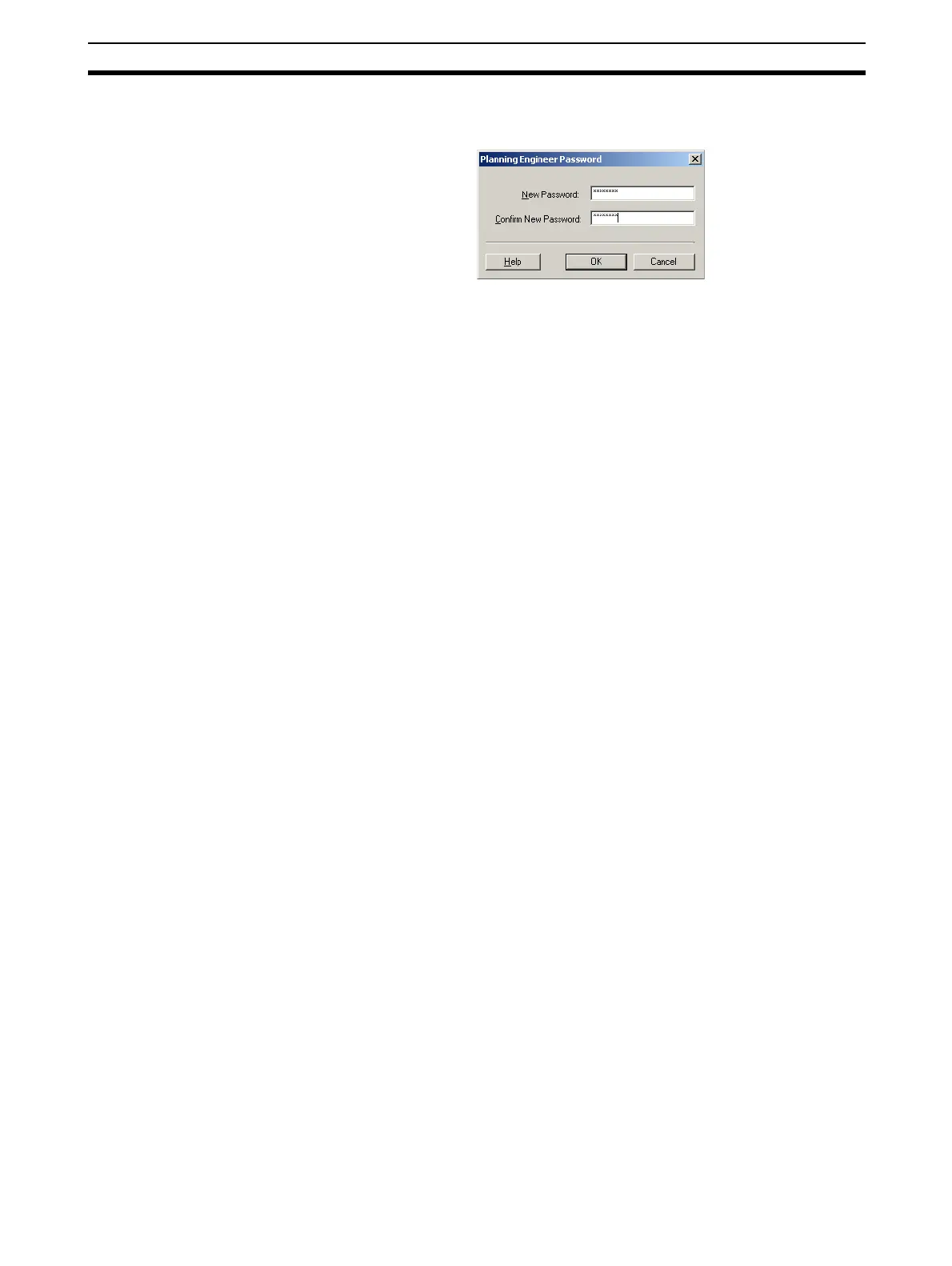
Planning Engineer. You can now enter the new password, confirm it by re-typ-
ing the password and select the OK button to activate the new password.
Note If access protection is not important for the application, you can define an
empty string as a password, i.e. up on entering the new password, simply
press the return button on your PC. When starting CX-Profibus, the login win-
dow can be passed by pressing the return button on your PC, without entering
a password.
3-3 PROFIBUS-DP Master DTM
CS1/CJ1 Master DTM To allow configuration and data monitoring from within CX-Profibus a CS1/
CJ1 PROFIBUS-DP Master DTM is installed, together with CX-Profibus. The
DTM shows up in the Device Catalogue under two different names.
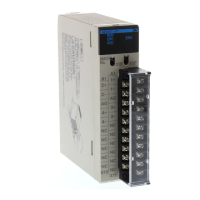
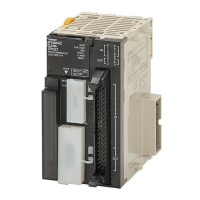
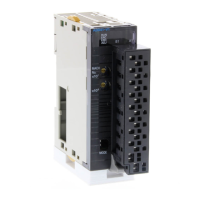
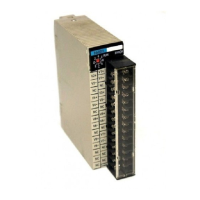
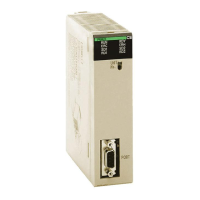
• CS1W-PRM21 PROFIBUS Master
• CJ1W-PRM21 PROFIBUS Master
The PROFIBUS-DP Master DTM has two main user Interface components.
• DTM Configuration User Interface
This User Interface facilitates configuration of the Master Unit.
• DTM Diagnostics User Interface
The DTM Diagnostics User Interface facilitates Unit status determination,
slave status determination and changing the Unit’s PROFIBUS opera-
tional mode.
This section provides an overview of the PROFIBUS-DP Master DTM, and
discusses both User Interfaces.
3-3-1 Configuration User Interface
Opening the configuration
DTM
The configuration DTM is opened by
• Selecting the Master DTM in the Network Window, and double-clicking
the left mouse button.
• Selecting the Master DTM in the Network Window, and right-clicking the
mouse. From the context menu, select Configuration. The Master DTM
Configuration User Interface, which is displayed in the CX-Profibus DTM
window is shown below.



 To Next Page