53
CX-Profibus
Section 3-2
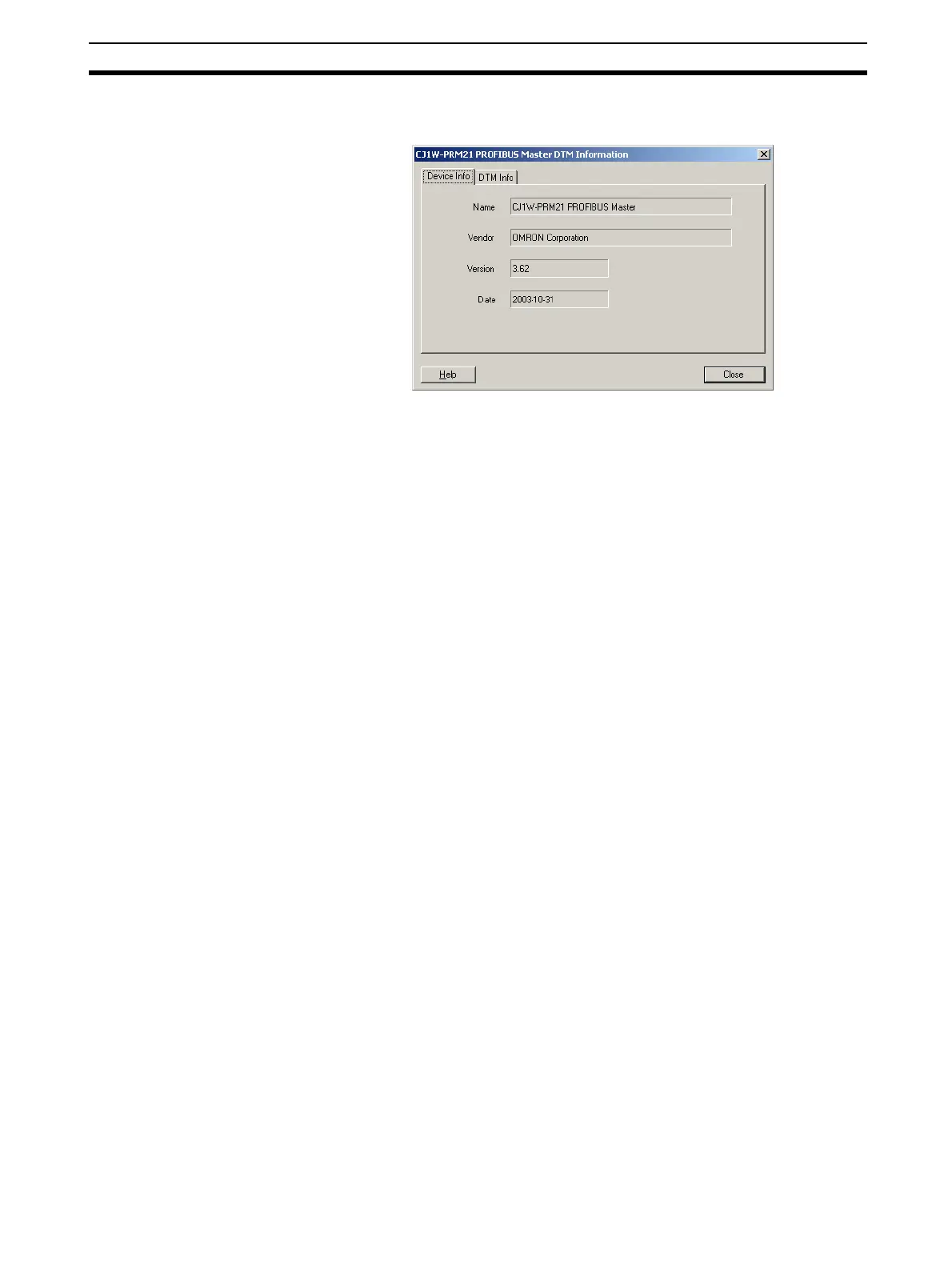
window with additional DTM information. The figure below provides an exam-
ple for the CJ1W-PRM21 PROFIBUS-DP Master DTM.
3-2-4 Updating the Device Catalogue
If a new DTM has been installed, it will not automatically be included in the
Device catalogue. In order to add newly installed DTMs to the list, the Device
Catalogue must be updated by selecting the Update button at the bottom of
the window.
Updating the Device
Catalogue
Updating the Device Catalogue may take some time, depending on the
amount of DTMs installed. A dialogue window with a progress bar will be
shown during the update process. After updating the Device Catalogue, it will
be stored on hard disk. The next time CX-Profibus is started the updated list
will be used.
Installing GSD files The Device Catalogue also allows the installation, i.e. copying of new GSD
files in to the GSD directory for the Generic Slave Device DTM. Selecting the
Install GSD Files... button displays the standard Windows File selection win-
dow. After selecting the GSD file, and selecting the Open button in the File
selection window, the GSD file will be copied to the GSD file directory under
CX-Profibus.
After copying the GSD file, a warning window will be displayed, indicating that
the Device Catalogue needs to be updated. This can be accomplished by
selecting the Yes button in the warning window.
Note 1. Updating the Device Catalog after copying GSD file can only be done if
there is a new project opened, i.e. with no DTMs allocated to the network.
This is to prevent corruption of an existing network in case a GSD file is
removed or replaced.
2. The Install GSD Files... option allows installation of more than one file at
the same time.
3-2-5 Saving and Opening Projects
A project, containing various DTMs can be saved and opened to and from
hard disk. Saving a project file is accomplished by selecting the File - Save or
File - Save As... menu option. This will display the standard Windows File
selection window, allowing the user to enter a file name.
The Project File is saved with the extension *.CPR.



 To Next Page