54
CX-Profibus
Section 3-2
Saving the data is initiated from CX-Profibus, but every DTM must support the
save function as well. The settings of each DTM are added to the Project file
by the DTM itself.
A Project file can be opened using the File - Open menu option. This will
open the standard Windows File selection window, after which the Project file
can be selected and opened.
Note When opening a Project file, the network tree view is constructed. However,
for performance reasons, the DTMs are not directly instantiated. The advan-
tage is that the tree view is constructed fast, but opening a DTM from the tree
view may take longer, depending on the performance of the PC used.
A Project File can also be opened from Windows Explorer. Double-clicking a
file with the extension *.CPR will invoke CX-Profibus and open the selected
file.
3-2-6 Adding Devices to the Network
Setting up a network in CX-Profibus involves adding and configuring single
device DTMs. The device DTMs as listed in the Device Catalogue can be
added to the network in three ways:
Using the Context Menu
1,2,3...
1. Select the top of the (sub-) network to which the DTM must be added, e.g.
select the main branch or select a Master DTM.
2. Right click the mouse and a context pop-up menu will be displayed.
3. From the menu select Add Device.
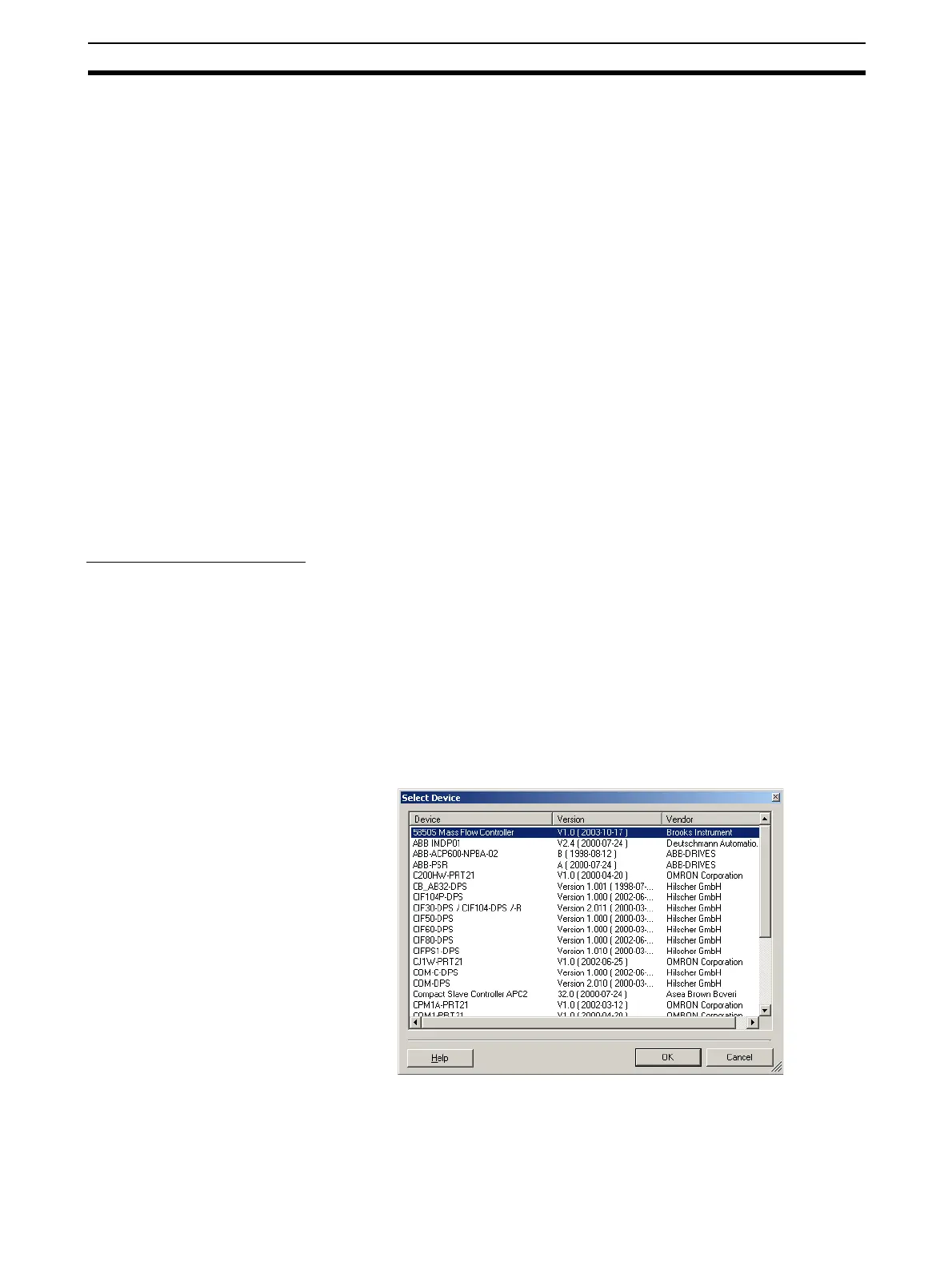
4. A simplified Device Catalogue is displayed (see figure below). The list only
contains the device which can be inserted at the selected location in the
network.
5. From the displayed list, select the device DTM to be added and select the
OK button. The Device DTM will be added to the (sub-)network.



 To Next Page