61
PROFIBUS-DP Master DTM
Section 3-3
Master DTM Configuration
User Interface
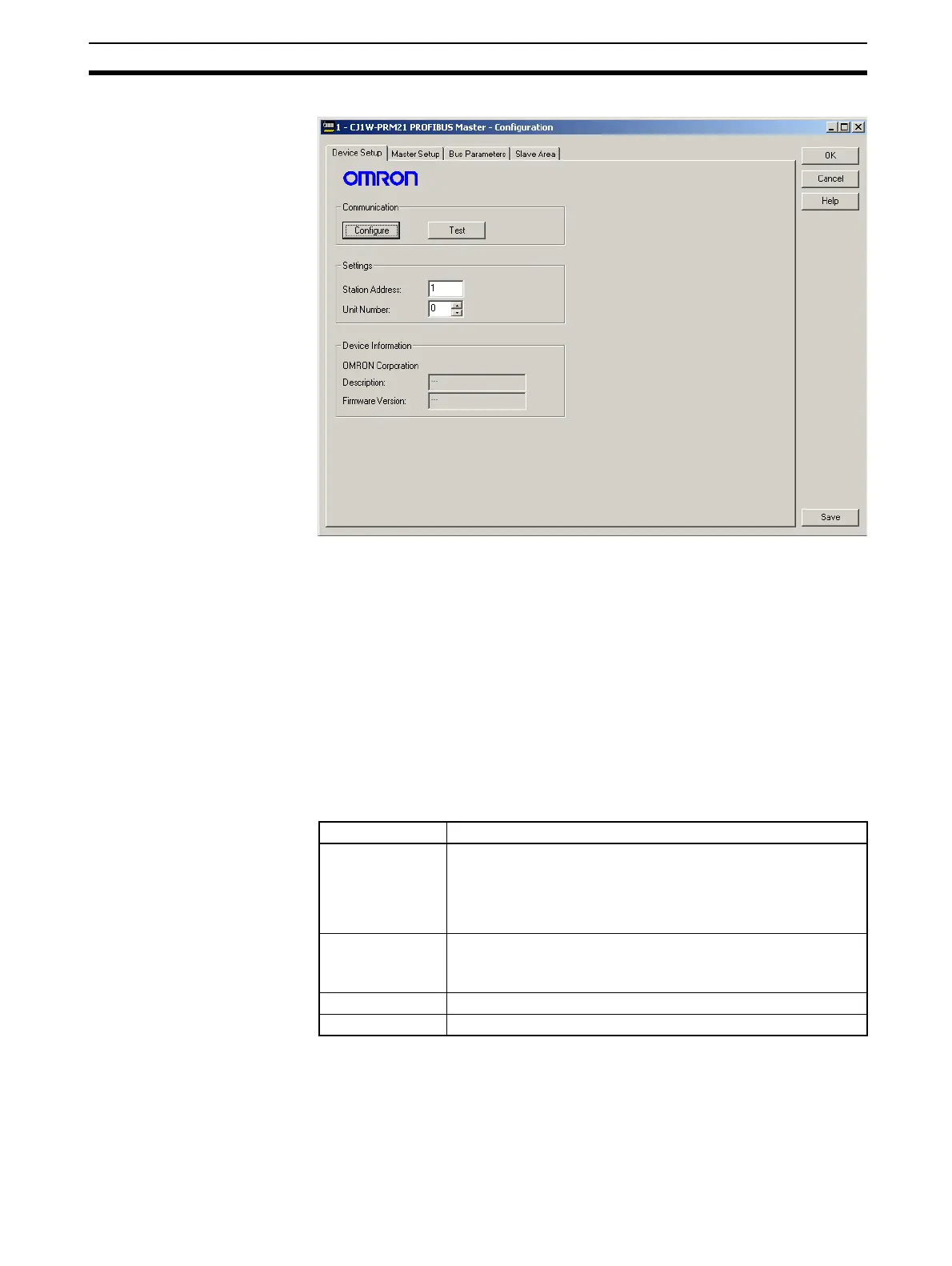
The Master DTM Configuration User Interface consist of four tabbed win-
dows:
• Device Setup tab
• Master Setup tab
• Bus Parameter tab
• Slave Area tab
The four tabbed windows are discussed below.
Configuration Interface
Buttons
The Master DTM Configuration User Interface contains four general buttons.
They are listed in the table below, together with the action taken when press-
ing them.
!Caution Save in the context of the buttons means that the changes made by the user
are saved in the DTM only, i.e. the changes are not permanently saved in the
Project yet. This is indicated by the asterisk next to the DTM in the Network
View window. The next time in the same session the GUI is opened, the
changes will still be there. In order to save the changes permanently, e.g. to
hard disk, Click the File - Save option from the main menu of CX-Profibus.
Button Action
OK Evaluate, and save the changes made (if any) and close the
User Interface.
Note If any invalid settings have been made, a warning mes-
sage will be displayed, allowing cancellation of the com-
mand.
Cancel Closes the User Interface without saving.
Note If any changes were made, a warning message is dis-
played, allowing cancellation of the command.
Help Launch context sensitive Help for the Active tab.
Save Evaluate changes and save them.



 To Next Page