116
Configuring the Slave Stations
Section 6-3
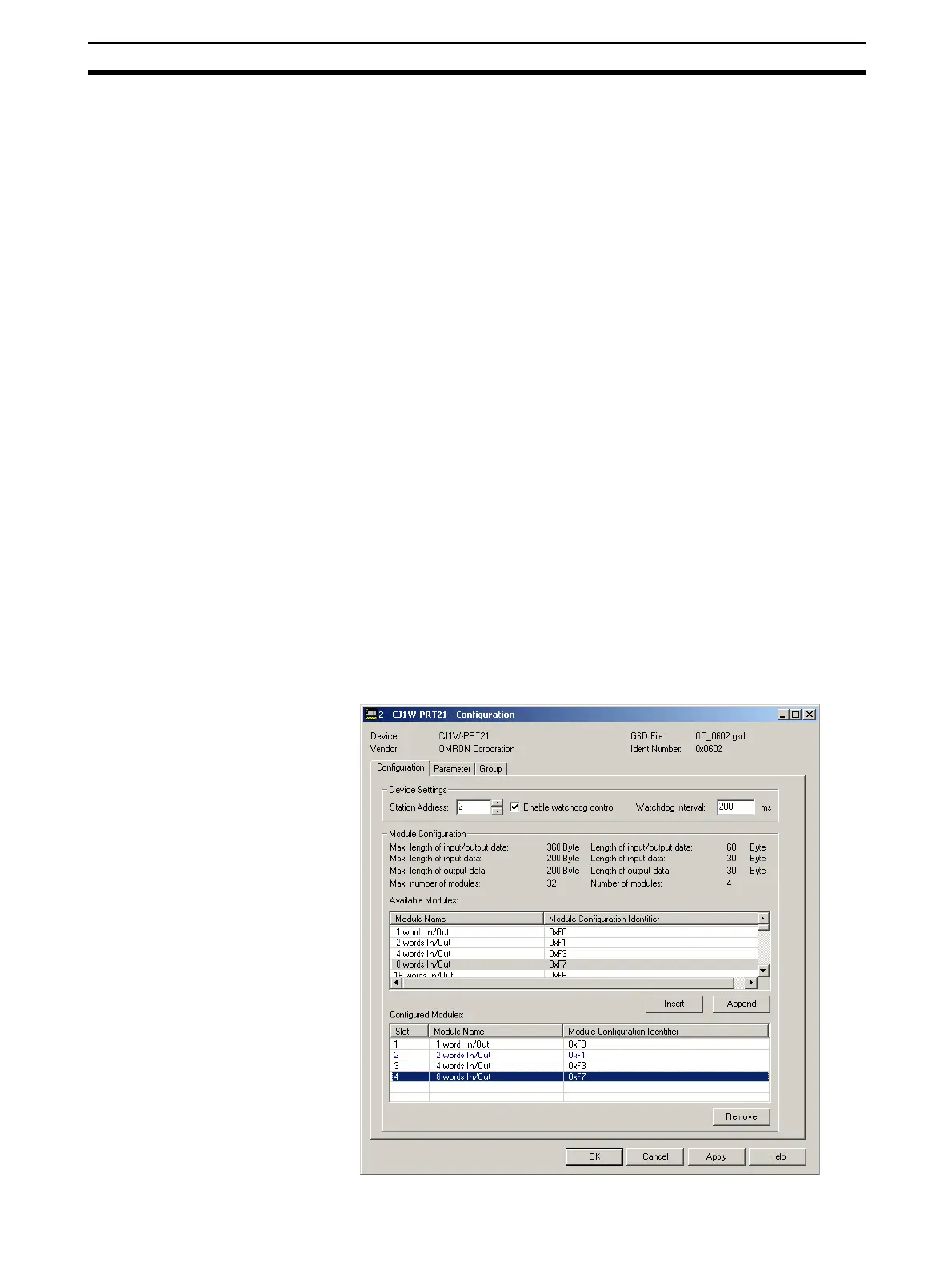
The DTM Configuration User Interface displays two lists.
• The Available Modules list, which contains the I/O modules the user can
select.
• The Configured Modules list, which contains all the I/O modules selected
by the user.
Note Also in this window are the maximum values, which can be set, and the totals
of I/O data that actually have been set. If - while selecting I/O modules - one of
the maximum values is exceeded, a warning message will be displayed.
To select the I/O modules, perform one of the following procedures.
• Select the I/O module that needs to be added in the Available Modules
list, and double-click it with the left mouse button. If more than one mod-
ule must be added, repeat this step for the other modules.
• Select the I/O module that needs to be added in the Available Modules
list, and press either the Insert or Append button. This method allows
selection of more than one module, by pressing either the Shift or the Ctrl
key on the keyboard, while selecting the modules.
Note 1. The selected I/O modules are sent to the slave device, in the same se-
quence as selected in the User Interface. Depending on the device, the
correct sequence may be checked by the device will. If an incorrect se-
quence is sent, the message may be rejected. This is for example the case
with the OMRON PRT1-COM Multiple I/O PROFIBUS-DP Interface.
2. A mandatory I/O module sequence is sometimes indicated in the GSD file,
by using non-PROFIBUS standard GSD file keywords (i.e. only interpreted
by a specific configurator). The Generic Slave DTM does not check such
keywords. In this case, refer to the manual of the specific device for details.
Example For the example, the first four I/O modules are selected for CJ1W-PRT21, see
figure below.



 To Next Page