50
CX-Profibus
Section 3-2
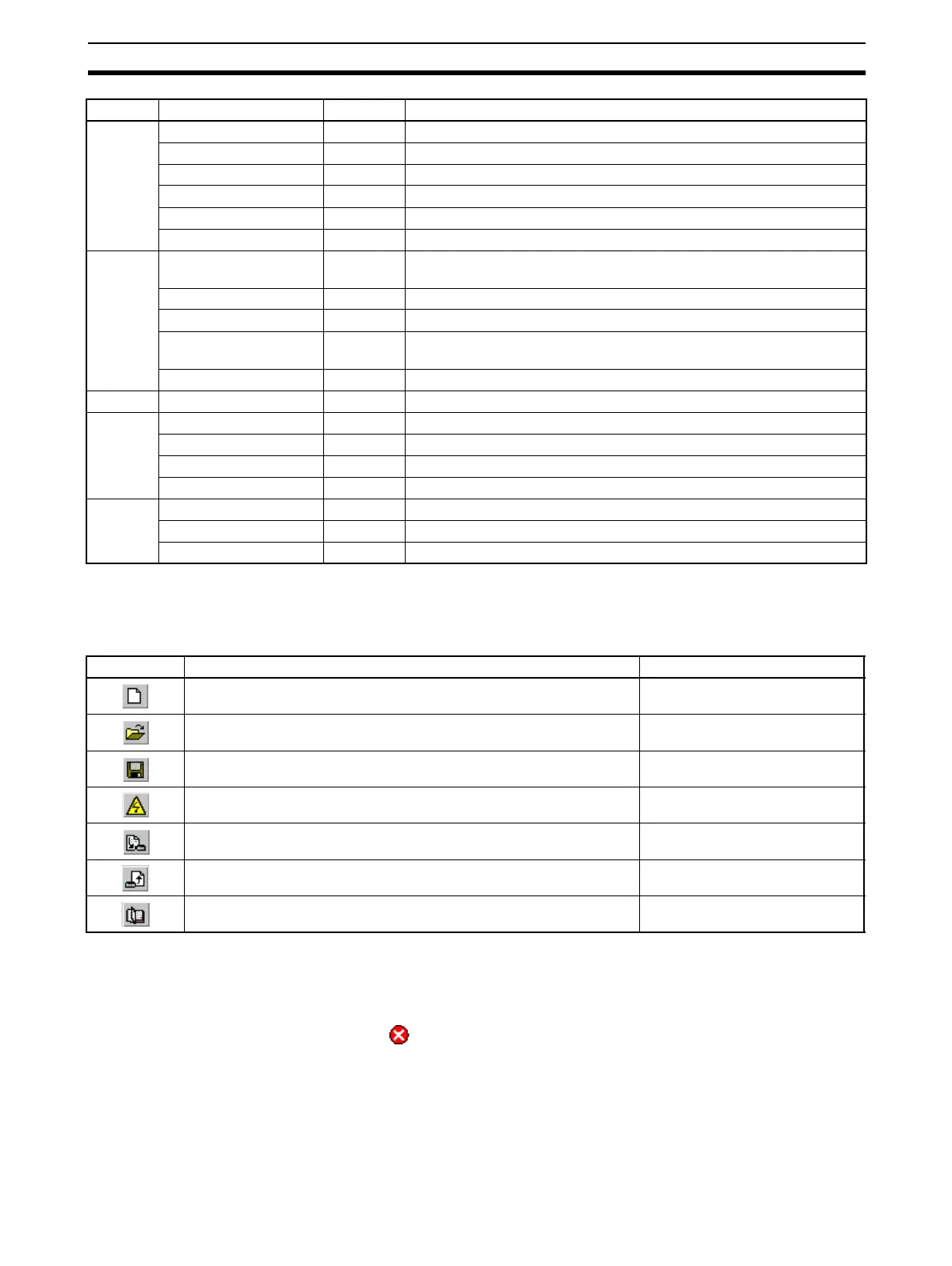
Tool Bar The tool bar provides quick access buttons to the user for frequently used
menu commands. The table below lists the toolbar buttons.
Status Bar The status bar displays the current User role, i.e. the log in level.
In case the Error Log window has been closed, the status bar will additionally
display a symbol to indicate that new errors are available in the Error Log
window. Double-clicking the symbol will open the Error Log window.
View Network View --- Hides or un-hides the Network View window.
Device Catalogue --- Opens or closes the Device Catalogue.
Tool Bar --- Hides or un-hides the Tool Bar.
Status Bar --- Hides or un-hides the Status Bar.
Error Logging --- Hides or un-hides the Error Logging window.
FDT Monitoring --- Hides or un-hides the FDT Monitoring window.
Device Add Device... --- Opens up the Device Catalog Add window, from which devices can be
added to the selected network tree.
Upload Parameters --- Uploads the parameters from a device to its associated DTM.
Download Parameters --- Downloads the parameters from DTM to its associated device.
Export to HTML --- Exports the properties and parameters of the selected DTM, or the net-
work to a HTML file and opens the default browser.
Properties --- Displays the properties of the selected DTM, or the network.
Tools User Management --- Displays the User management (i.e password management) window.
Window Cascade --- Cascades all open DTM User Interfaces.
Tile Horizontally --- Tiles all open DTM User Interfaces horizontally.
Tile Vertically --- Tiles all open DTM User Interfaces vertically.
Close All --- Closes all open DTM User Interfaces.
Help Contents --- Opens the Help dialog and lists the Help file contents.
Index --- Opens the Help dialog and lists the Help Index.
About CX-Profibus --- Opens the About dialog window for CX-Profibus.
Menu Command Short Key Description
Icon Description Equivalent menu command
Creates a new project. File-New
Opens an existing project file. File-Open
Saves the displayed project to a file. File-Save
Connects the configurator to the selected devices. Device-Go Online
Downloads the parameters to the device. Device-Download Parameters
Uploads the parameters from the device. Device-Upload Parameters
Opens the Device Catalogue. View-Device Catalogue



 To Next Page