Maintenance Functions - 111
MENU
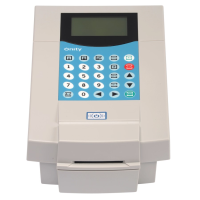
The MENU key selects the various menu choices.
Each time you press the MENU key it will advance
to show you the next menu choice.
TX (green)
The TX key is the "transmit" or "GO" button. It is
used to start the communication with the lock once
the correct menu selection has been made.
UP & DOWN ARROWS
The UP and DOWN ARROW keys scroll through
the options within a menu choice. For example, if
you have used the MENU key to select the
UPDATE menu, then the UP and DOWN ARROW
keys will allow you to select the proper door to be
updated.
Menu Choices
Update
Update is used to make the data in the lock match the
data in the front desk console. You will update a lock
for the following reasons:
1. When Daylight Savings Time changes.
2. If you change the code of a Programming Card, a
Canceling Card or a Blocking Card.
3. If a change is made to the locking plan.
Update will also notify a lock if a Master Card has been
changed.
To update the information in a lock, you must first
download the data from the console to the PP. See the
section titled LOAD PORTABLE PROGRAMMER on
page 100 for instructions.
After the PP is loaded with data, go to the door that
is being updated and follow these steps:


 To Next Page