29716AF 47
Setting Up Motion Detection Recording
To record data only when motion is detected:
1. Press SETUP on the front of the recorder or remote control.
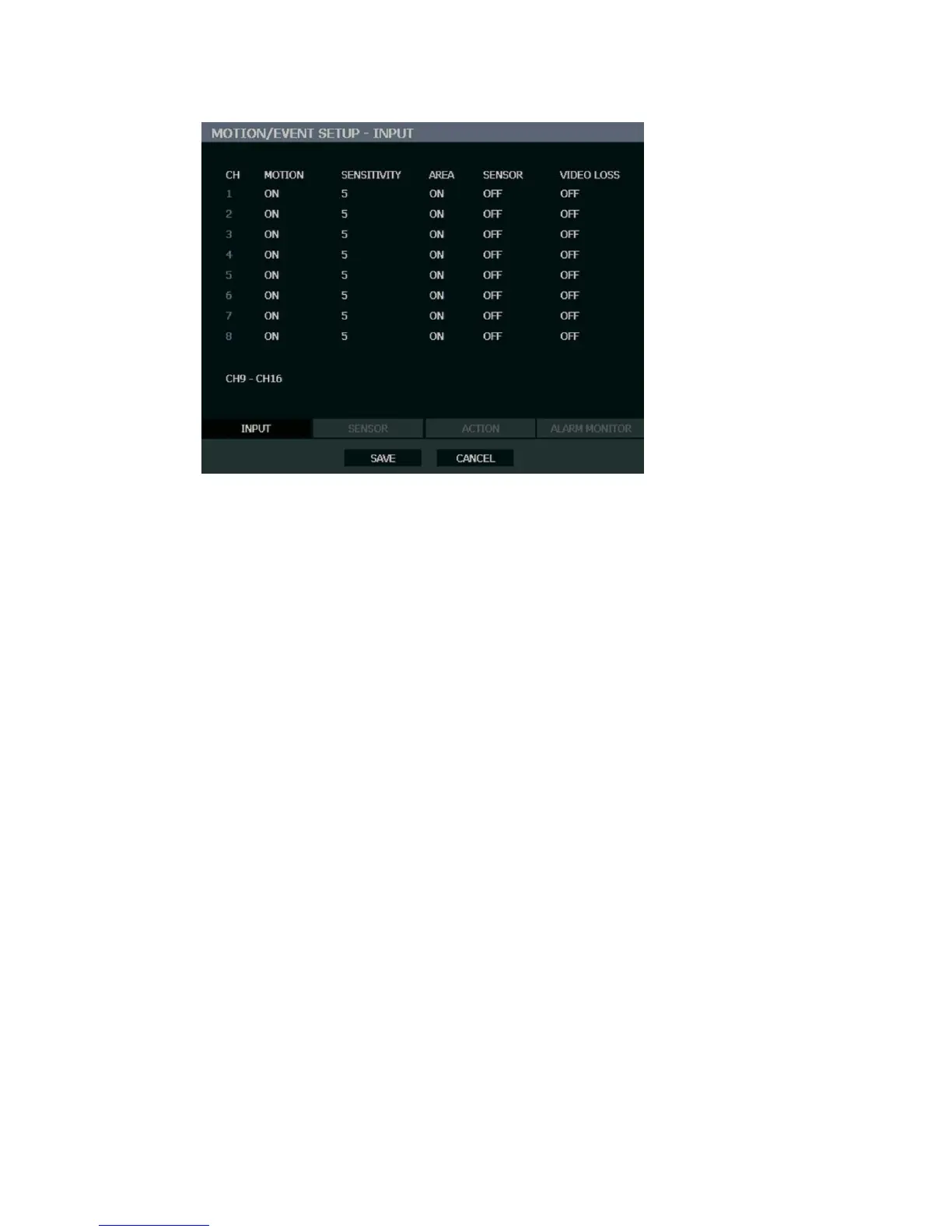
2. Select RECORD > MOTION/EVENT SETUP and set MOTION to ON.
3. Set the motion SENSITIVITY level. [1~10].
4. Select AREA and press ENTER to set a motion area (global setting; each channel can
be configured individually).
5. Use the mouse to select or clear squares on the grid:
a) Right click and select CHANNEL SELECT.
b) Click the squares to include in the motion grid.
c) Right-click again and select SAVE to save the selected motion grid.
6. When finished selecting motion areas press ENTER on the front of the recorder or
remote control to save changes.
7. Repeat as necessary for each channel.
8. When motion area setup is complete select SAVE to save settings and exit setup.


 To Next Page