94
DIGITAL VERIFIER OVERVIEW
JPG images and AVI video files that are exported from the recorderr are automatically
embedded with a digital signature. Digital signatures are a way to verify the authenticity of the
images to ensure that they have not been tampered with or edited in any way. Included on
the Software Installation DVD, supplied with the recorder, is the Digital Signature Verification
program. This program can be installed on any Windows XP, Windows Vista or Windows 7
computer.
Using the Digital Verifier
1. Open the Digital Verification program by selecting Start > Programs > OpenEye >
Digital Verifier > Digital Signature Verifier.
2. Click the Browse button to load the JPG image.
3. Enter the Site Code of the recorder that the image was originally extracted from. (The
Site Code is specified in the System Setup menu)
4. Click Verify to continue or Close to close the window without verifying.
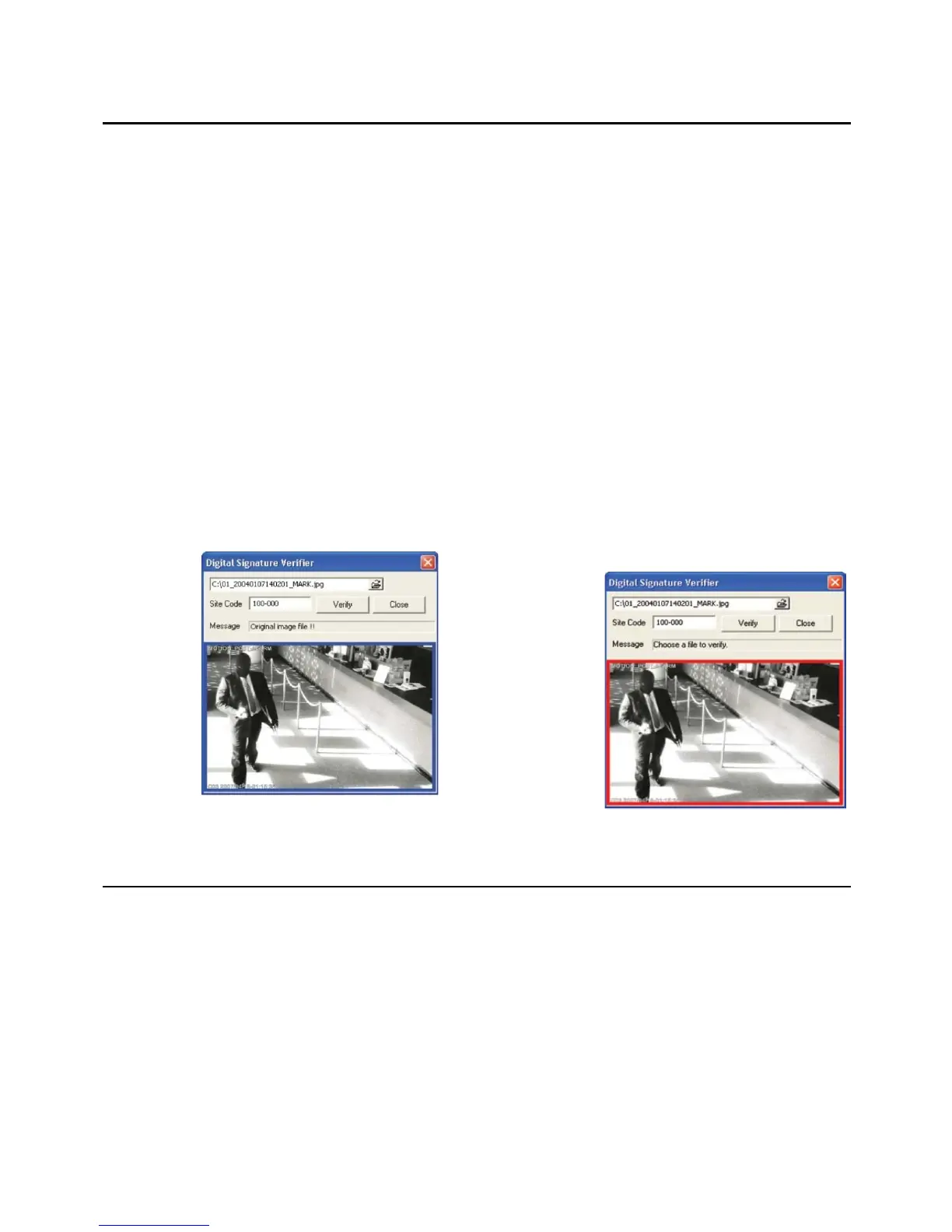
If the image has not been
tampered with, a blue square will
appear around the image with the
message “Original image file.”
If the image has been tampered
with, a red square will appear
around the image with the
message “Entire image changed
or wrong SITE CODE.”
RADIUS OVERVIEW
Connecting to a Recorder Using RADIUS
RADIUS is available for all OpenEye recorders. RADIUS Multi-Site Management Software is
a powerful utility that allows 100 or more recorders to be controlled using one computer. This
software allows you to view live video, search saved video, edit and configure setup on each
recorder, and import maps of buildings and other locations.
1. Configure the recorder for remote access as shown above in Set up a Remote
Connection.
2. Follow the instructions in the RADIUS manual for Adding a New Site.


 To Next Page