29716AF 71
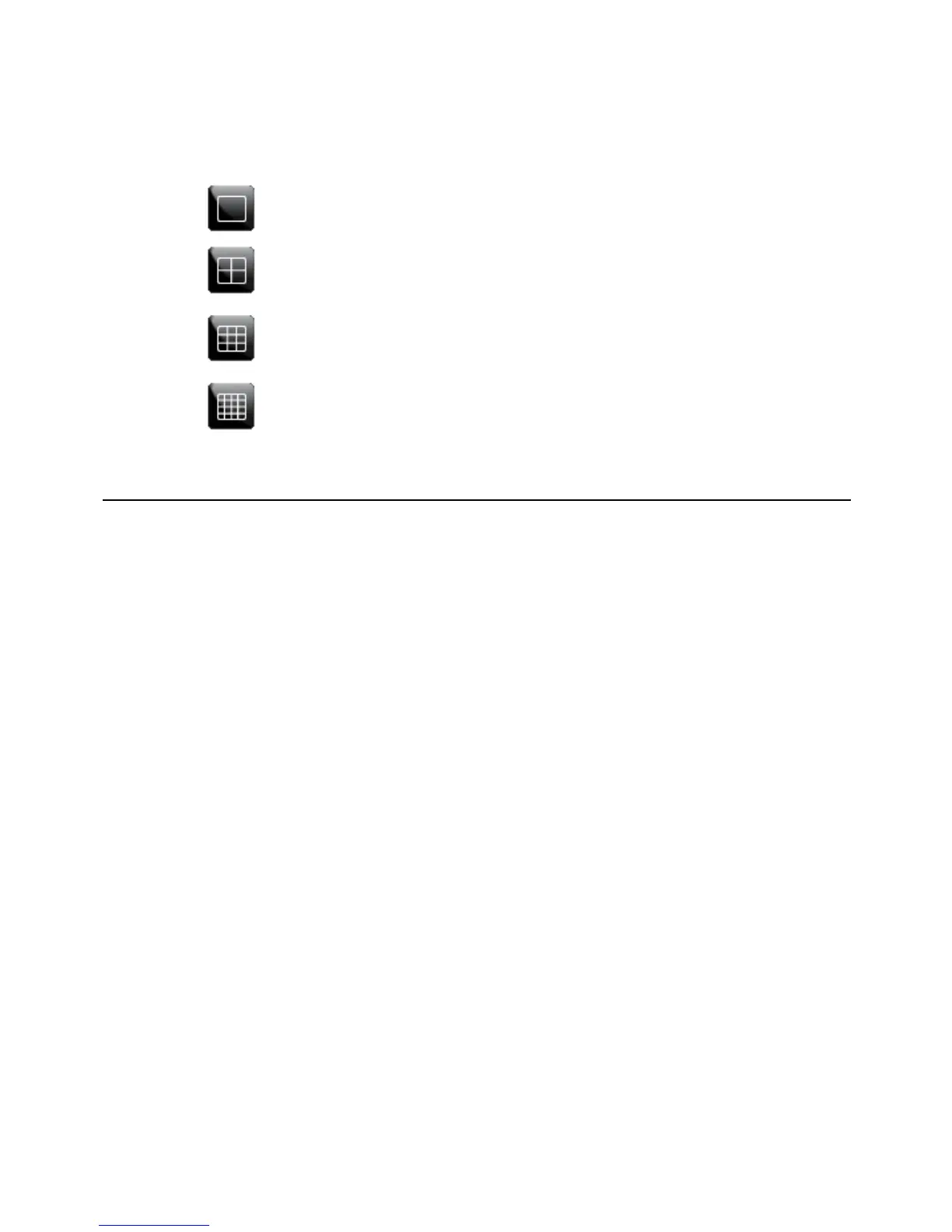
Screen Division Buttons
The Screen Division buttons allows you to view cameras in groups such as two by two, three
by three and four by four. The button options are shown below.
Single Channel View – Displays one camera channel. To return to a different
Multi-Camera View, select a different Screen Division button.
Four Channel View – Displays cameras 1-4 in the Video Display Area. Click
the button again to rotate to cameras 5-8, 9-12, etc. To return to a different
Multi-Camera View, select a different Screen Division button.
Nine Channel View – Displays cameras 1-9 in the Video Display Area. Click
the button again to rotate to cameras 9-16. To return to a different Multi-Camera
View, select a different Screen Division button.
16 Channel View – Displays cameras 1-16 in the Video Display Area. To return
to a different Multi-Camera View, select a different Screen Division button.
UPGRADE FIRMWARE AT THE DVR
Obtain the latest software release and save the file to a CD, DVD or USB Device. Please
check the product web site at www.openeye.net or contact Technical Support for the latest
software. See back cover for contact information.
1. Insert a CD/DVD or USB Drive containing the update files.
2. Select SYSTEM > SYSTEM SETUP.
3. Select S/W UPGRADE to open the UPGRADE FIRMWARE window.
4. Select the media type (DVD/CD-ROM / TFTP / USB HDD/STICK).
5. Click SCAN.
6. Click OK to start the upgrade.


 To Next Page