78
Screen Division Buttons
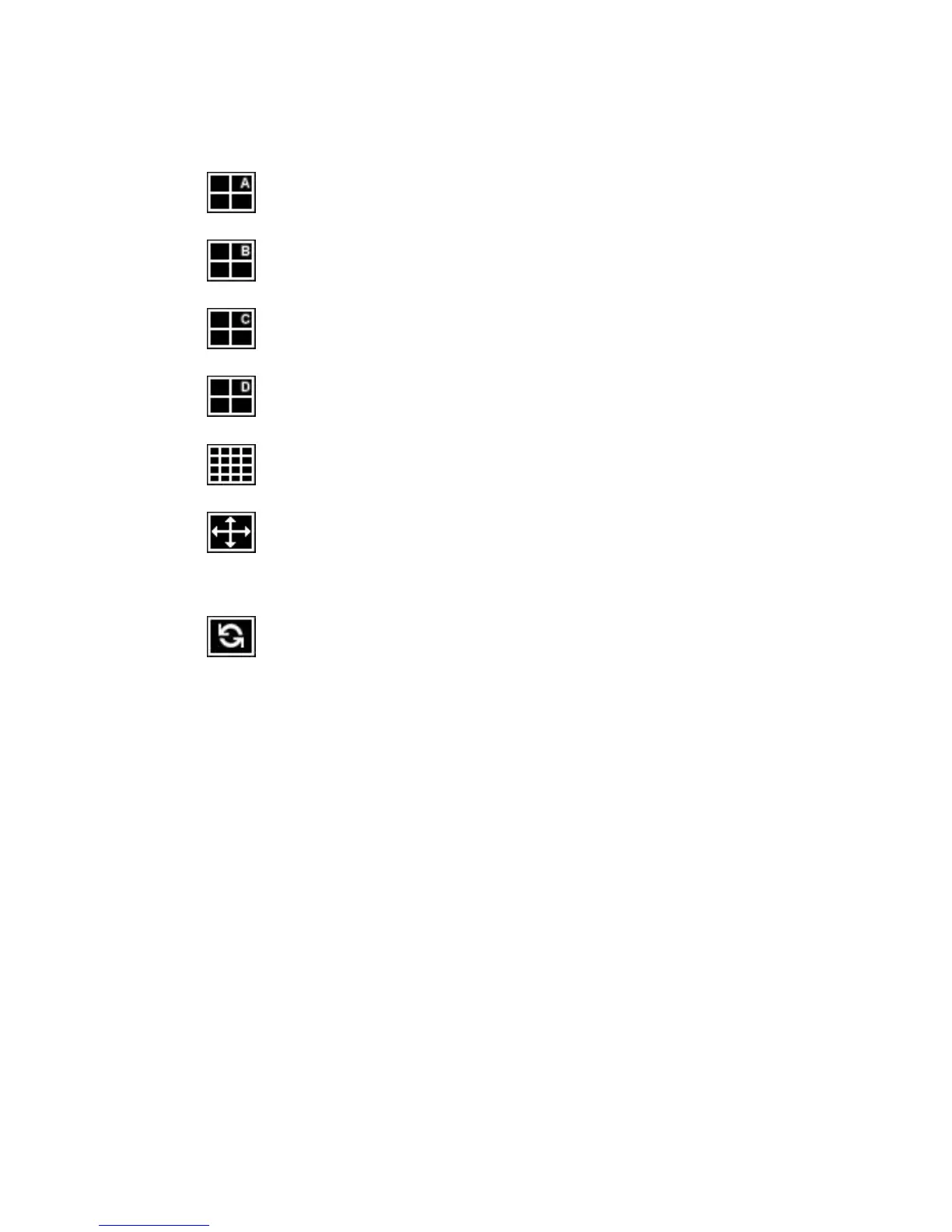
The Screen Division buttons allow you to view cameras in groups such as two by two, three
by three and four by four. The button options are shown below.
1st Four Cameras View – Displays cameras 1-4 in the Video Display Area. To
return to a different Multi-Camera View, select a different Screen Division option
from the Screen Division Menu.
2nd Four Cameras View – Displays cameras 5-8 in the Video Display Area. To
return to a different Multi-Camera View, select a different Screen Division option
from the Screen Division Menu.
3rd Four Cameras View – Displays cameras 9-12 in the Video Display Area.
To return to a different Multi-Camera View, select a different Screen Division
option from the Screen Division Menu.
4th Four Cameras View – Displays cameras 13-16 in the Video Display Area.
To return to a different Multi-Camera View, select a different Screen Division
option from the Screen Division Menu.
16 Camera View – Displays cameras 1-16 in the Video Display Area. To return
to a different Multi-Camera View, select a different Screen Division option from
the Screen Division Menu.
Full Screen – The Full Screen Option allows you to view the Video Display
Area using the entire viewable area on the monitor. When this is selected, no
menu options are visible. You can activate the Full Screen Option by clicking
Full Screen within the Screen Division Menu. You can deactivate Full Screen
mode by right-clicking on the screen.
Auto Sequence – Sequences through the Screen Divisions sets. For example,
selecting the 1A and then the Loop button will sequence through 1A, 2A, 3A, 4A
and then repeat.
Setup Overview
The remote setup screen is designed to look and feel like the local E240 or E480 interface.
Remote users can access the System, Camera, Record, Network and Quick Setup details.
For details on how to configure the recorder using the setup options, refer to the Setup
chapter in this document.


 To Next Page