64
SEARCH
Searching Recorded Data
Search recorded video on the recorder to find a specific time or event.
1. Press the SEARCH key on the front of the recorder or the remote control to enter Search
Mode.
2. Select TARGET media (HDD, DVD-RW, USB).
3. Select the desired search method.
Quick Search
• Click the button on the mouse-over menu bar to automatically playback the latest
video clip.
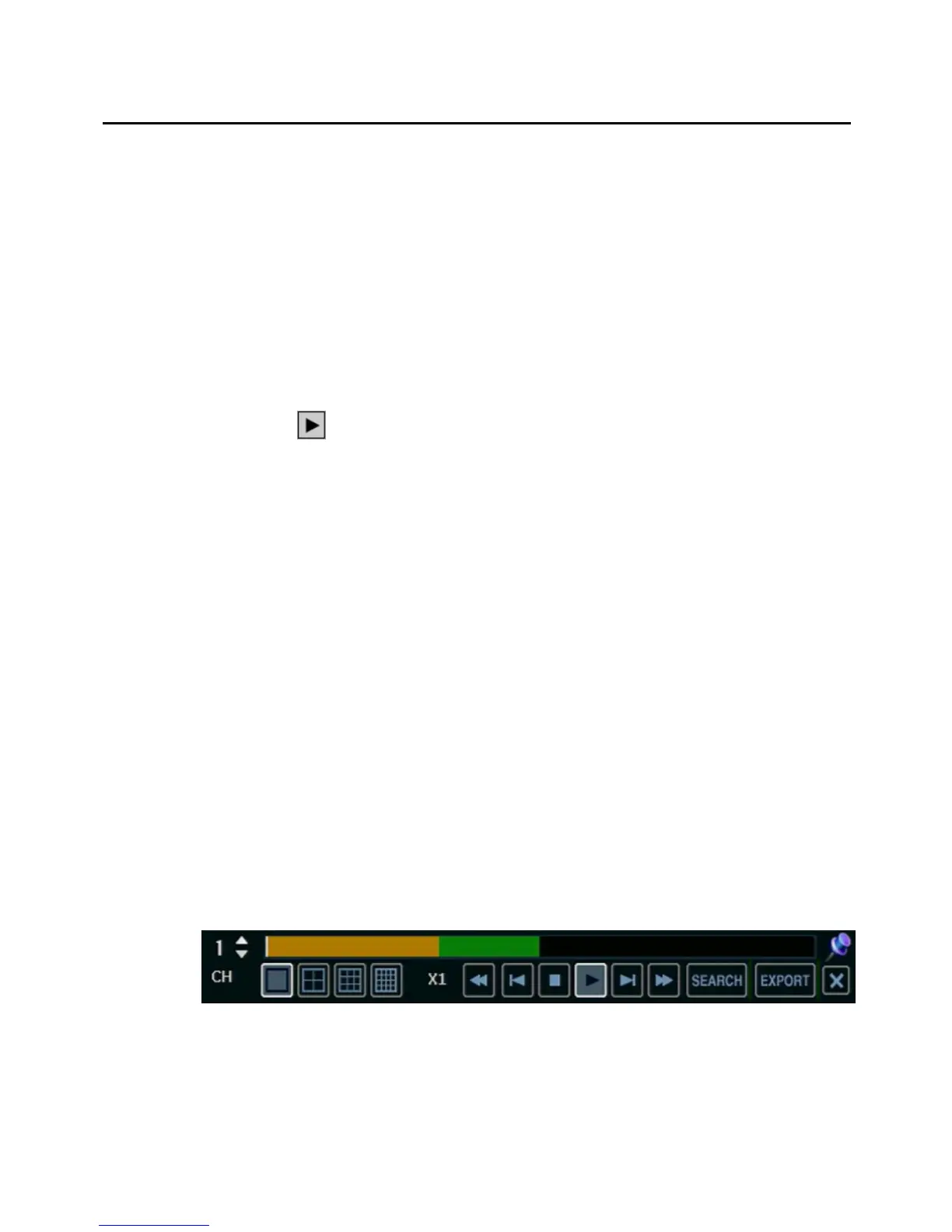
• Using the playback control icons, you can search recordings and control the speed of the
playback by 2x, 4x, 8x, 16x, or 32 times to the forward or backward directions.
Graphic Search
In the search mode, move the mouse to the bottom of the screen and click the colored time
bar to search the desired section of recorded video.
• The white-vertical line indicates the current search time.
• The colors of the time bar are different according to the recording method selected.
Yellow – Continuous recording
Green – Motion-detection recording
Orange – Sensor-activated recording
Sky Blue – Continuous + Motion detection recording
Dark orange – Continuous + Sensor-activated recording
Pink – Motion detection + Sensor-activated recording
Red – Emergency Recording
Dark Blue – Data recorded during DST (Daylight Saving Time)


 To Next Page