Opticon
H15
User Manual
3-6
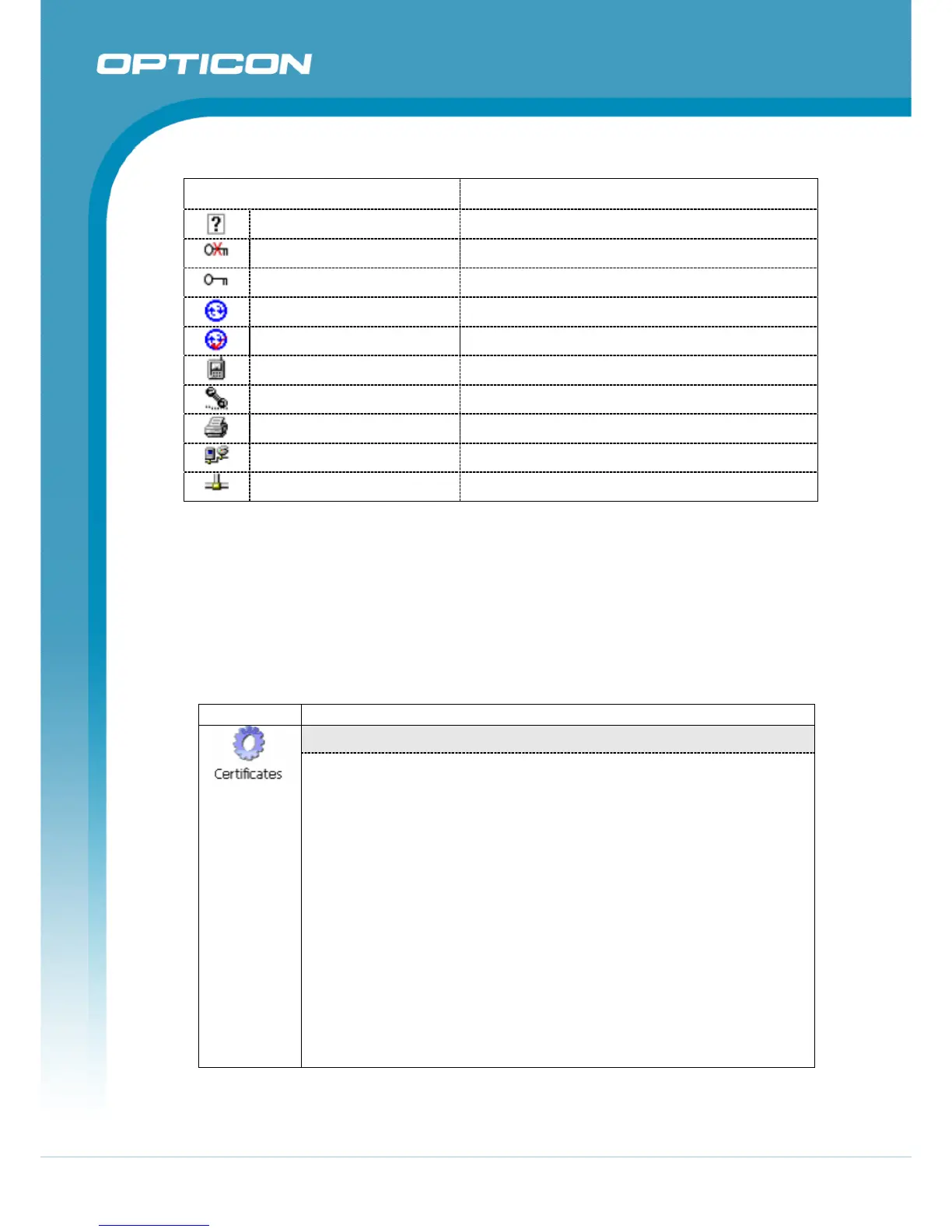
Icon Description
Unknown device icon Device is not defined
Locked icon Device is locked and can not be bonded to.
Not locked icon Device is not locked and can be bonded to.
Bluetooth device icon Bluetooth device
Bonded device icon Bonded Bluetooth device
Mobile device icon Device is a mobile device
Phone icon Device is a phone.
Printer icon Device is a printer
Network icon Device is a network.
Linked icon Device is linked.
Figure 3-12. Bluetooth Icons
3.2.2. Certificates
Certificates are used by some applications for establishing trust and for secure
communications.
Certificates are signed and issued by certificate authorities and are valid for a
prescribed period of time. Windows CE manages multiple certificate stores.
ICON ITEM & FUNCTION
“Store” Tab:
• In the Stores tab, select the certificate store you wish to view or
modify from the drop-down list. (Figure 3-13)
• The “Trusted Authorities “store lists the top-level certificates for
authorities you trust. (Figure 3-14 , Figure 3-15)
• Intermediate certificate authorities that help establish a chain of
trust are stored in the “Other Authorities” store.
• To add a certificate or associated private key to the selected store,
select “Import” (Figure 3-16).
• The “My Certificates “store contains your personal certificates,
which you use to identify yourself (Figure 3-17).
• To view more details of the selected certificate, such as the
expanded name or expiration date, choose “View”.
• To delete the selected certificate from the store, choose “Remove”.


 To Next Page