Opticon
H15
User Manual
3-9
3.2.4. Control Center – Information
ICON ITEM & FUNCTION
The information tab shows:
OS Version, WLAN MAC address, Bluetooth ID, Serial Number
.
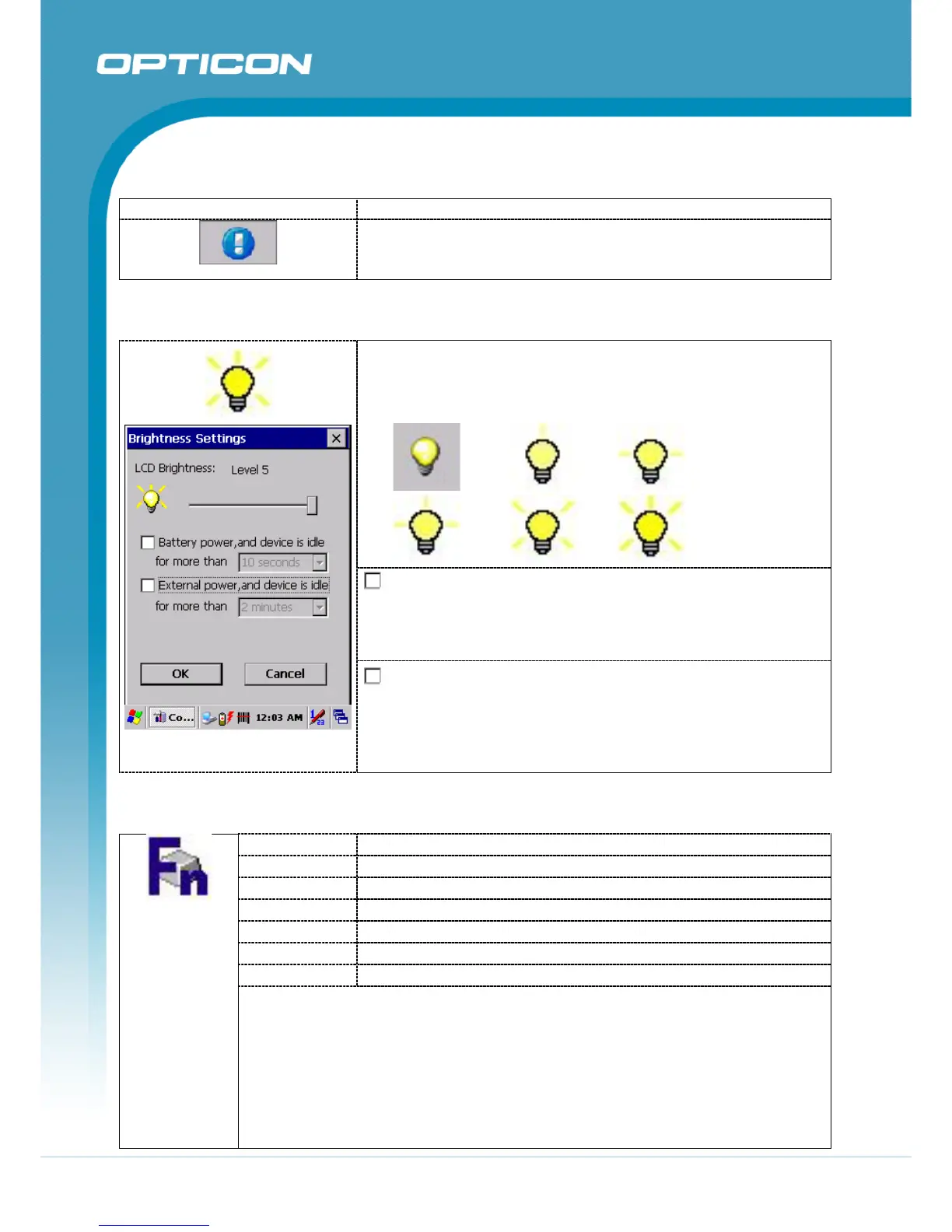
3.2.5. Control Center – Brightness
LCD Brightness:
Tune the LCD brightness by adjusting the slider, or by tapping
the right-arrow & left-arrow direction key of the keypad.
The levels count 6 steps with corresponding picture.
0. 1. 2.
3. 4. 5.
Battery Power, and device is idle for more than
the specified number of seconds
Options are: 10 seconds, 30 seconds, 1 minute, 2 minutes, 3
minutes, 4 minutes and 5 minutes.
Figure 3-19 LCD Brightness
External Power, and device is idle for more than
the specified number of seconds
Options are: 1 minute, 2 minutes, 3 minutes, 4 minutes, 5
minutes, 6 minutes, 7 minutes, 8 minutes 9 minutes, and 10
minutes.
3.2.6. Control Center – Function Key Settings
Fn Key The Application Program of default setting
F1
Internet Explorer
F2
Microsoft WordPad
F3
Inbox
F4
Windows Explorer
Q1
Reserved
Q2
Reserved
• To assign your favorite application program to F1, F2, F3 and F4 hot keys.
• Choose one of function keys from the pull-down list. (Figure 3-21)
• Tap “Browse..” inside the ”Assign program” applet.
• Select one application program you want from program list; choose “OK”.
(Figure 3-22)
• To tap “Default” to return to the default setting.


 To Next Page