Opticon
H15
User Manual
5-15
Revision marks, annotations, and comments: Revision marks are
visible but cannot be changed. Annotations and documents are
removed during conversion.
5.2.4. Remote Connection
Using Remote Desktop Connection, you can log on to Windows Terminal Server
and use all programs installed on this server. For example, instead of running
Microsoft WordPad, you can run the desktop version of Microsoft Word.
a) Connecting to Terminal Server
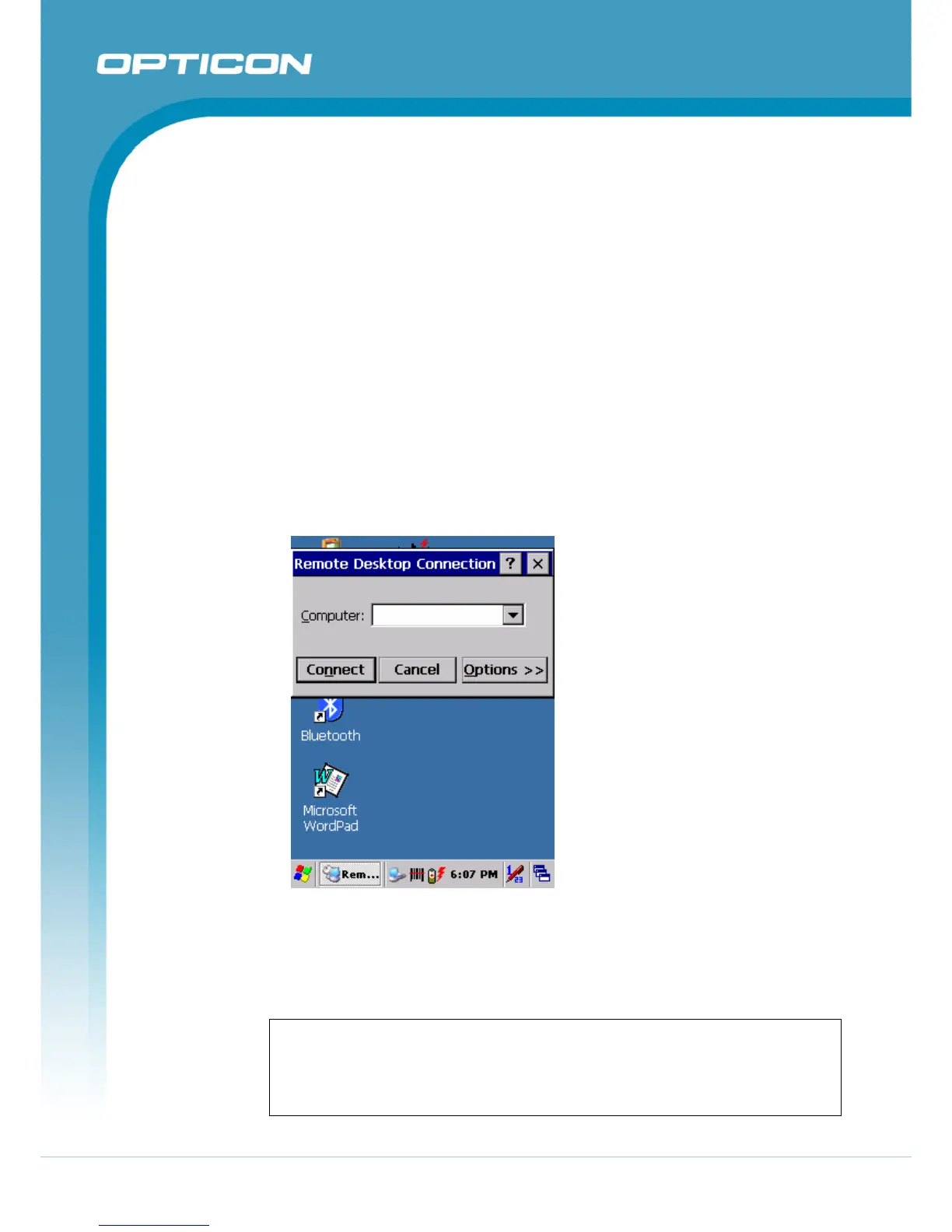
• Select Start > Programs > Remote Connection, or run ‘CETSC’ from the
command prompt.
• In the Server box, type or select a Terminal Server name or TCP/IP
address, or select a server in the drop-down list.
• Select Connect.
• In the Remote Connection window, type your user name, password, and
domain (if required), and then select OK.
Figure 5-3. Remote Connection
b) Disconnecting Without Ending a Session
• In the Remote Connection window, select Start > Shutdown.
• Select Disconnect > OK.
NOTE: If you previously disconnected from a Terminal Server without ending
the session, the Terminal Server will continue to execute any running
processes and Remote Connection can later reconnect to this same session
(if your administrator has configured Remote Connection to reconnect to
disconnected sessions).


 To Next Page