Opticon
H15
User Manual
5-8
21. Store an attachment:
• Select the Service > Options > Storage tab.
• Select to store attachments on internal RAM or a storage card.
• If you use more than one storage card, select it from the list.
NOTE: Once you make the above selection, all attachments will be moved to
the selected card.
22. Delete an attachment:
• To delete an attachment from a message you are sending, select the
attachment, and then select Edit > Clear or press the DEL key on the
keypad.
• To delete an attachment you have received, delete the message.
23. Attach a file to a message:
• With the message open, select File > Attachments > Add Attachment.
• Select the file you want to attach.
NOTE: OLE objects cannot be attached to Inbox messages.
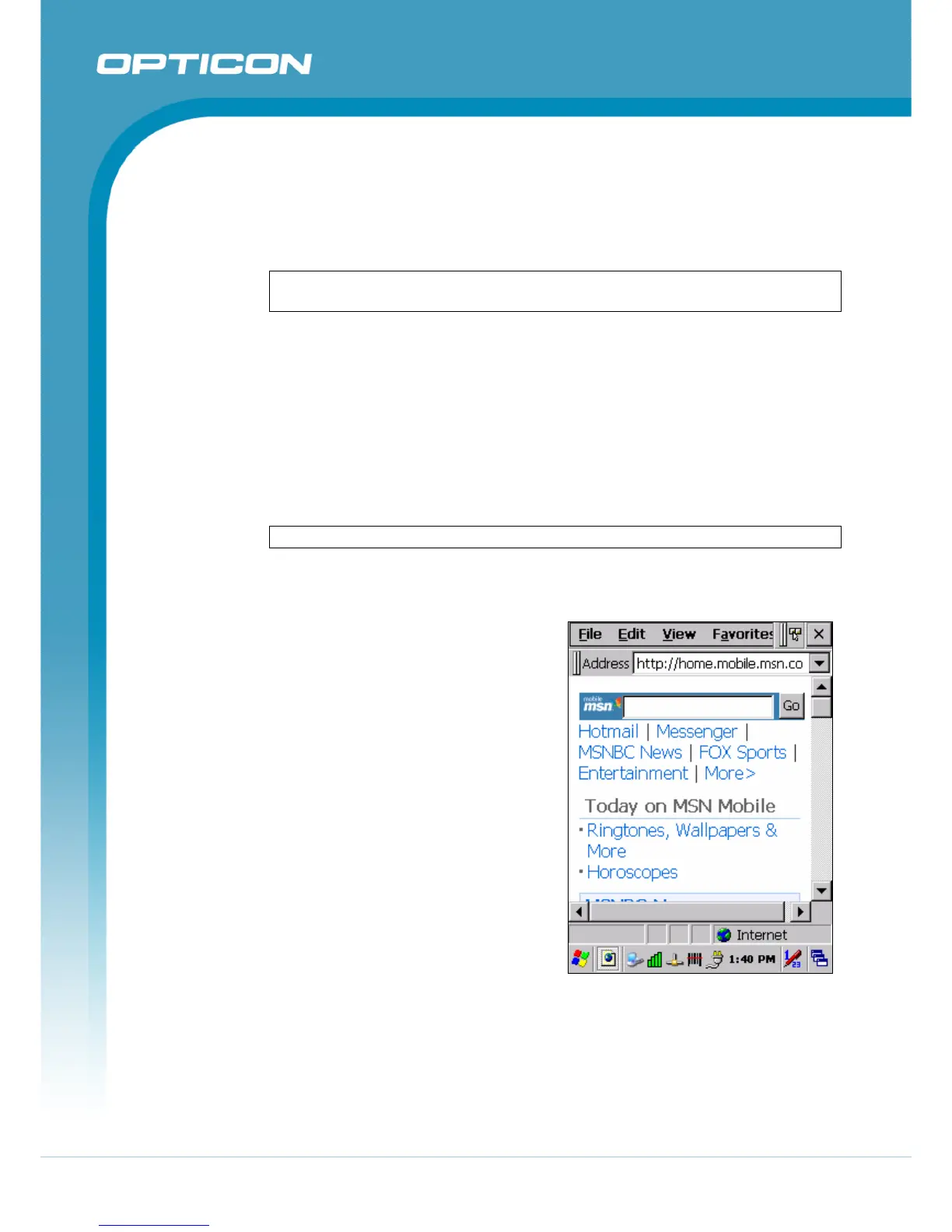
5.2.2. Internet Explorer
With Internet Explorer, you can view Web
or intranet Web pages on your device.
You will need to use a modem or WLAN
to connect to an Internet server provider
(ISP) or network.
a) Connect to the Internet
Before you can view Web pages, you
must set up a remote connection to
your ISP or network.
b) Start Internet Explorer
• Open Internet Explorer by
selecting Start > Programs >
Internet Explorer.
• To get default home page,
navigate to the desired default
Web page.
• Select View > Internet Options
from the command bar.
• Enter the desired URL in the Start page field.
• Press the OK button.
Figure 5-2. Internet Explorer


 To Next Page