Opticon
H15
User Manual
3-15
3.2.10. Display Properties
ICON ITEM & FUNCTION
“Background” Tab
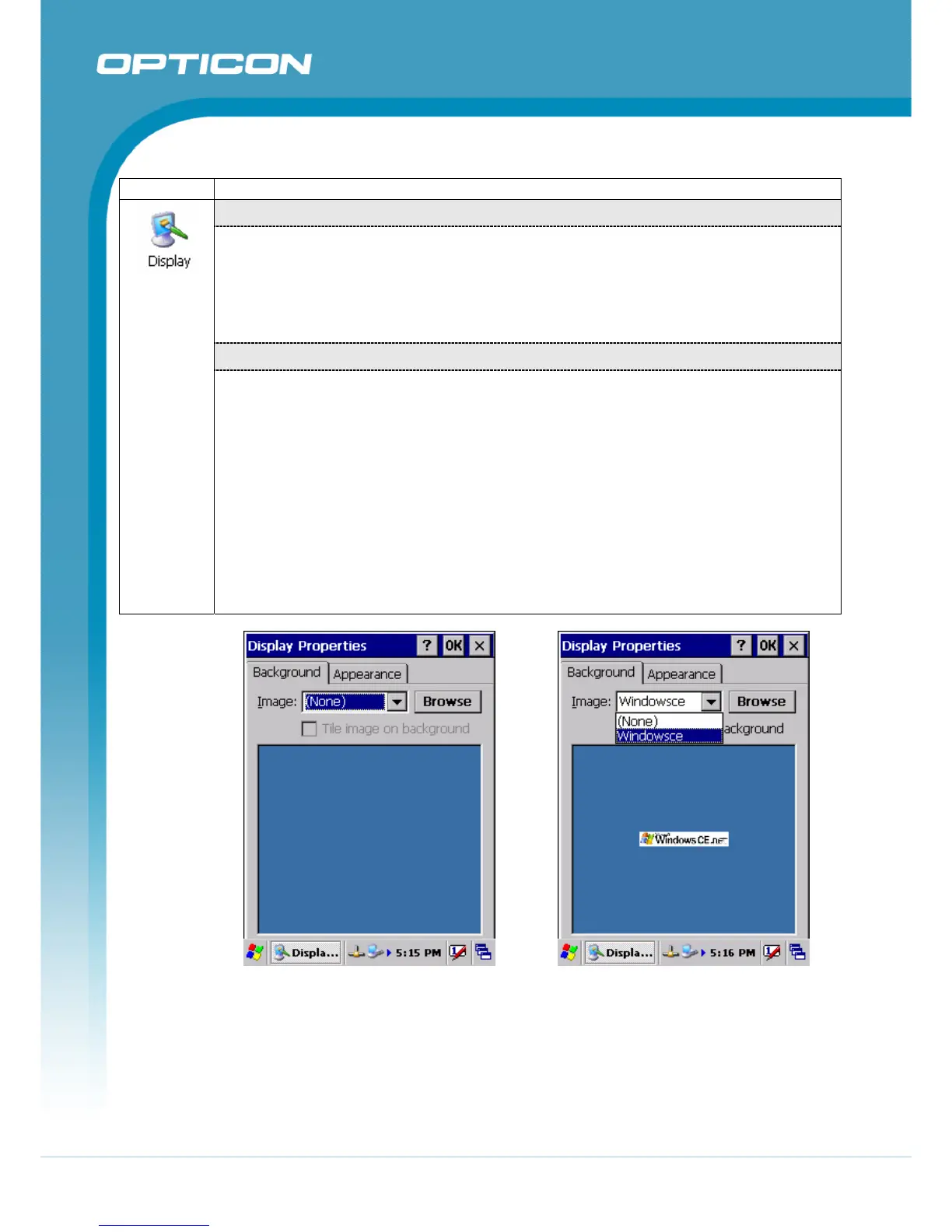
• From the “Image” list, select an image you want as the background of the desktop
(Figure 3-31, Figure 3-32).
• To locate an image in another folder, select “Browse” (Figure 3-33).
• To have the image cover the entire background, select “Tile image on
background”.
• “Appearance” Tab
• Change the color scheme :
(Figure 3-34, Figure 3-35).
o From the” Scheme” list, select a scheme.
o View your choice in the preview box. If you like the scheme, select
“Apply”.
• Create a custom color scheme:
o From the “Item” list, select a display item.
o From the “Basic colors” list, select a color, and select “OK”.
o View your color selection(s) in the Preview box.
o To save the scheme, select “Save”.
o In the “Save this color scheme as” box, enter a name for the scheme,
and select “OK”.
o Select “Apply”.
Figure 3-31. Display Properties Figure 3-32. Display Background Image


 To Next Page