Opticon
H15
User Manual
4-3
4.2.2. ActiveSync File Synchronization
ActiveSync file synchronization requires an ActiveSync partnership between the
Terminal and the host PC. Refer to Setting up a Partnership, above:
1. Select the files in the synchronization configuration for the partnership.
2. Select Tools > Options from the ActiveSync command bar to configure the
synchronization options.
3. Place the file to be synchronized in the Synchronization folder created in your
My Documents directory. (This defaults to the desktop.) During the
ActiveSync connection, all files in the Synchronization folder will be
synchronized to the My Documents directory on the Terminal.
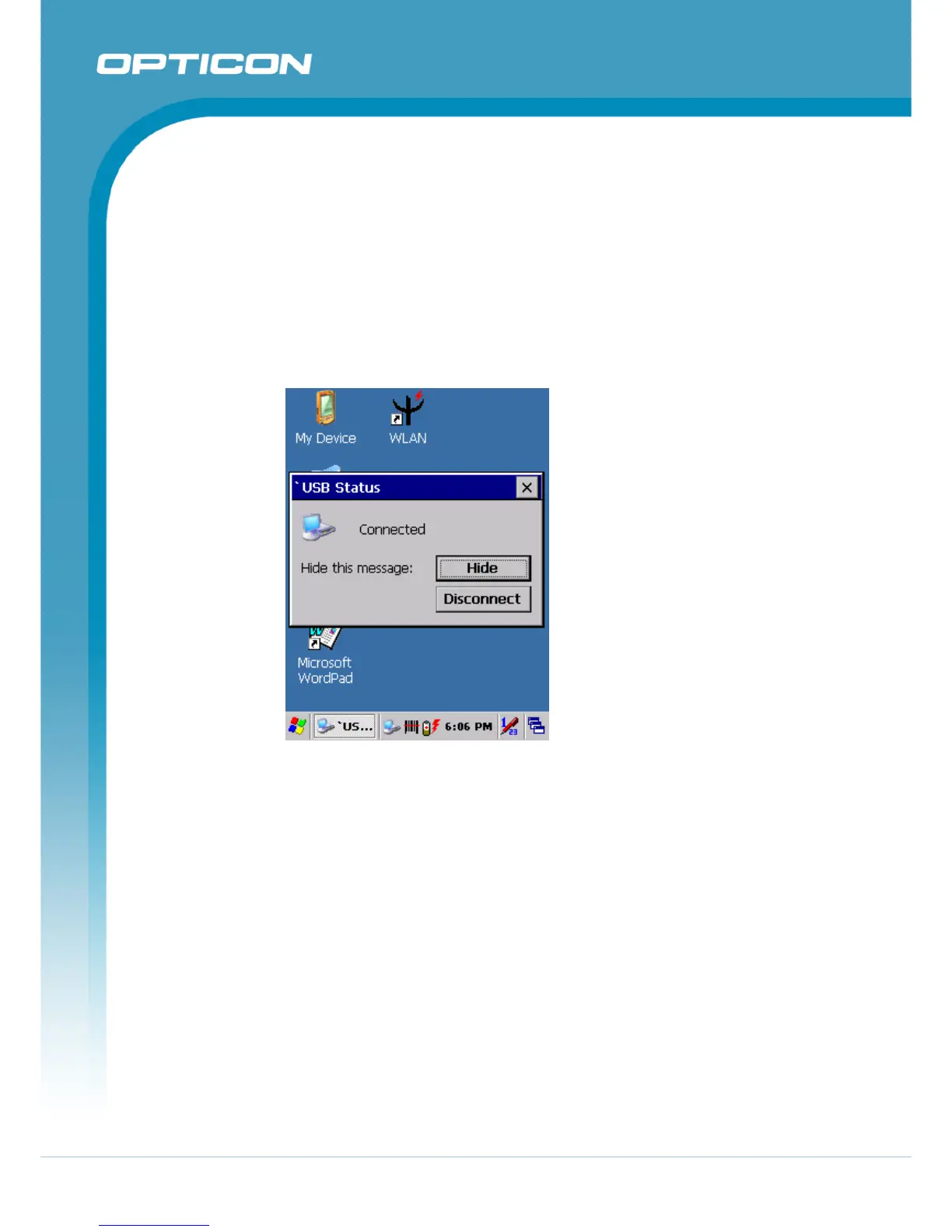
Figure 4-2. ActiveSync Connected
4.2.3. Networking
Please see section 3.2.11 Control Panel - Owner for setting up the network ID.
See section 2.4.5 Navigating the display - Setting Up Wireless LAN to set up the
802.11b wireless LAN for RF connecting.


 To Next Page