Opticon
H15
User Manual
3-35
3.3. Taskbar and Start Menu
ICON ITEM & FUNCTION
Start up
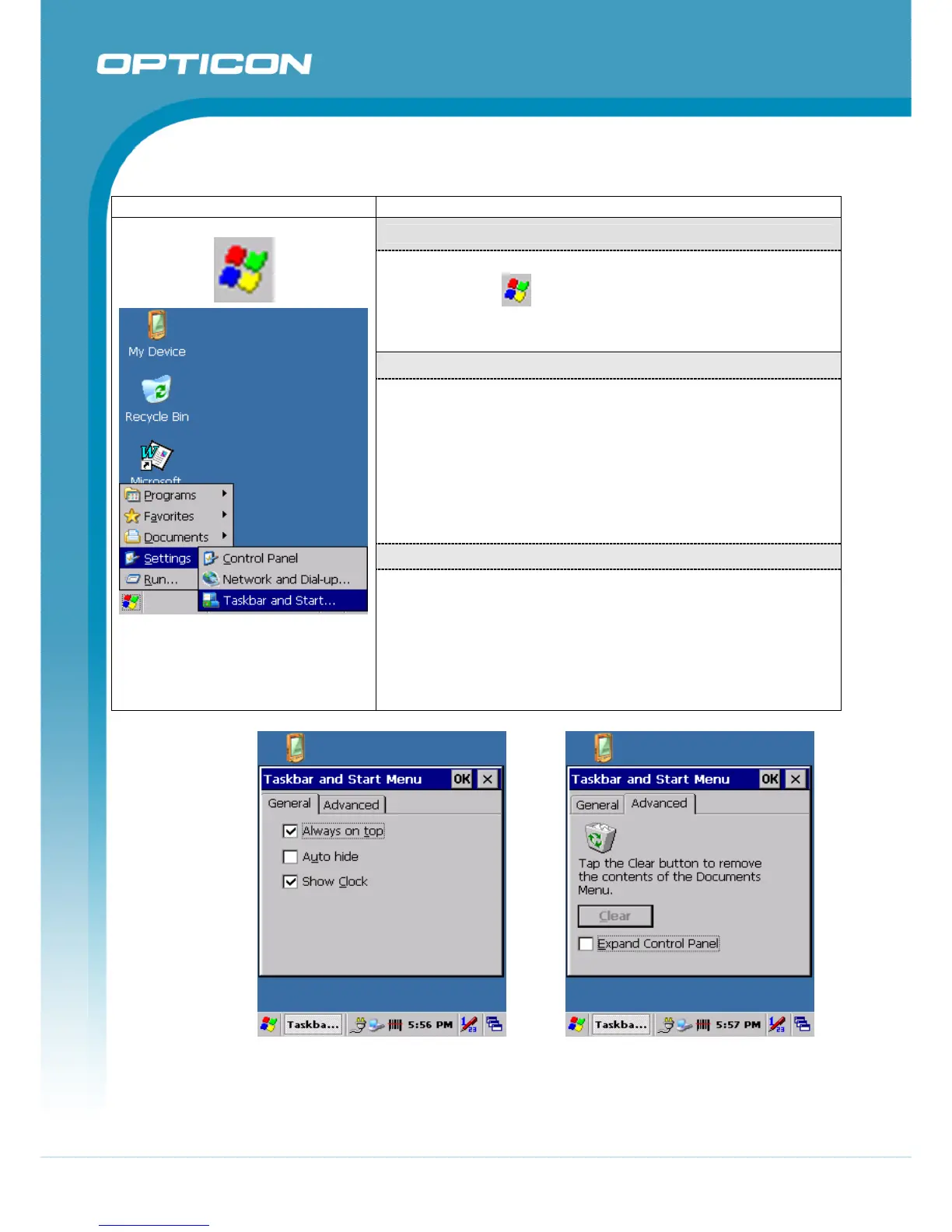
(Figure 3-79)
• Click on the
Windows icon to pull out the menu.
• Select “Settings” and “Taskbar and Start Menu” applet.
“General” Tab
(Figure 3-80)
• In this tab, You can change the position of the Taskbar and
Start menu
o Is always on top or not
o Auto hide or not
o Show Clock or not
“Advanced ” Tab
Figure 3-79. Taskbar and Start
Menu – Start up
(Figure 3-81)
• Tap the “Clear” button to remove the contents of the
Documents Menu.
• Enable “Expand Control Panel” to list all icons of Control
Panel from top to bottom.
Figure 3-80. Taskbar and Start Menu
– General
Figure 3-81. Taskbar and Start Menu
– Advanced


 To Next Page