CHAPTER THREE
Getting started
40
Getting started
3.7.3 Entering characters
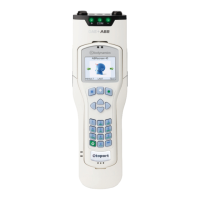
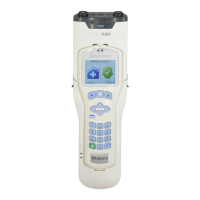
Character entry is similar to a mobile phone where numbered keys can be
pressed sequentially to select the required character.
The order of the characters is dependent on context. For example when
used to enter:
Patient ID
Numbers are presented rst then capitals, e.g. 2ABC.
Family Name
For the rst character capitals are presented rst, then lower case then
numbers, e.g. ABCabc2. For subsequent characters lower case is shown
rst, e.g. abcABC2.
More characters can be stored than can be displayed on the screen.
Arrows are displayed to indicate that the string continues to the left or the
right Pressing the appropriate arrow navigation keys will display the hidden
characters.
3.7.4 Foreign character table
A foreign character pop-up table can be accessed by holding down the 1
button for 1.5 sec. Use the arrow keys to navigate around the table. Select
Insert to enter the required character or select Cancel to close the table
window.



 To Next Page