EasyManua.ls Logo

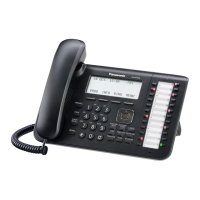
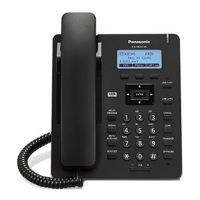
Panasonic KX-HDV430 - User Manual

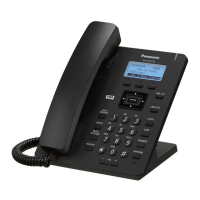
Panasonic KX-HDV430
144 pages
Print Icon
To Next Page IconTo Next Page
Loading...
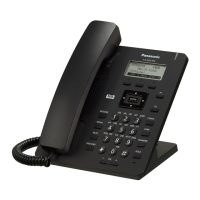
KX-HDV430
Operating Instructions
SIP Phone
Model No.
KX-HDV330
KX-HDV430
Thank you for purchasing this Panasonic product.
Please read this manual carefully before using this product and save this manual for future use.
Note
In this manual, the suffix of each model number is omitted unless necessary.
The illustrations such as some keys may differ from the appearance of the actual product.
Certain products and features described in this document may not be available in your country or area.
Contact your phone system dealer/service provider.
The contents and design of the software are subject to change without notice.
Document Version: 2017-08

Table of Contents

Other manuals for Panasonic KX-HDV430

Questions and Answers

  • D
    Daniel HillSep 6, 2025
    How to turn on the Panasonic IP Phone KX-HDV20?
    • M
      Michael ClarkSep 6, 2025
      If the Panasonic IP Phone KX-HDV20 will not turn on, and it's receiving power via Power-over-Ethernet (PoE), connect the KX-HDV430 to an AC power outlet using the optional AC adapter.
  • M
    Michael AndersonAug 22, 2025
    Why can't I use my Bluetooth headset with my Panasonic KX-HDV430?
    • M
      Melissa MorganAug 22, 2025
      If you cannot have a conversation using a Bluetooth headset with your Panasonic IP Phone, ensure the headset is properly registered to the unit. Also, if an EHS headset is connected, remove it as priority is given to EHS headsets. Finally, check that the headset is charged.
  • J
    Jennifer HarrisSep 4, 2025
    Why does my Panasonic KX-HDV430 line disconnect during outside calls?
    • D
      debrasmithSep 4, 2025
      If your Panasonic IP Phone line disconnects while talking to someone outside, your phone system/service might have a time limit on outside calls. Consult your dealer to extend the time limit if necessary.
  • S
    Stephanie WalkerSep 2, 2025
    Why can't I make long distance calls on my Panasonic KX-HDV430 IP Phone?
    • G
      Grant PalmerSep 2, 2025
      If you cannot make long distance calls on your Panasonic IP Phone, it may be because your telephone service doesn't allow it. Ensure you have subscribed to your telephone company's long distance service.
  • W
    William CohenSep 1, 2025
    What does it mean when the Message/Ringer lamp is lit on my Panasonic IP Phone?
    • C
      Crystal BirdSep 1, 2025
      If the Message/Ringer lamp is lit on your Panasonic IP Phone, it means you received a voice message while you were on the phone or away from your desk. Check your voice message.
  • B
    Brianna MyersAug 30, 2025
    Why does the sound cut out and I can hear myself through the speaker on my Panasonic KX-HDV430 IP Phone?
    • B
      Brian LewisAug 30, 2025
      If the sound cuts out and you hear yourself through the speaker on your Panasonic IP Phone, try speaking closer to the microphone. Also, avoid using the unit near projectors, air conditioners, fans, or other noisy devices, and close curtains or blinds to prevent echoes. Do not move the unit while on a call and use the unit in a quiet environment.
  • W
    wilkinsethanAug 29, 2025
    How to fix a Panasonic KX-HDV430 IP Phone that doesn't ring?
    • M
      Mary RobertsAug 29, 2025
      If your Panasonic IP Phone doesn't ring when you receive a call, the ringer might be turned off. To fix this, press the [j] volume key while a call is coming in, or change the ringer volume setting.
  • J
    Jake SmithAug 27, 2025
    What to do if my Panasonic IP Phone is not performing properly?
    • J
      Jacqueline ReyesAug 27, 2025
      If your Panasonic IP Phone isn't working correctly, first check all cable connections to ensure they are properly connected. If the connections are correct, consult your administrator to confirm that your connection settings are correct. As a last resort, try restarting the unit.
  • T
    Tonya SmithAug 27, 2025
    Why can't the other party hear me on my Panasonic IP Phone?
    • C
      chelseamcintoshAug 27, 2025
      If the other party cannot hear you on your Panasonic IP Phone, it could be that the unit is muted. Press the /[MUTE/AUTO ANS] button to disable the mute feature. Also, if you're using the speakerphone, make sure nothing is blocking the microphone. Keep objects like folders or cups away from the unit during calls.
  • A
    Adam MartinezAug 25, 2025
    Why is the display blank on my Panasonic KX-HDV430 IP Phone?
    • S
      Shawn GonzalezAug 25, 2025
      The Panasonic IP Phone display might be blank because it's not receiving power. This phone isn't designed to work during a power failure. Ensure the device providing PoE is powered and the Ethernet cable is properly connected. If using a PoE hub, the number of connectable devices depends on the hub's power output. If you're using an AC adapter, check that it's connected and powered.

Summary

Important Information

Data Security

Addresses protecting private data, passwords, and preventing unauthorized access.

Disposal of Old Equipment and Batteries

Provides guidelines for proper disposal of electronic products and batteries in EU countries.

Regional Information

Details information specific to users in various countries like US, Canada, UK, and Australia.

For Best Performance

Offers advice on environment, care, touch display, and placement for optimal phone usage.

Before Operating the Telephones

Accessory Information

Lists included and optional accessories for the KX-HDV330 and KX-HDV430 models.

Installation and Setup

Covers procedures for installing the phone, attaching the stand, making connections, and wall mounting.

Location of Controls

Identifies and explains the function of all buttons and controls on the telephone.

The Display and Icons

Explains the telephone's display, status bar icons, and operation icons used in the interface.

Main Menu

Lists and describes the menu items available in standby mode for phone functions.

Phonebook

Details the Personal and Shared phonebook features, storage, and security.

Basic Operations

Explains fundamental operations like going off/on-hook, adjusting volume, and using Bluetooth headsets.

Feature Operations

Making Calls

Explains basic methods for making calls, including dialing, predialing, and easy dialing.

Receiving Calls

Covers how to answer, reject, and manage incoming calls, including auto-answer.

Using Hands-free Mode

Details how to enable and cancel hands-free mode for conversations.

During a Conversation

Explains call management features like transfer, hold, splitting, and conference calls.

Making a Video Call (KX-HDV430 only)

Guides on using the video call feature, including screen modes and options.

Before Leaving Your Desk

Explains how to set up call forwarding and do not disturb features for managing calls.

Using the Phonebook

Details storing, editing, deleting, and searching items in the personal phonebook.

Checking the Line Status

Describes how to check the status of each line on the display in standby and during calls.

Listening to Voice Mail Messages

Explains how to access and manage voice mail messages.

Network Camera (KX-HDV430 only)

Guides on registering, viewing, and controlling network cameras for video feeds.

Communication Camera (KX-HDV430 only)

Covers registering, calling, and managing communication cameras for video and voice communication.

Customizing the Telephone

Setting the LCD Display

Explains how to change the telephone's LCD display settings and select the display language.

Setting the Password

Guides on setting a telephone password for security and accessing features like phonebook lock.

Using Hot Keys

Covers assigning, editing, and deleting hot keys for quick dialing and managing call types.

Function Keys (Program Keys and DSS Keys)

Explains how to change function keys and lists the types of functions available for assignment.

Using the Anonymous Call Features

Details features for making and blocking anonymous calls.

Barring Incoming Calls (Caller ID*1 service users only)

Explains how to store phone numbers to reject incoming calls, effectively blocking unwanted callers.

Setting ECO Mode

Describes how to enable ECO mode to reduce electricity consumption by changing link speed settings.

Changing the Basic Setting

Provides a layout of basic settings menus for incoming, talk, answer, key, display, and other options.

Changing the System Settings

Details the structure of system settings, including status, network, and system configurations.

Changing the Advanced Settings

Outlines advanced settings including Xsi, UC, Call, Executive, and Assistant settings for call management.

Web User Interface Programming

Lists features programmable via the Web user interface for configuration and management.

Updating the Software

Mentions how to update the phone's software version for new features and improvements.

Appendix

Character Mode Table

Explains the six character entry modes for inputting various characters on the phone.

Character Table for Administrator Password

Provides a character table specifically for entering administrator passwords.

Settings Displayed in the Menu

Lists menu items available depending on the phone's mode (voice/video call, camera view) and model.

Specifications

Details the technical specifications for KX-HDV330, KX-HDV430, and KX-HDV20 models.

Troubleshooting

Offers solutions for common issues related to display, performance, sound quality, phonebook, and Bluetooth headsets.

Error Messages

Lists common error messages, their possible causes, and recommended solutions for unit operation.

Revision History

Records changes and new contents in software file versions, specifically for version 06.000 or later.

Wall mounting template

Provides instructions and templates for wall mounting the telephone unit and expansion modules.

Panasonic KX-HDV430 Specifications

General IconGeneral
Ethernet Ports2 x 10/100/1000 Mbps
Lines16
Headset SupportYes
BluetoothNo
Power SupplyAC Adapter (optional)
HD VoiceYes
Wall MountableYes
Audio CodecG.711, G.722, G.726, G.729
Power over EthernetYes
Headset Jack2.5 mm
SpeakerphoneYes
Supported ProtocolsSIP
Network InterfacesEthernet
Display4.3-inch color LCD

Related product manuals