177
7
Settings
2
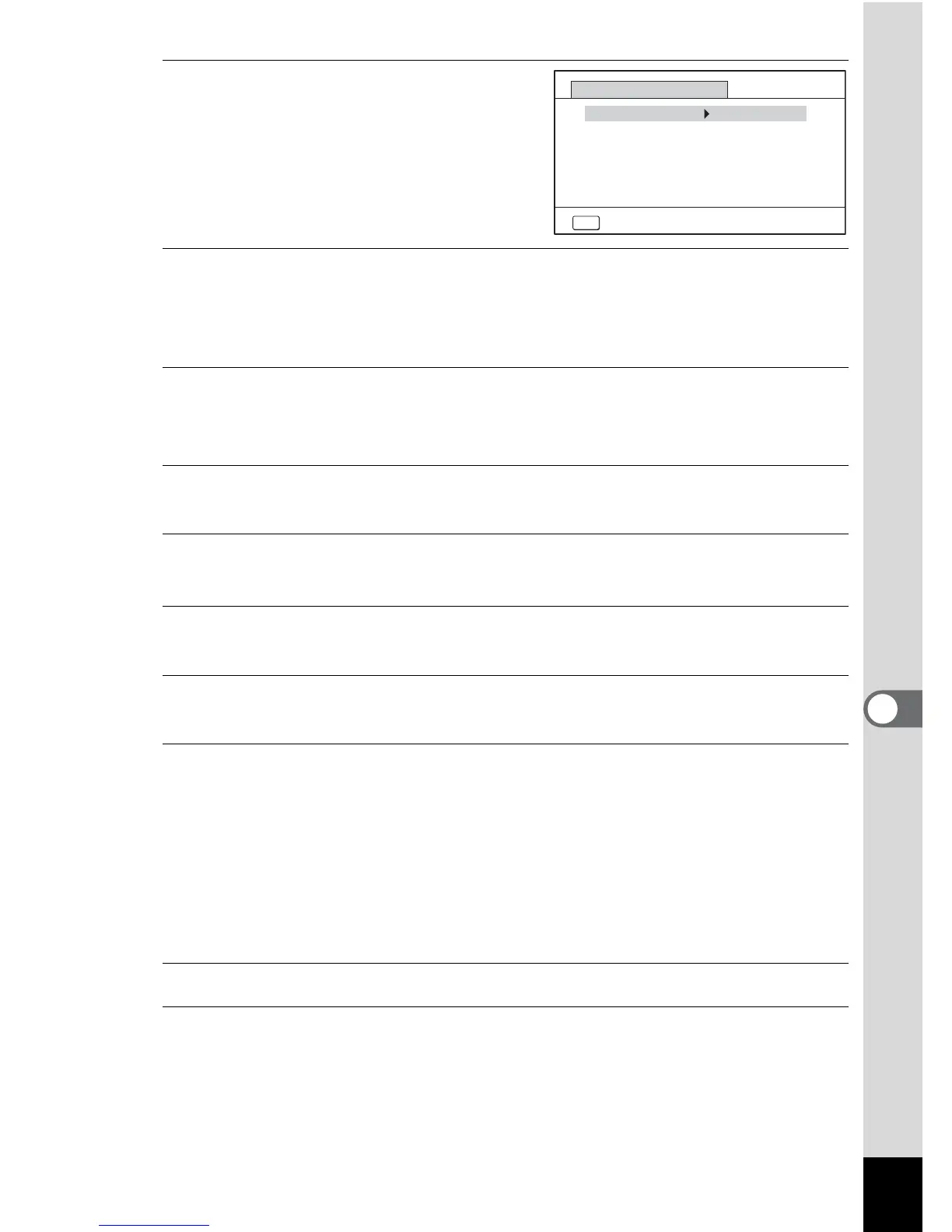
Press the four-way controller (5).
The [Date Adjustment] screen appears.
3
Press the four-way controller (5).
The frame moves to [mm/dd/yy].
Depending on the initial setting or previous setting, [dd/mm/yy] or [yy/mm/dd]
may be displayed.
4
Use the four-way controller (23) to choose the date and time
display style.
Choose from [mm/dd/yy], [dd/mm/yy] or [yy/mm/dd].
5
Press the four-way controller (5).
The frame moves to [24h].
6
Use the four-way controller (23) to select [24h] (24-hour
display) or [12h] (12-hour display).
7
Press the four-way controller (5).
The frame returns to [Date Format].
8
Press the four-way controller (3).
The frame moves to [Date].
9
Press the four-way controller (5).
The frame moves to one of the following items depending on the date style set
in step 4.
Month for [mm/dd/yy]
Day for [dd/mm/yy]
Year for [yy/mm/dd]
The following operations and screens use [mm/dd/yy] as an example. The
operations are the same even if another date style has been selected.
10
Use the four-way controller (23) to change the month.
11
Press the four-way controller (5).
The frame moves to the day field. Use the four-way controller (23) to change
the day. After changing the day, change the year in the same manner.
Cancel
MENU
mm/dd/yy 24
h
00:00
Settings complete
Date Adjustment
Date Format
Date
Time
01/01/2012


 To Next Page
 Loading...